
Last updated:
May 19, 2026
Add Unlimited Items (over 100)
Webflow limits collection lists to 100 items. To show more, enable Paginate Items and set it to 100 on both the map item collection list and the pop-up/tooltip collection list in Webflow Designer. Dynamic Map loads all pages automatically. Always apply the same filter and sort settings to both lists. Note: 1,000+ items may cause performance issues on older devices.
Webflow limits CMS collection lists to 100 items by default. To show more than 100 pins on your Dynamic Map simultaneously, you need to enable pagination and set it to 100 items per page on both collection lists Dynamic Map uses — the main map item list and the pop-up/tooltip list.
Step 1: Enable Pagination on the Map Item Collection List
In Webflow Designer, select your main map item collection list and open the Settings panel. Under Display Limits, enable Paginate Items and set items per page to 100.
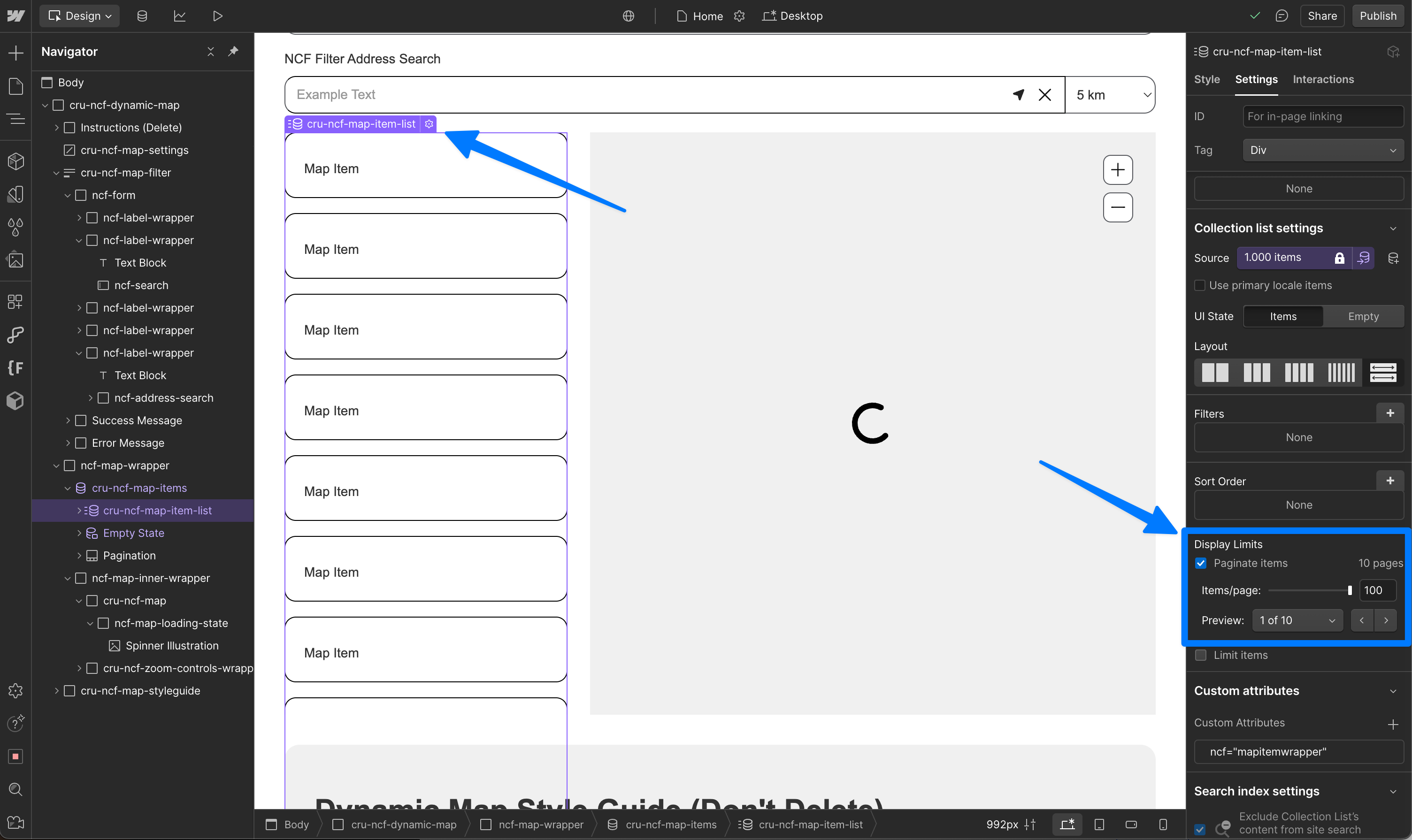
Step 2: Enable Pagination on the Pop-Up / Tooltip Collection List
Repeat the same step for your pop-up and tooltip collection list — also set it to 100 items per page. Both lists must be configured identically for Dynamic Map to function correctly.

Dynamic Map will automatically load all pages and render all items on the map at once.
Important: Keep Both Lists in Sync
⚠️ Common issue: If you change filter or sort settings on one collection list, apply the exact same changes to the other. Mismatched settings break the connection between pins and their pop-up content. See Map Shows Wrong Pop-Up Content for the full fix.
⚠️ Performance notice: Displaying 1,000 or more items can cause performance issues on older devices. Test your map thoroughly before going live with very large collections. Connect with No Code Flow Studio for a Custom Map Build to get advanced performance pins.
