Last updated:
June 4, 2026
Map Provider: Google Maps
Google Maps is the most widely recognised map platform in the world, and in Dynamic Map it delivers that familiar Google Maps experience, directly inside your Webflow site with full CMS pin integration. It’s the right choice when clients specifically request the Google Maps look, or when the familiarity and perceived trustworthiness of Google Maps is important to your audience.
To use Google Maps with Dynamic Map, you need a Google Maps JavaScript API key from Google Cloud Console. Both enabling the API and adding your live domain to the key’s Website Restrictions are required steps. The map will appear gray on your live site if either is missing.
To get a fully custom on-brand map look consider using Mapbox.
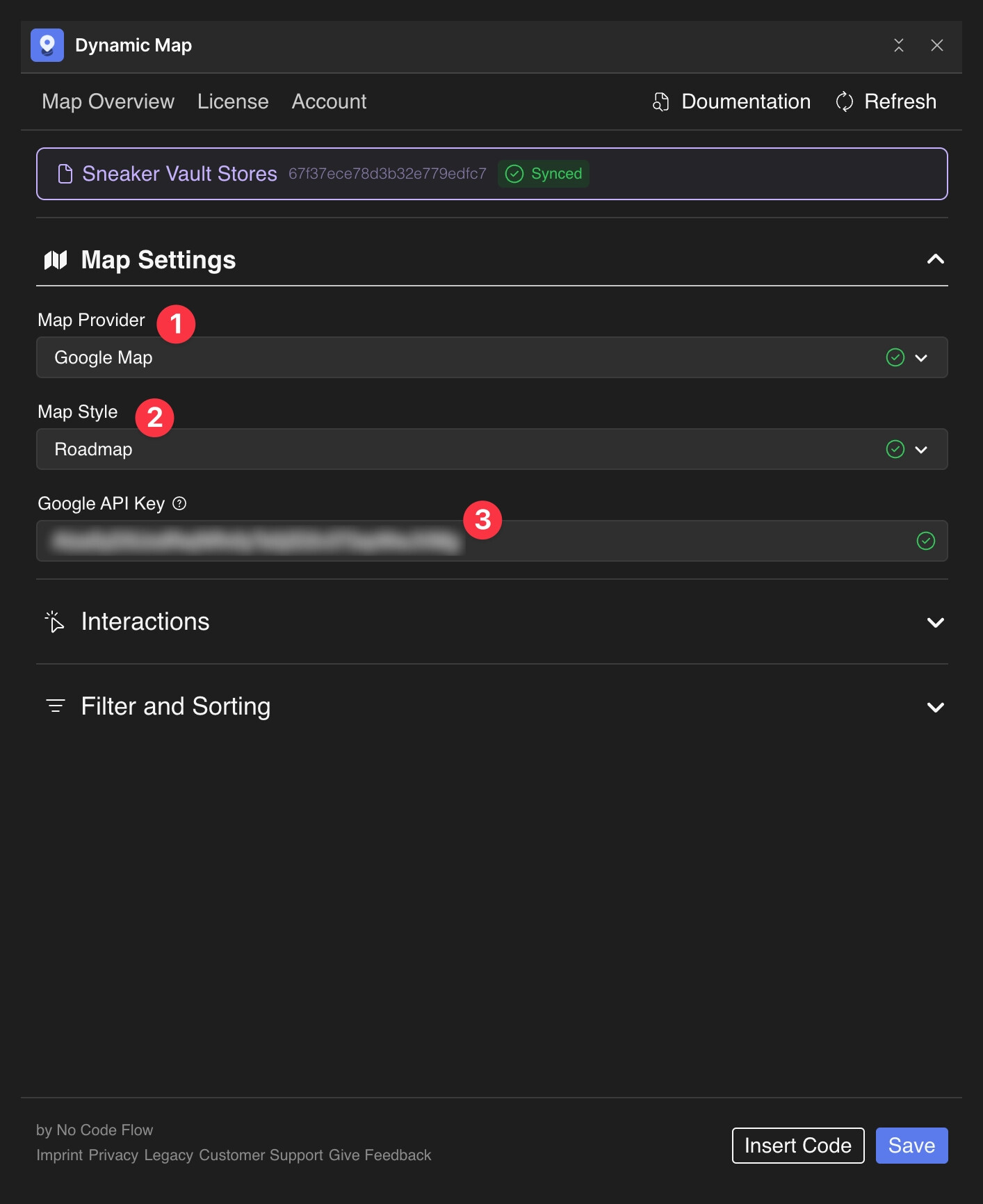
Configure Google Maps
- In Dynamic Map, open Map Settings and change Map Provider to Google Maps.
- Select a Map Style from Google’s default themes.
- Insert your Google API Key. (Watch the video tutorial.)
💡 No API key? Try MapLibre or Open Street Map. Both are free with no account required.
If your Google map appears gray after setup, see My Google Map is not loading / is gray.
Practical Tips
- Add your live domain to Website Restrictions. This is the most common cause of the gray map issue. In Google Cloud Console, open your API key settings and add your live domain (e.g. yourdomain.com/*) to the Website Restrictions list. Your Webflow.io staging domain doesn’t need to be listed, only the live domain.
- Consider MapLibre if API key management feels like overhead. For projects where the Google Maps look is not a requirement, MapLibre provides a free, open-source alternative that requires no API key, no account, and no billing setup.