Last updated:
June 4, 2026
Favorite Items
Favorite Items lets users save locations on your CMS map in Webflow for later reference. Saved items persist in the user’s browser (Guest Mode) or, when integrated with Memberstack, to their user account. The feature adds a toggle button to each map item that users tap to mark a location as a favourite. Favourited pins appear highlighted on the map, and the list can be filtered to show only saved items.
Favorite Items is one of the most engaging Dynamic Map features for directories, travel guides, property searches, and any use case where users return to the map multiple times and want to track locations they’re interested in.
.png)
Setup
Step 1: Enable Favorite Items in Dynamic Map App
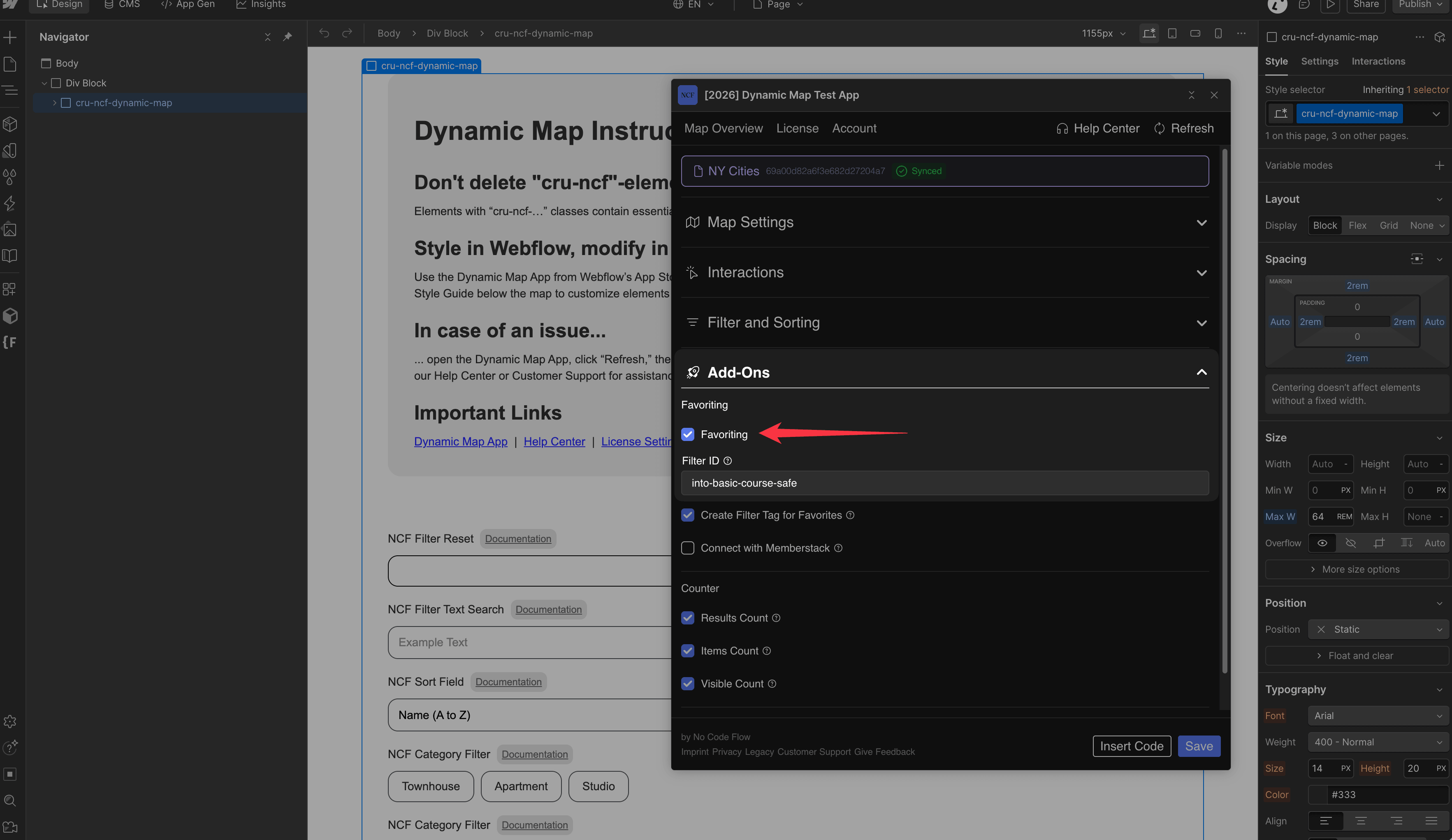
In Dynamic Map App, navigate to Add-Ons and enable Favorite Items. Press Save.
Step 2: Locate the Favorite Button in Webflow Designer
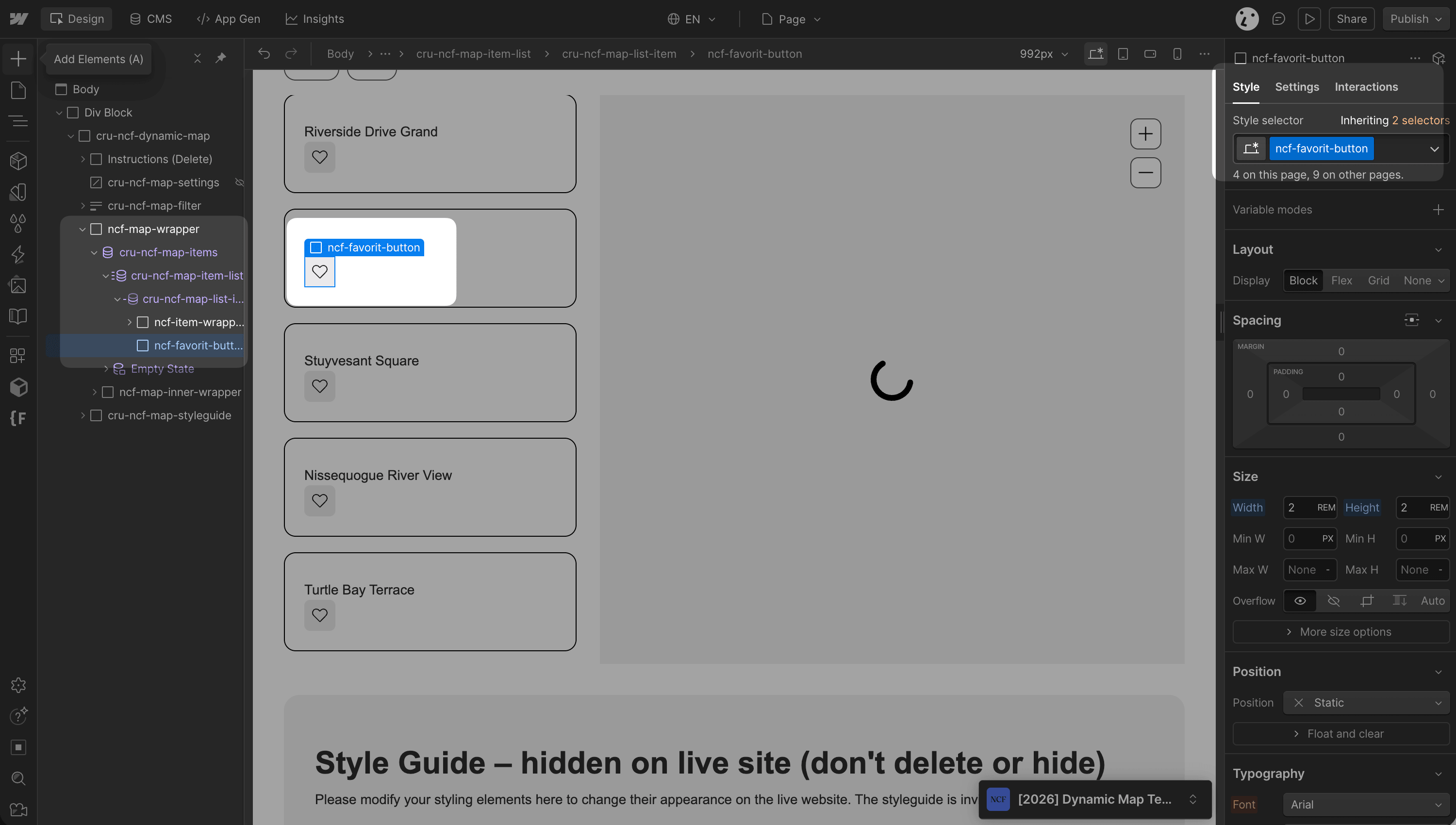
After saving, a ncf-favorit-button element appears in your Webflow project inside the map item list.
Step 3: Style the Favorite Button States
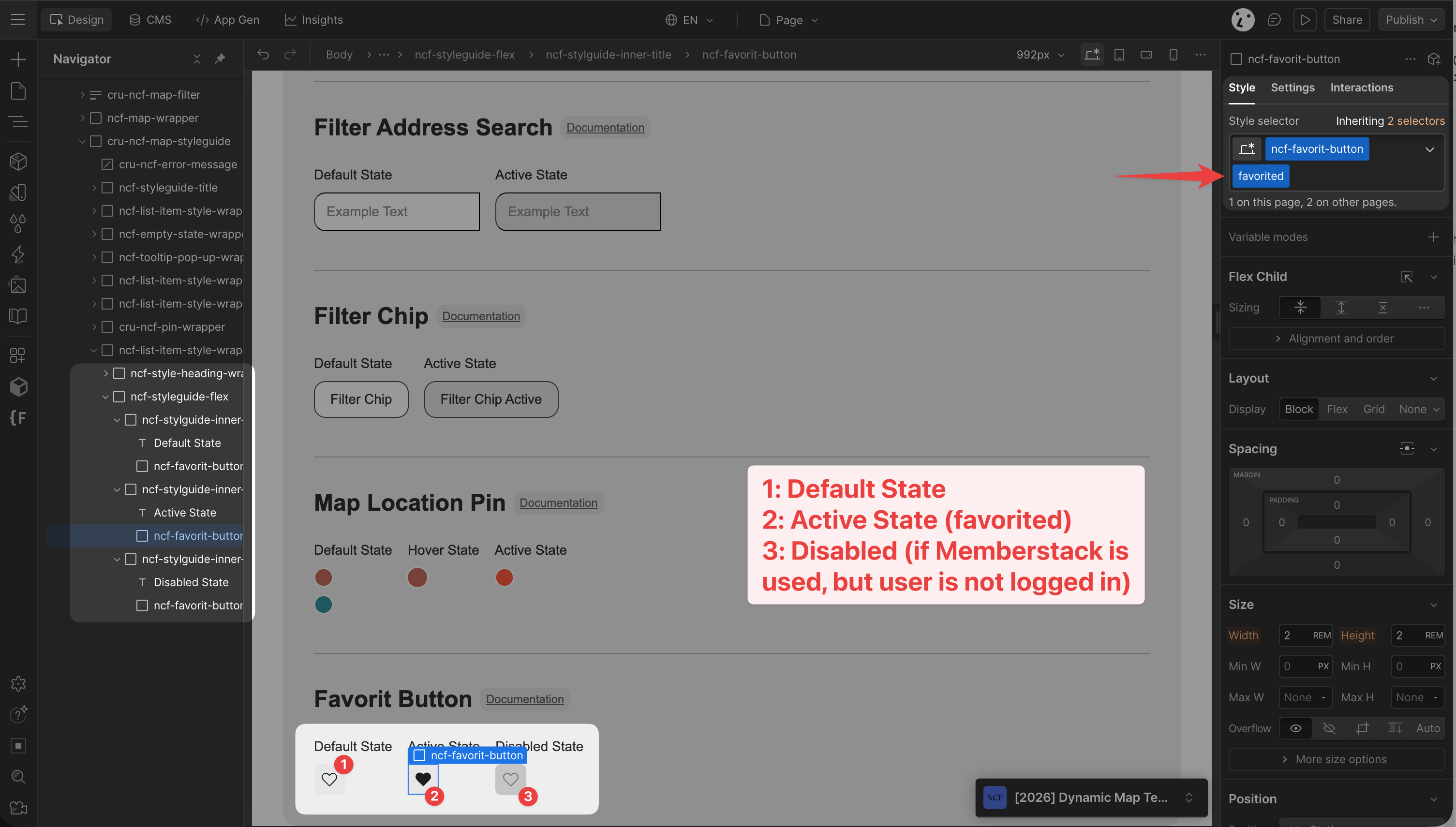
In the Style Guide, find the ncf-favorit-button element to style the selected favorite button states.
You can style the following favorite button states:
1: ncf-favorit-button
Default state
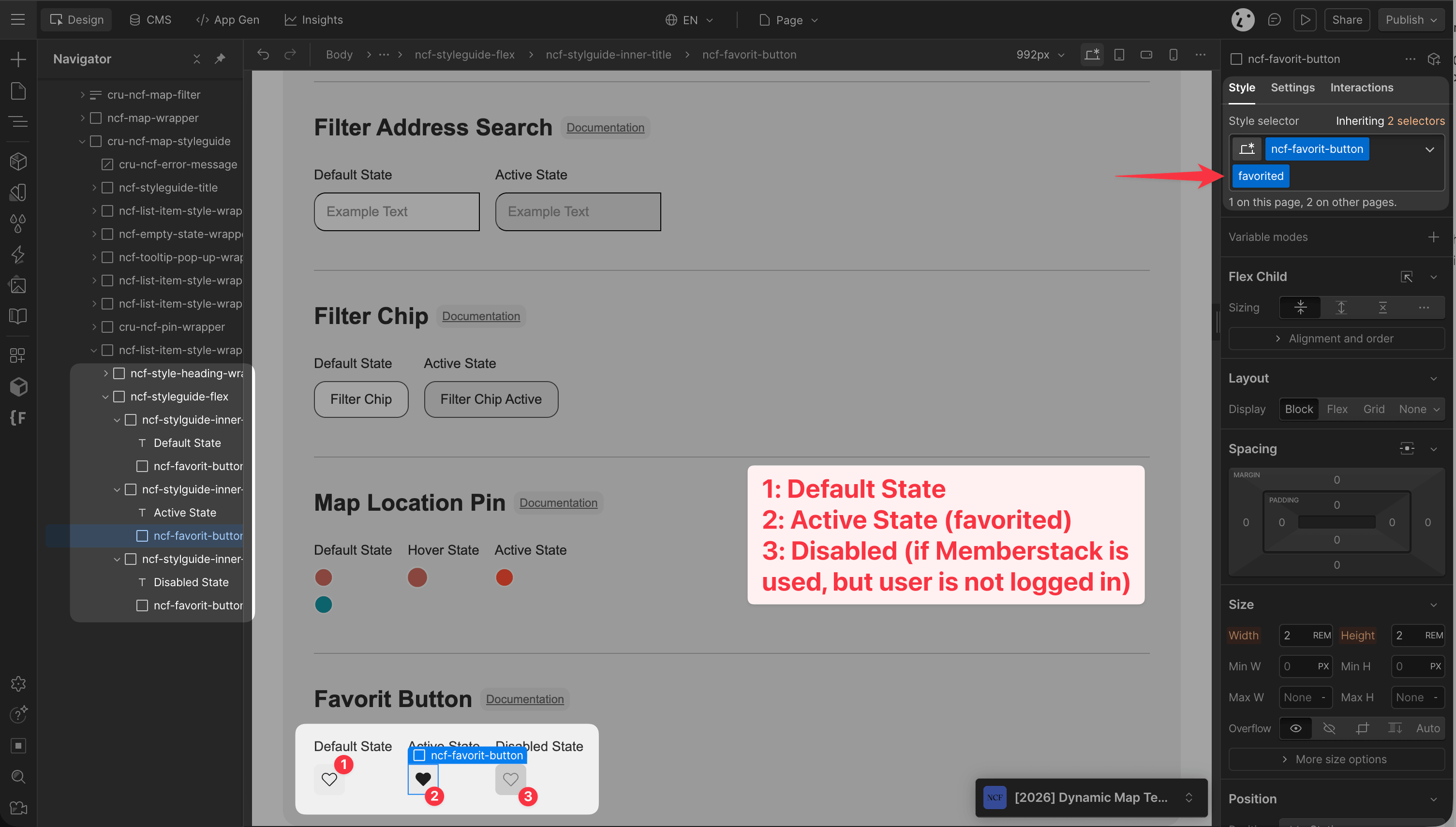
2: ncf-favorit-button favorited
State for items that have been favorited
3: ncf-favorit-button disabled
State for items that can’t be favorited (when using the Memberstack integration)
Pro Tip: Place a like button inside your pop-up for a more immersive experience.
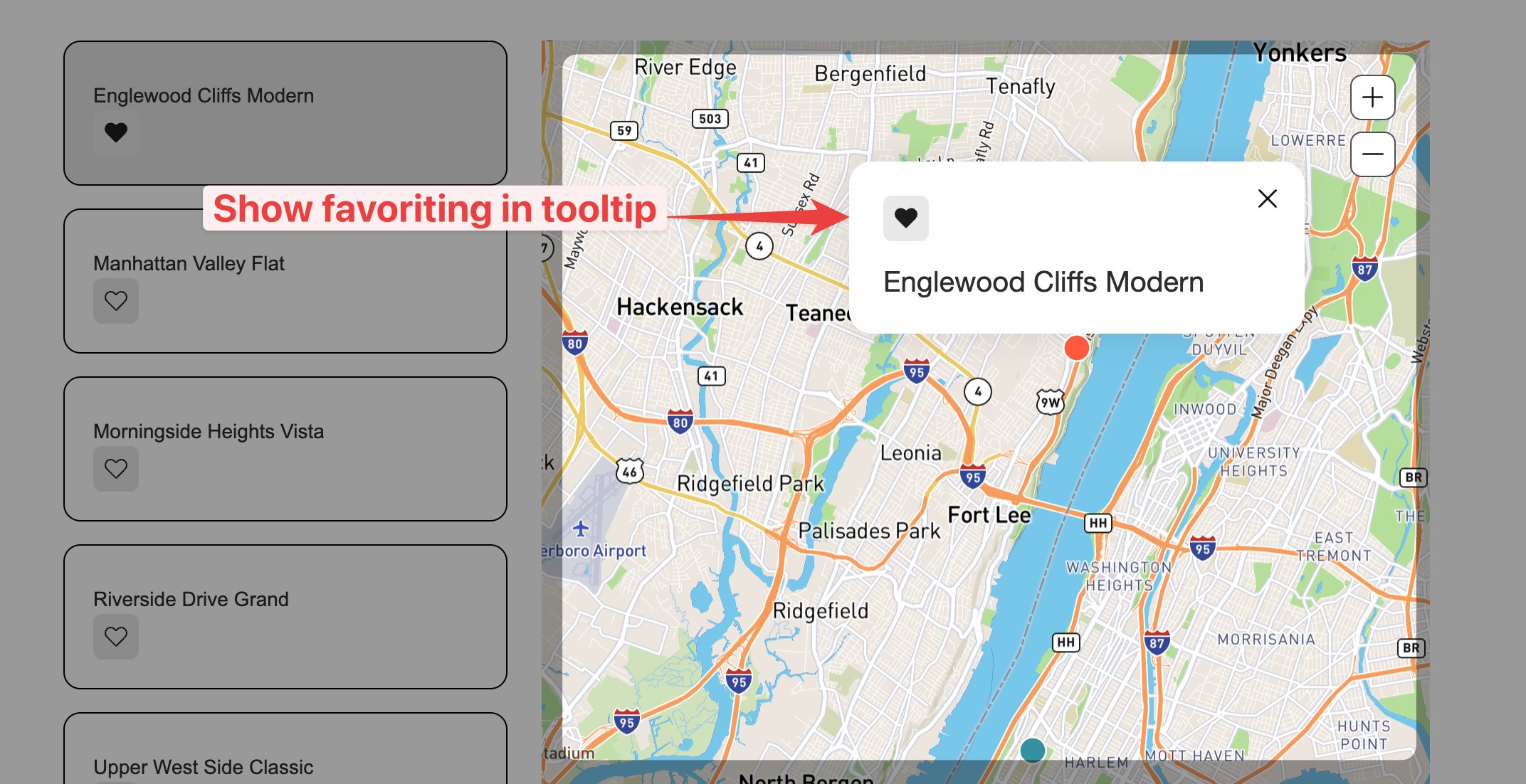
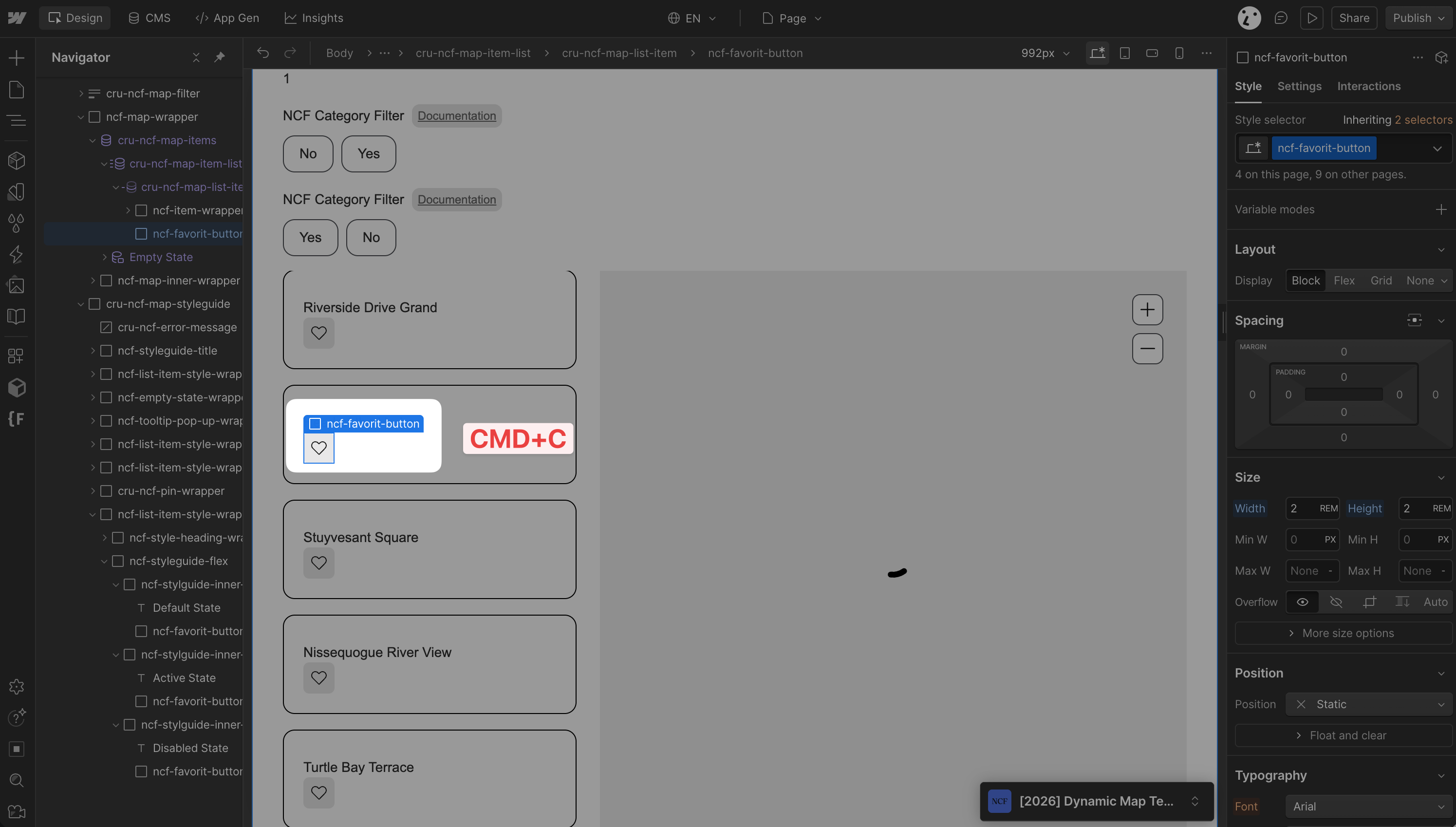
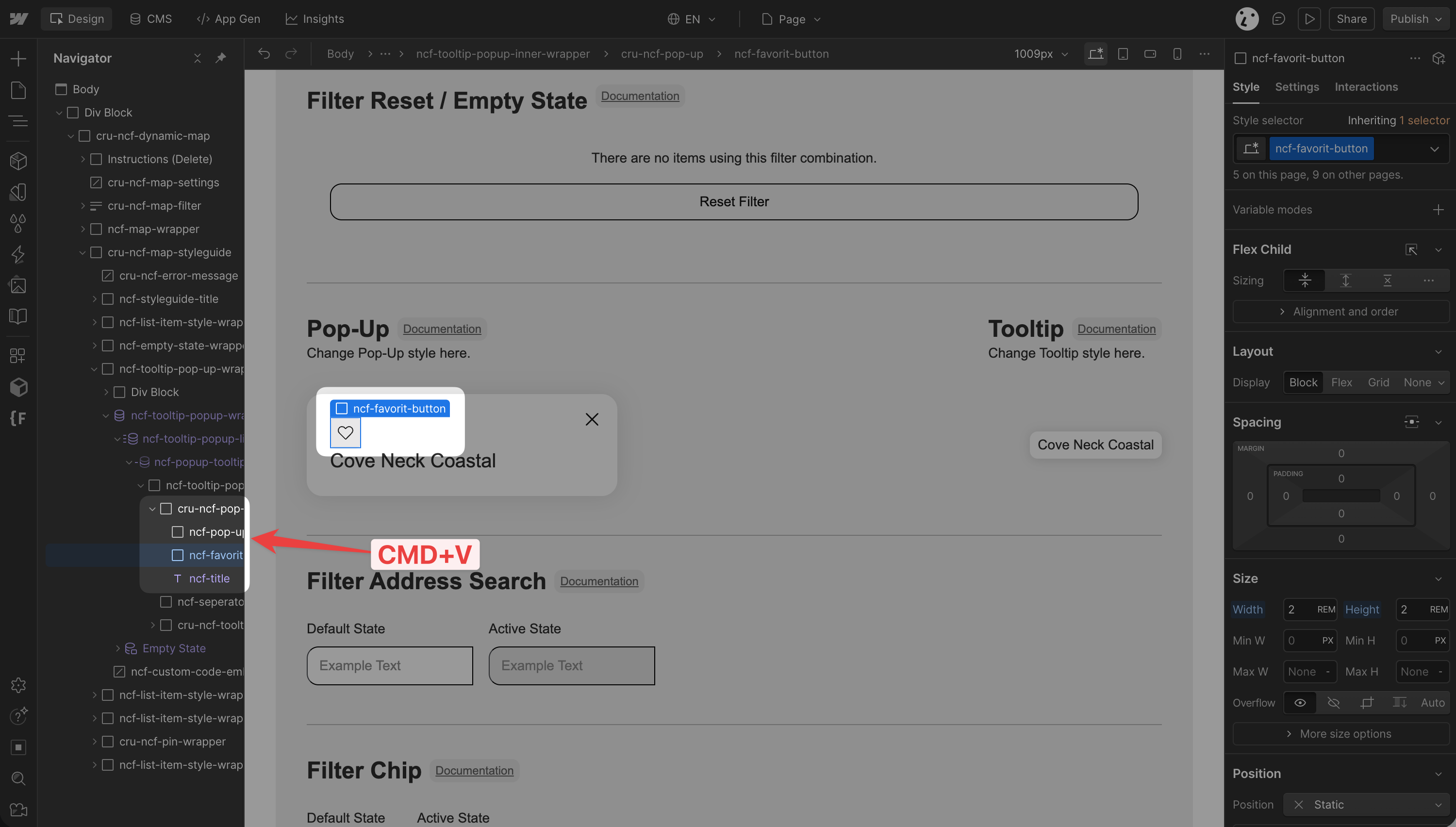
Step 4: Add a Filter to Show Only Favourites
To enable the Favorit Tag for filtered Items count, make sure to enable the “Create Filter Tag for Favorites” via Dynamic Map App’s Add-Ons panel.
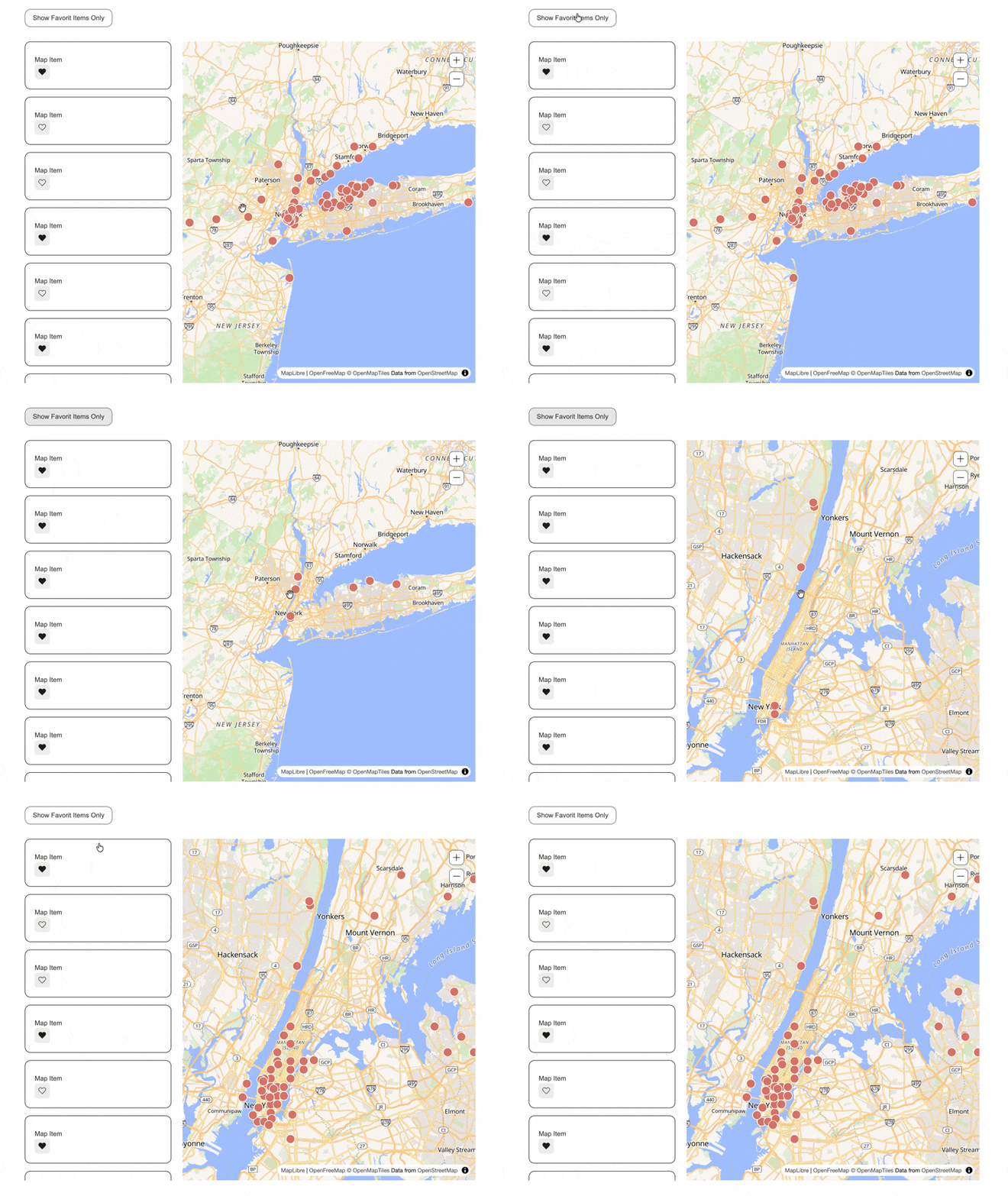
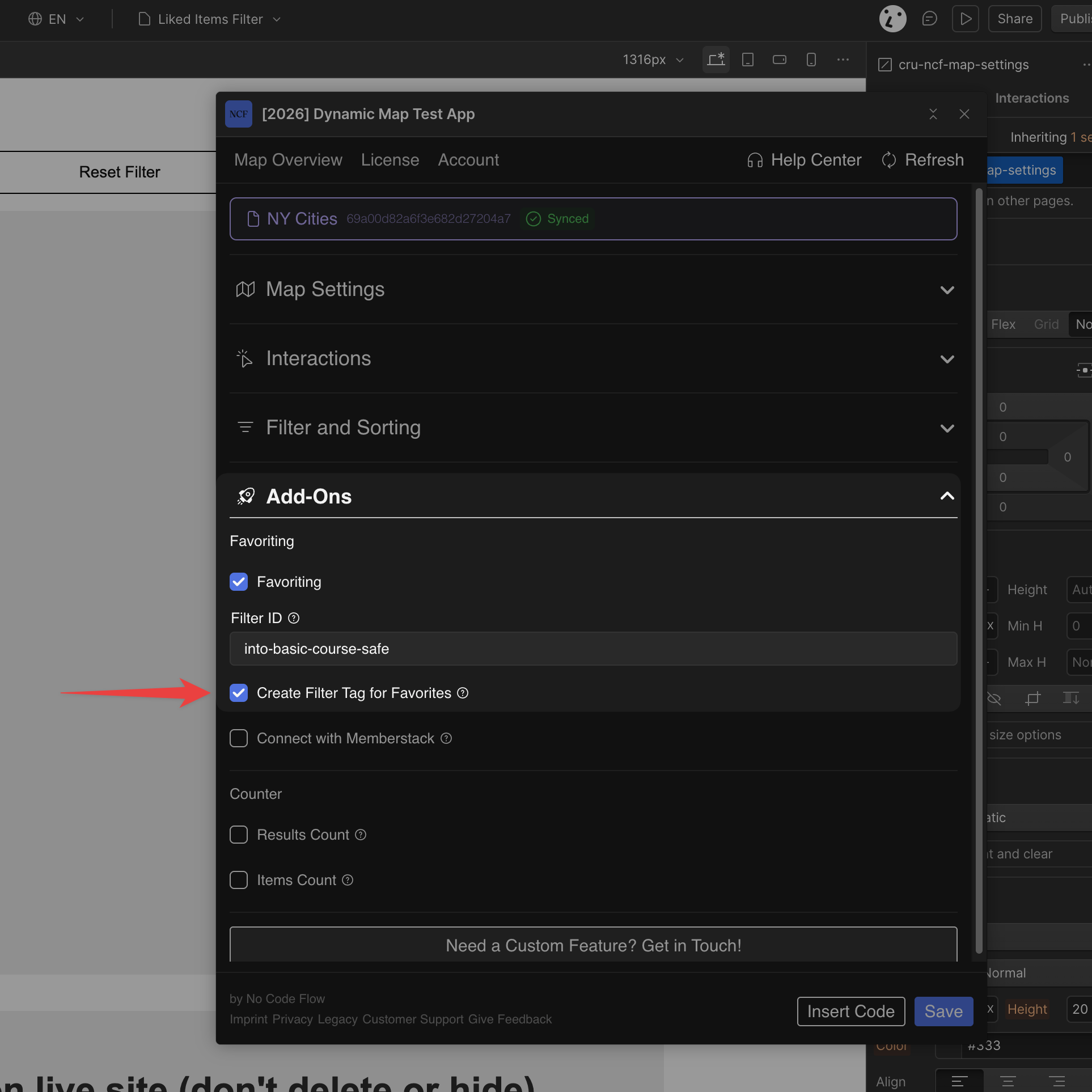
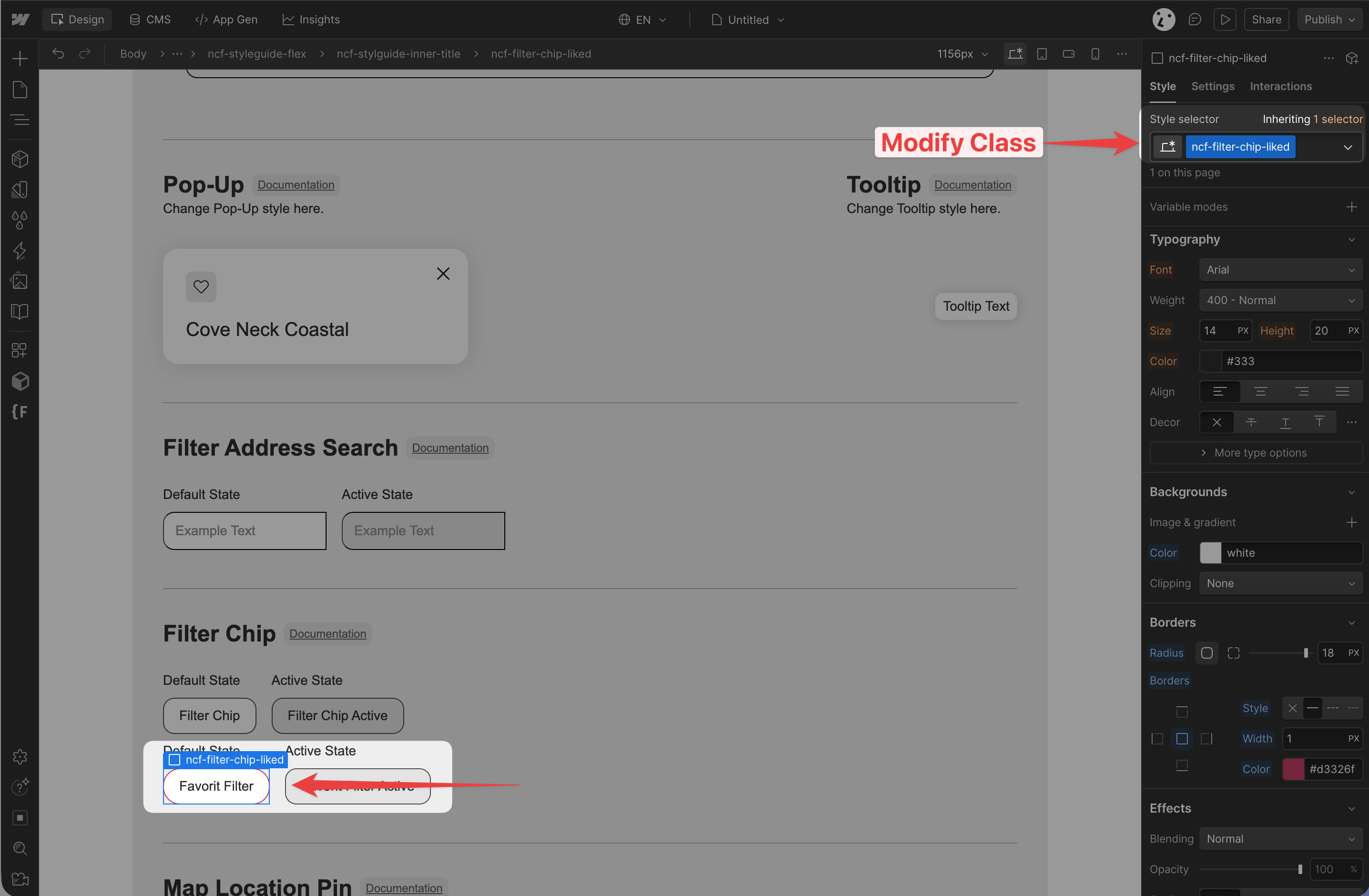
The favorit filter chip appears in Dynamic Map App’s Style Guide as well. Change the favorite filter chips’ class to a different class than your filtered items, e.g. ncf-filter-chip-liked and add the styling utility classes like hover or active similar to the category filter.
Practical Tips
- Guest favourites are stored in localStorage and cleared when the browser cache is cleared. For persistent cross-device favourites, integrate with Memberstack. This is especially important for any audience that regularly clears cookies or uses multiple devices.
- Pair with Memberstack for account-level persistence. Browser-local Guest Mode is a good default, but users who invest time saving locations will be frustrated when those saves disappear. See Integrate with Memberstack to add account-linked persistence.
Use Cases
- A real estate map where buyers save properties they’re interested in revisiting.
- A restaurant directory where users maintain a personal shortlist of places to try.
- A travel guide where visitors bookmark attractions for their itinerary.
- A job board map where candidates save roles they want to apply for later.
- Any map where users return repeatedly and want to track locations of interest over time.