Last updated:
May 28, 2026
Dynamic Map License Settings
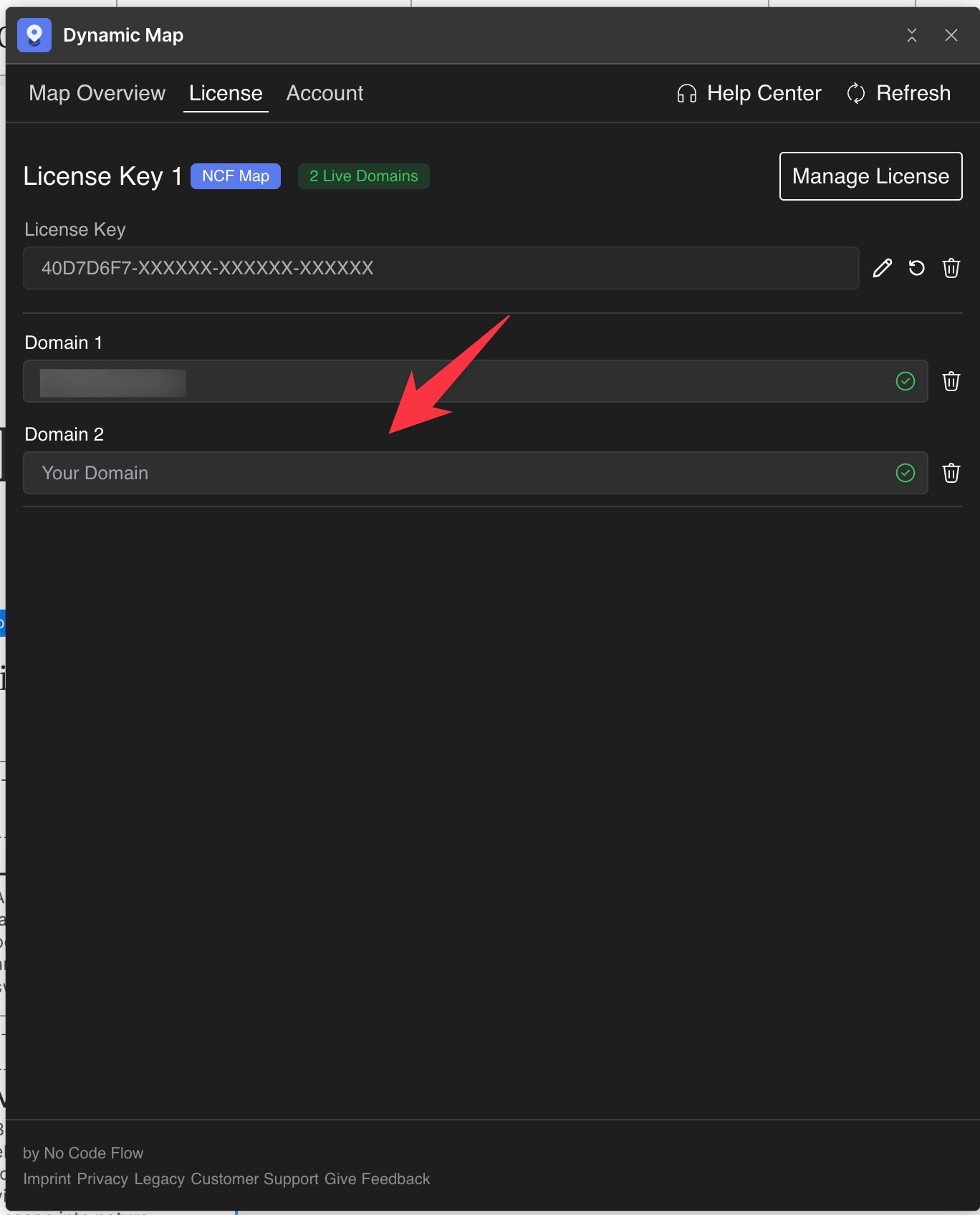
To activate Dynamic Map, click Manage License in Dynamic Map App, subscribe on Gumroad, copy your license key, paste it into the License tab, refresh until the domain slot appears, and insert your live domain. For multiple domains, upgrade your seat count on Gumroad. A green check confirms the domain is verified. See also: how to move a license to a different account.
Add a New License to Your Website
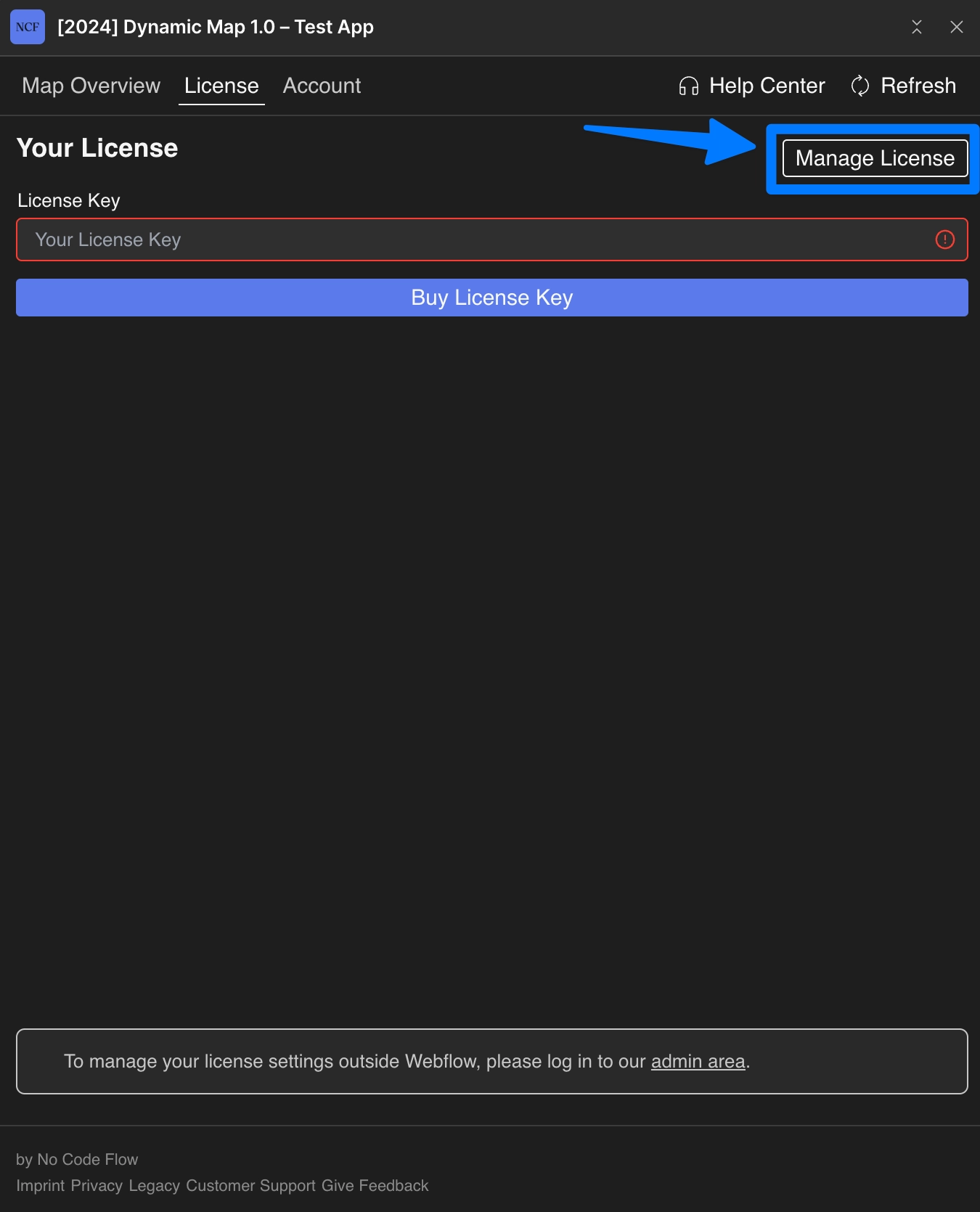
- Click Manage License or Buy License Key in Dynamic Map App.
- Click Subscribe on Gumroad.
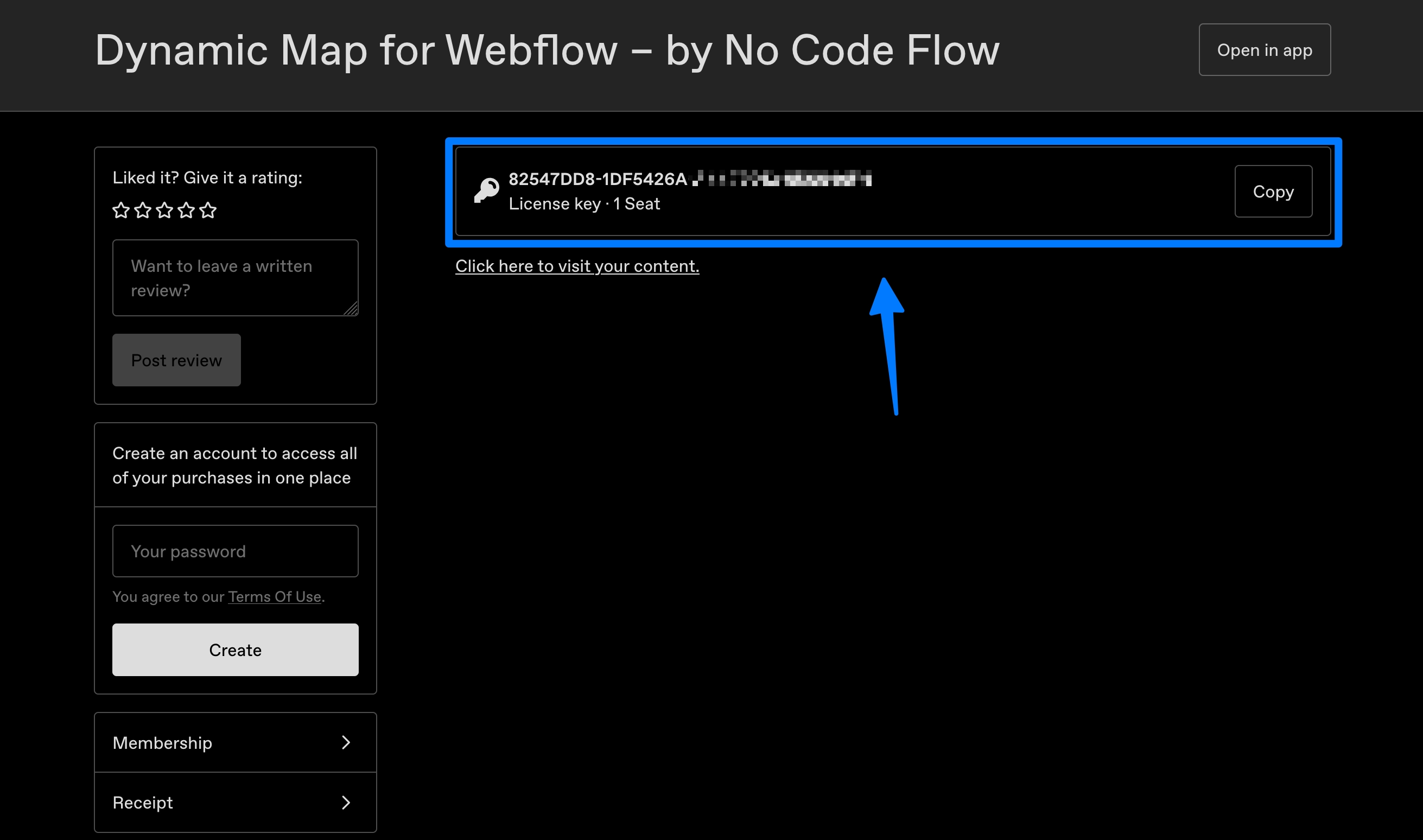
- Copy your license key from the Gumroad confirmation.
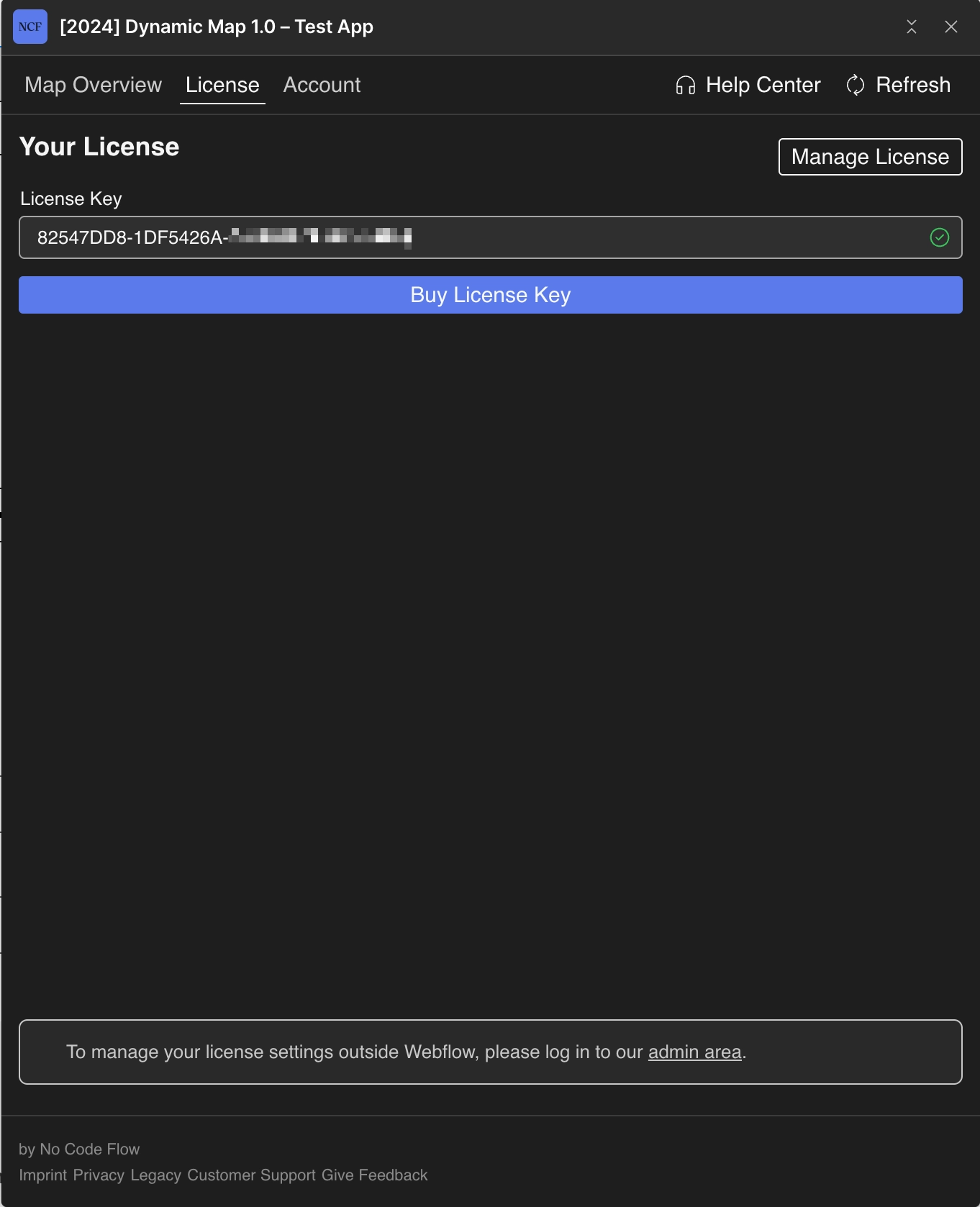
- Paste the key into the License tab in Dynamic Map App.
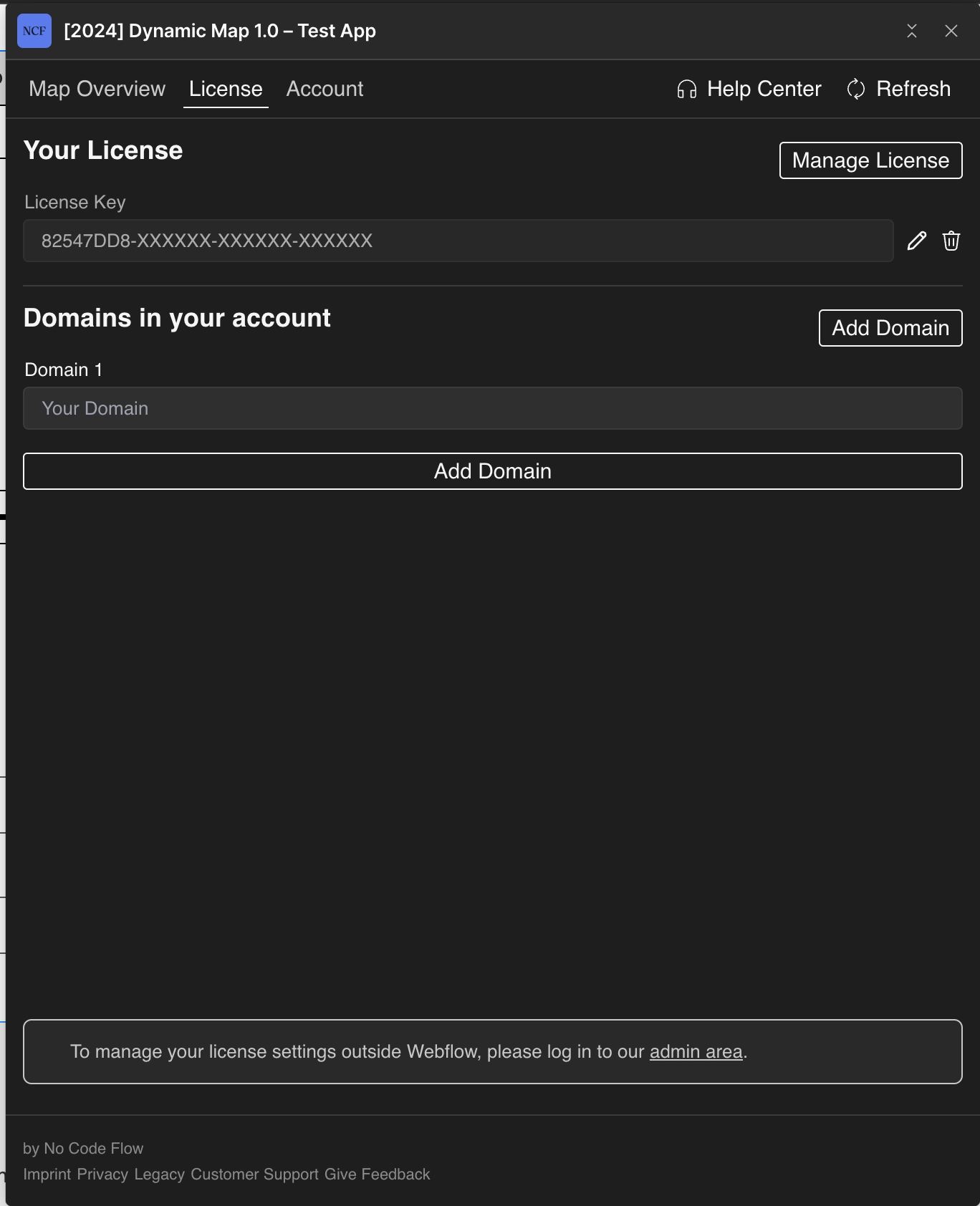
- You might need to press Refresh until the domain slot appears.
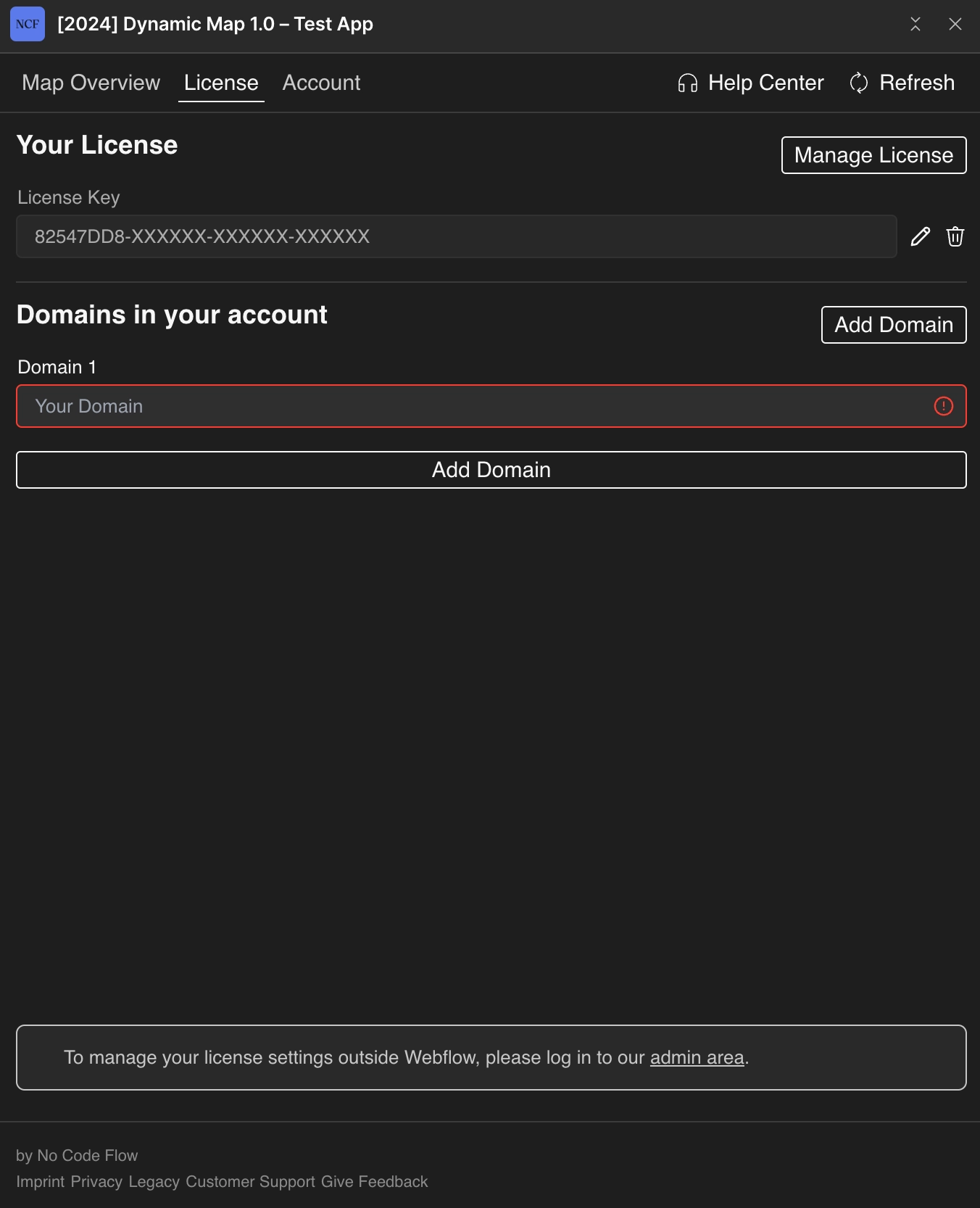
- Insert your live domain into the domain slot.
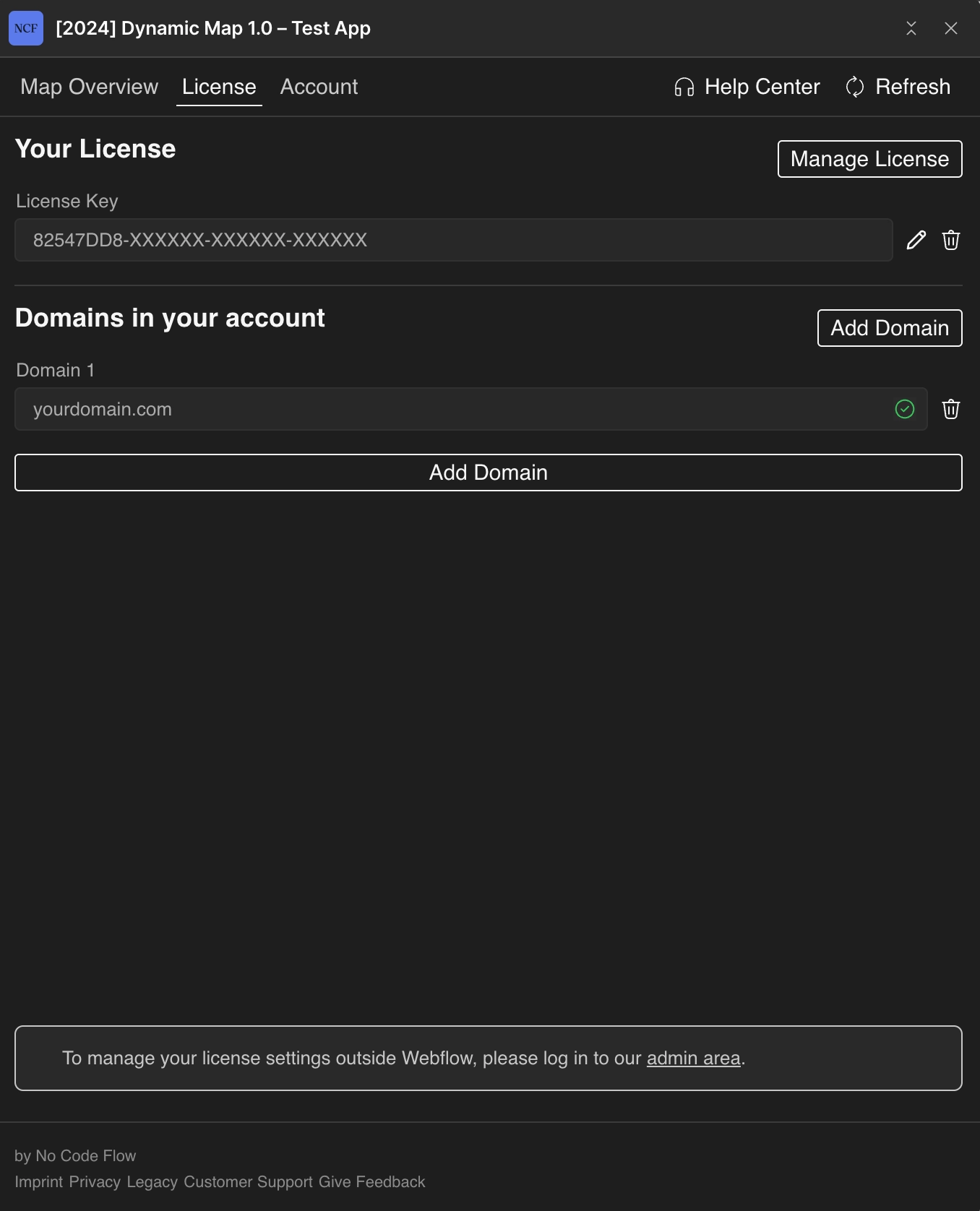
A green check icon confirms your domain is verified and active.
Add Multiple Domains to Your License
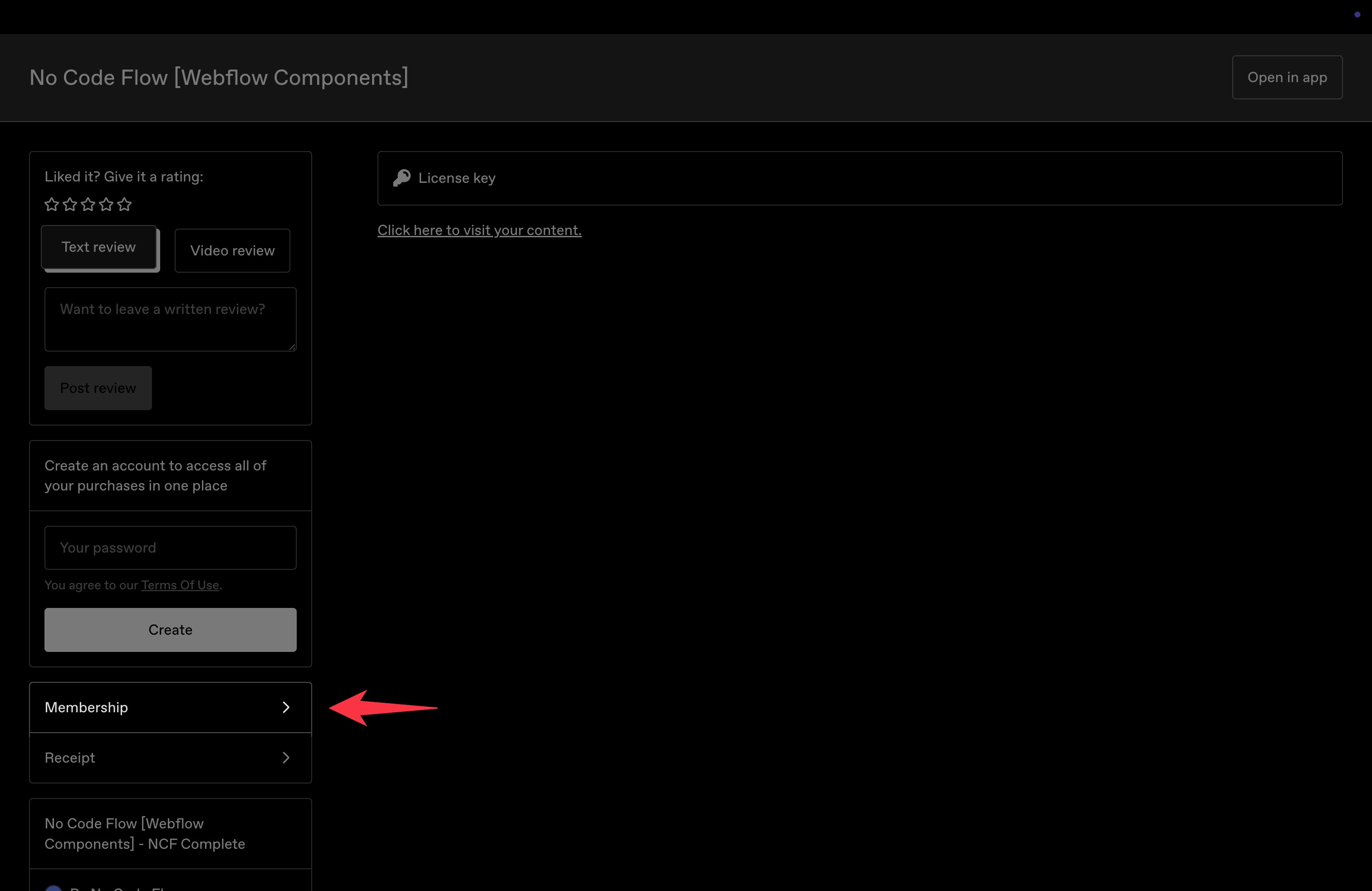
Open the No Code Flow order email from Gumroad and click View Content.
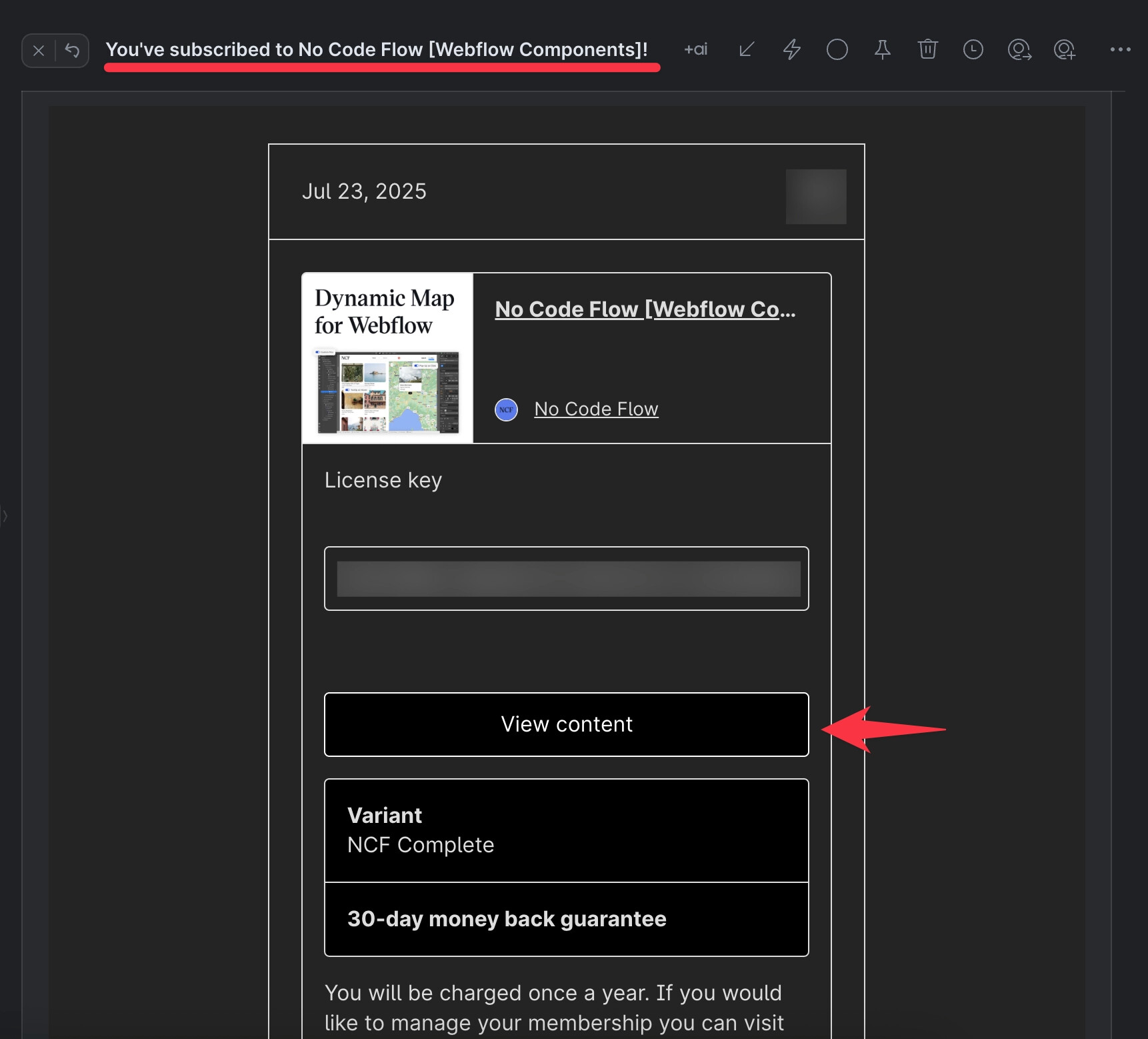
Navigate to Membership in the bottom-left corner of Gumroad.
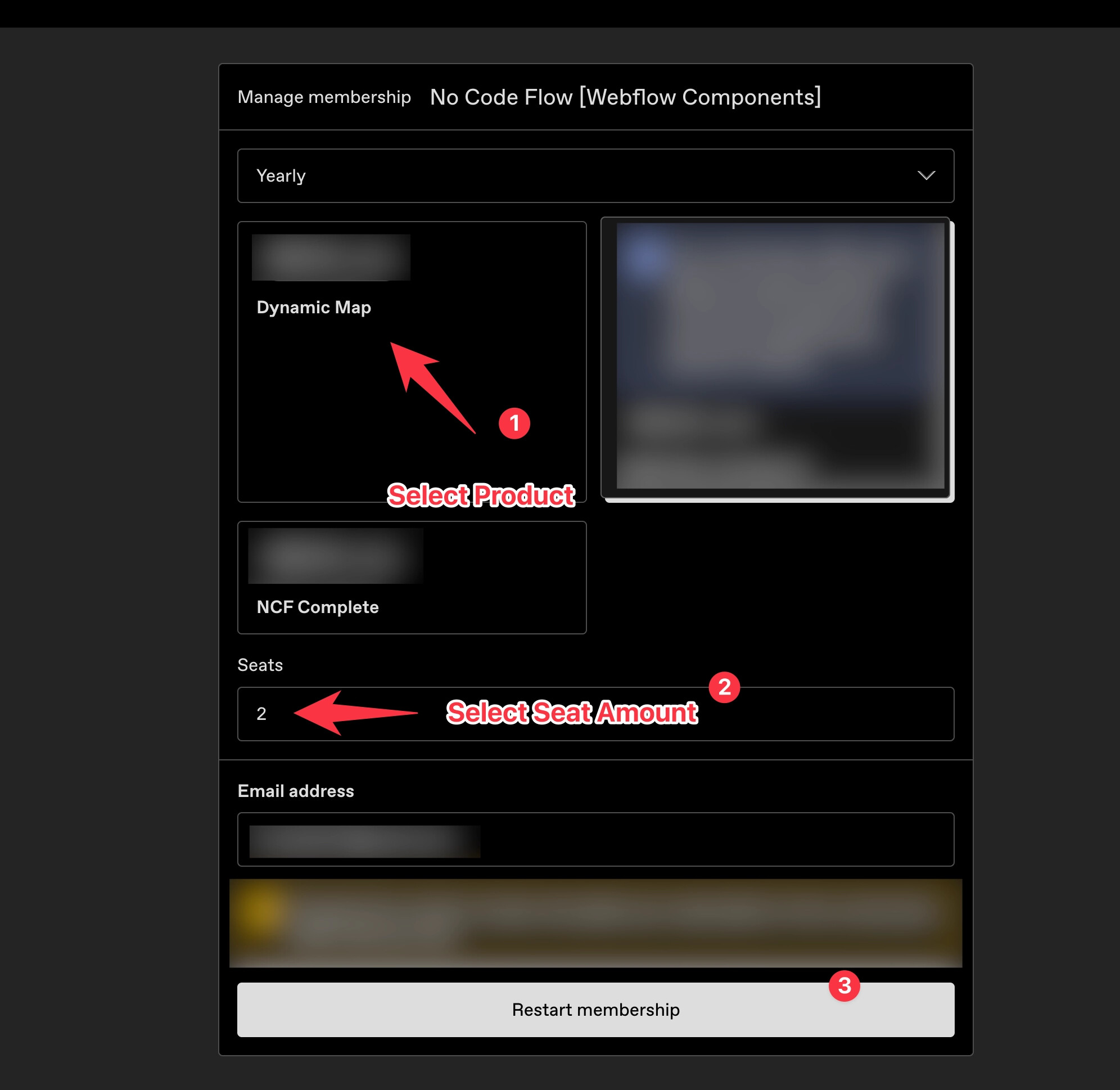
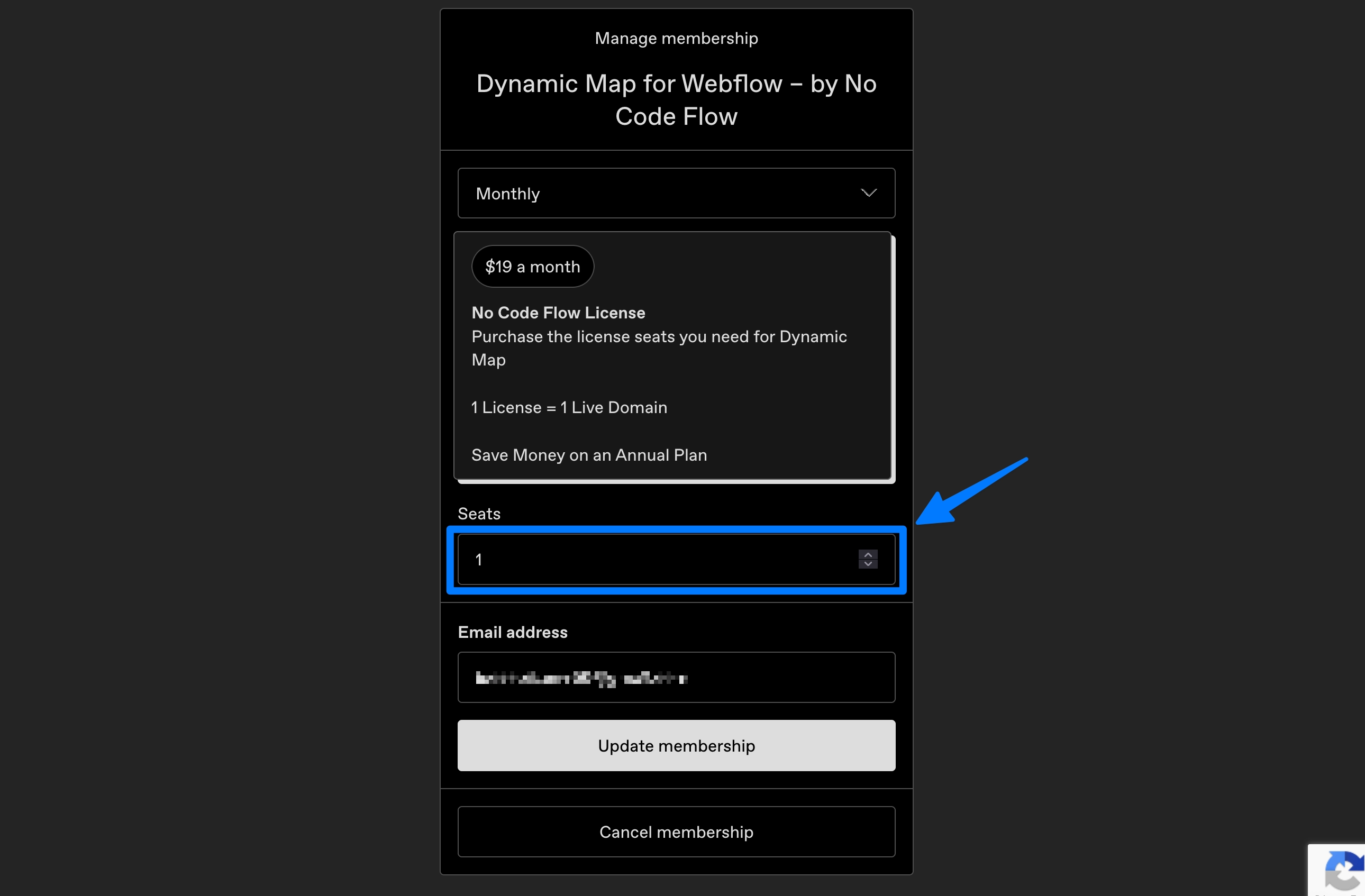
Select your desired number of License Seats (1 seat = 1 live domain).
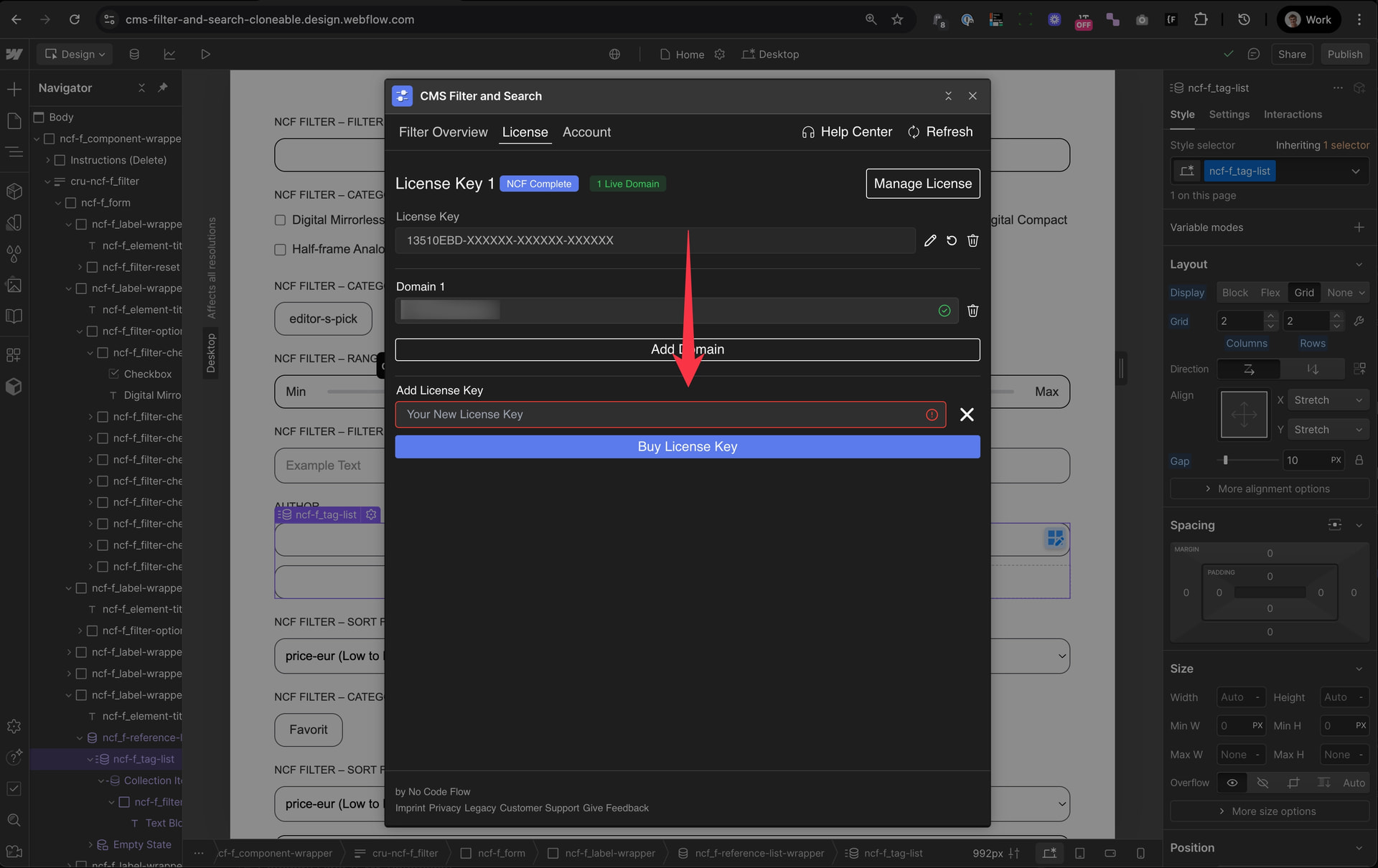
In Dynamic Map App, add a second License Tab and insert the additional license key.
Add or Remove License Seats
Click Manage License in Dynamic Map App and adjust the seat count.
Move a License Key to a Different Account
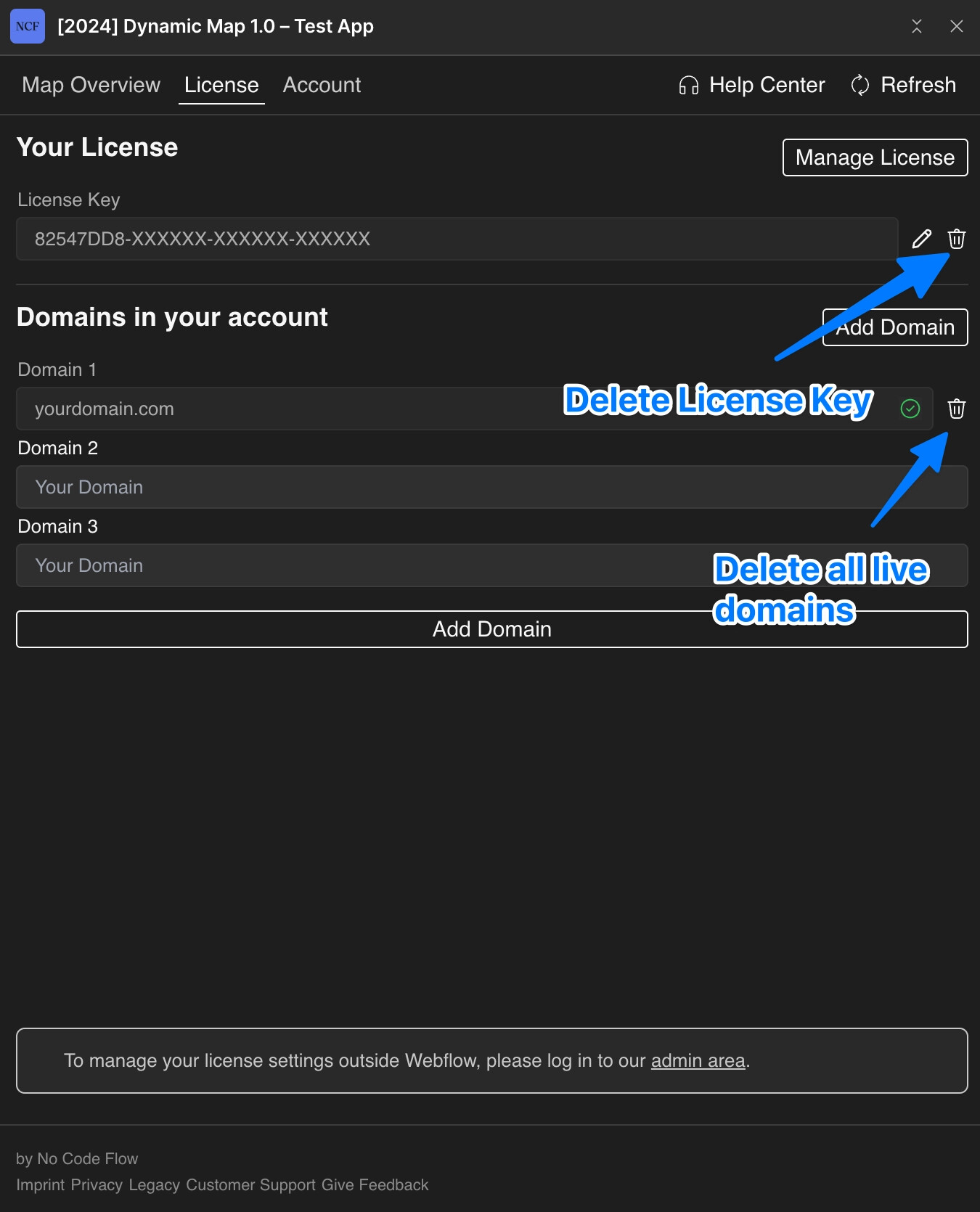
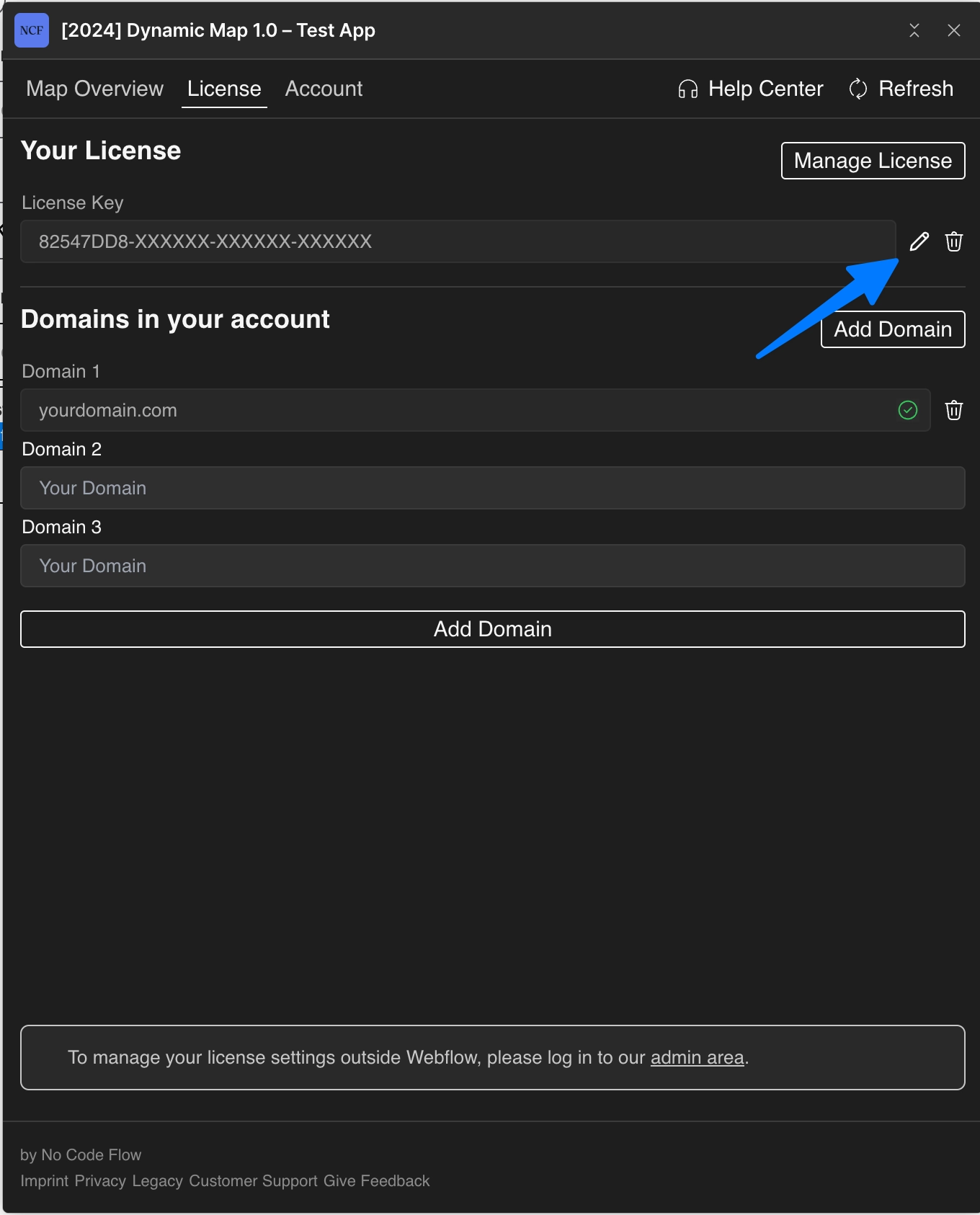
- Press Edit License Key in Dynamic Map App.
- Copy the license key.
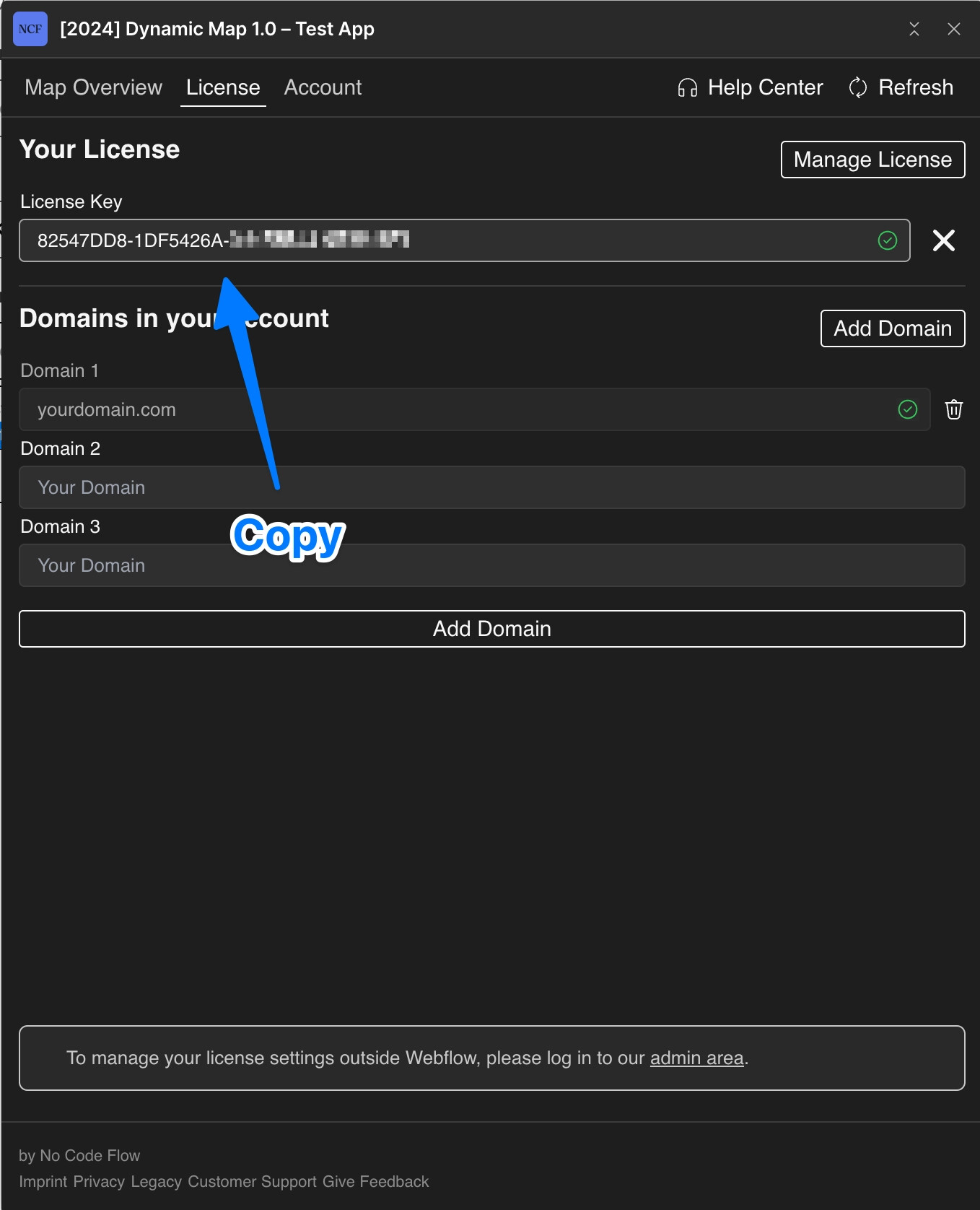
- Log into the target account and insert the key into its license tab.
- Delete all live domains and the license key from the original account.