Last updated:
May 28, 2026
Why do I see a Red Error Border around my Map?
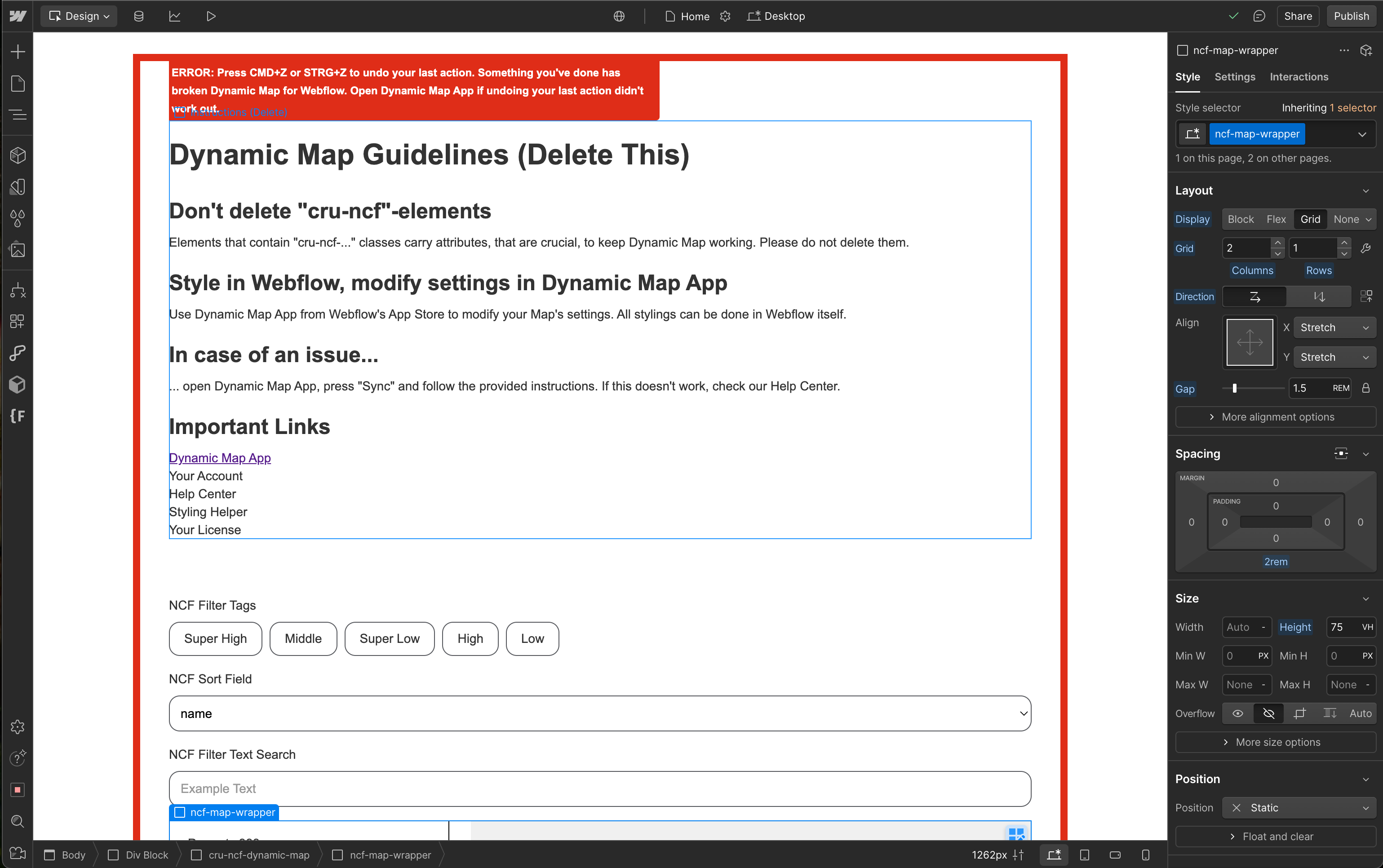
A red border and error banner around your map in Webflow Designer means Dynamic Map has detected that its internal element structure has been disrupted. This happens when a core Dynamic Map element, specifically any element with a class prefixed with cru-ncf-, has been accidentally deleted, moved out of its expected position, or placed in the wrong location in the Webflow Navigator. The red border is a protective warning signal, not permanent damage. In the overwhelming majority of cases, a single undo resolves it in seconds.
What the Error Looks Like
The error banner reads: “ERROR: Press CMD+Z or STRG+Z to undo your last action. Something you’ve done has broken Dynamic Map for Webflow. Open Dynamic Map App if undoing your last action didn’t work out.”
How to Fix It
- Undo your last action. Press CMD+Z (Mac) or CTRL+Z (Windows) and check if the red border disappears.
- If this isn’t possible any more, delete the map and re-create it using Dynamic Map App from scratch.
💡 Diagnostic tip: Check the Webflow Navigator for any cru-ncf- elements that appear in unexpected positions or are missing entirely. This will usually pinpoint what triggered the error.Practical Tips
- Press CMD+Z (Mac) or CTRL+Z (Windows) first, as that’s the fix in most cases. Think back to your last action in Webflow Designer. The red border almost always appears immediately after a structural change. Undo that action and check whether the border disappears.
- Use the Webflow Navigator to locate displaced elements. If undo isn’t available, open the Navigator panel and look for any cru-ncf- element that appears outside the main cru-ncf-dynamic-map wrapper, or that’s at the wrong nesting level. Dynamic Map elements must stay in their generated positions.