Last updated:

May 19, 2026

Map Text Search

The text search lets users find specific map items by typing keywords. Enable Item Search in Dynamic Map App's Filter and Sorting panel, select a CMS text field as the search source, and optionally set a delay. For better result quality, create a dedicated Tag Search text field populated with relevant keywords per item — AI tools can help generate these quickly.

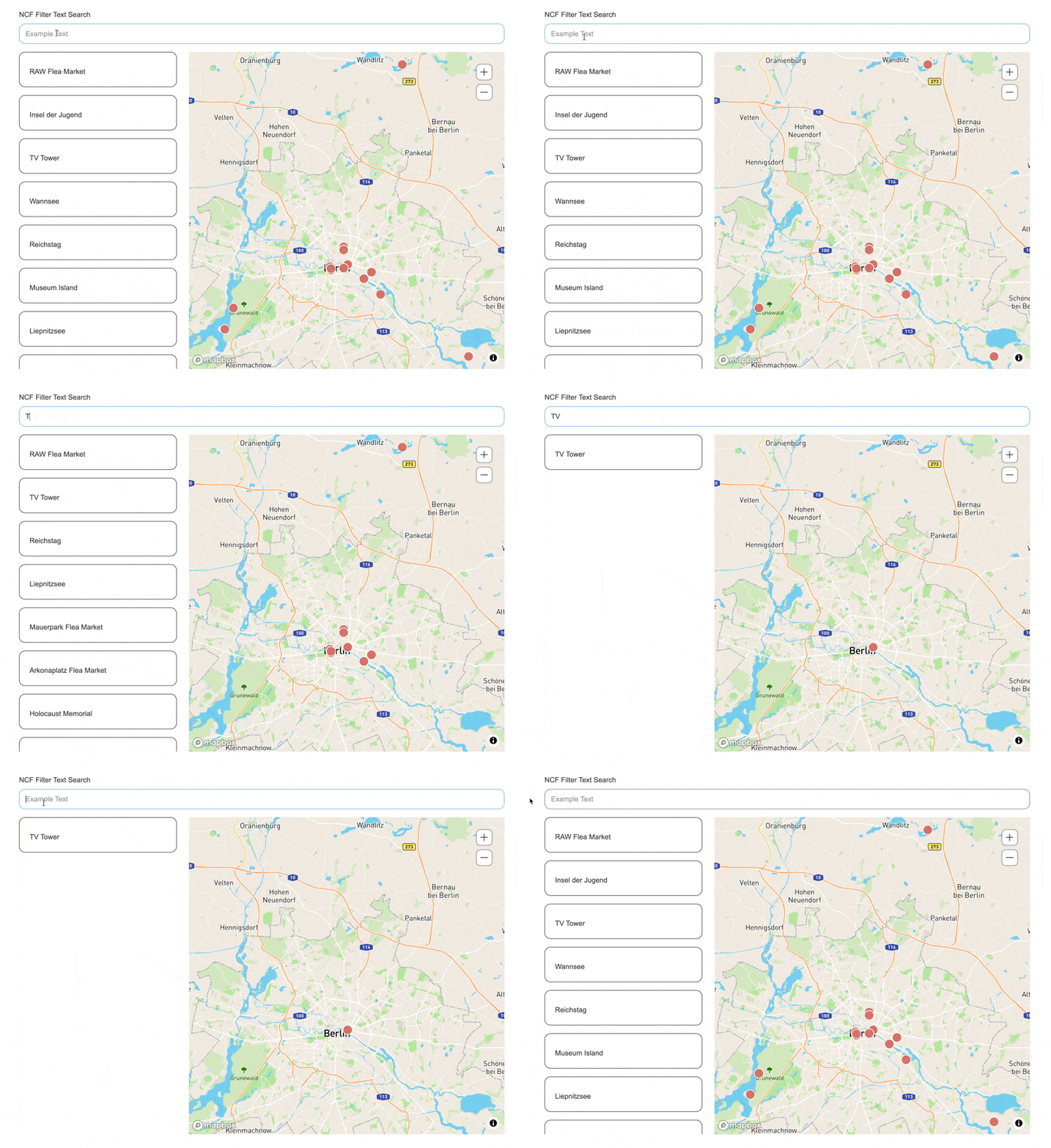
The text / item search lets users quickly find specific items on your map by typing keywords.

Animated GIF showing Dynamic Map's text search in action — the map and item list filter in real time as the user types.

Enable in Dynamic Map App

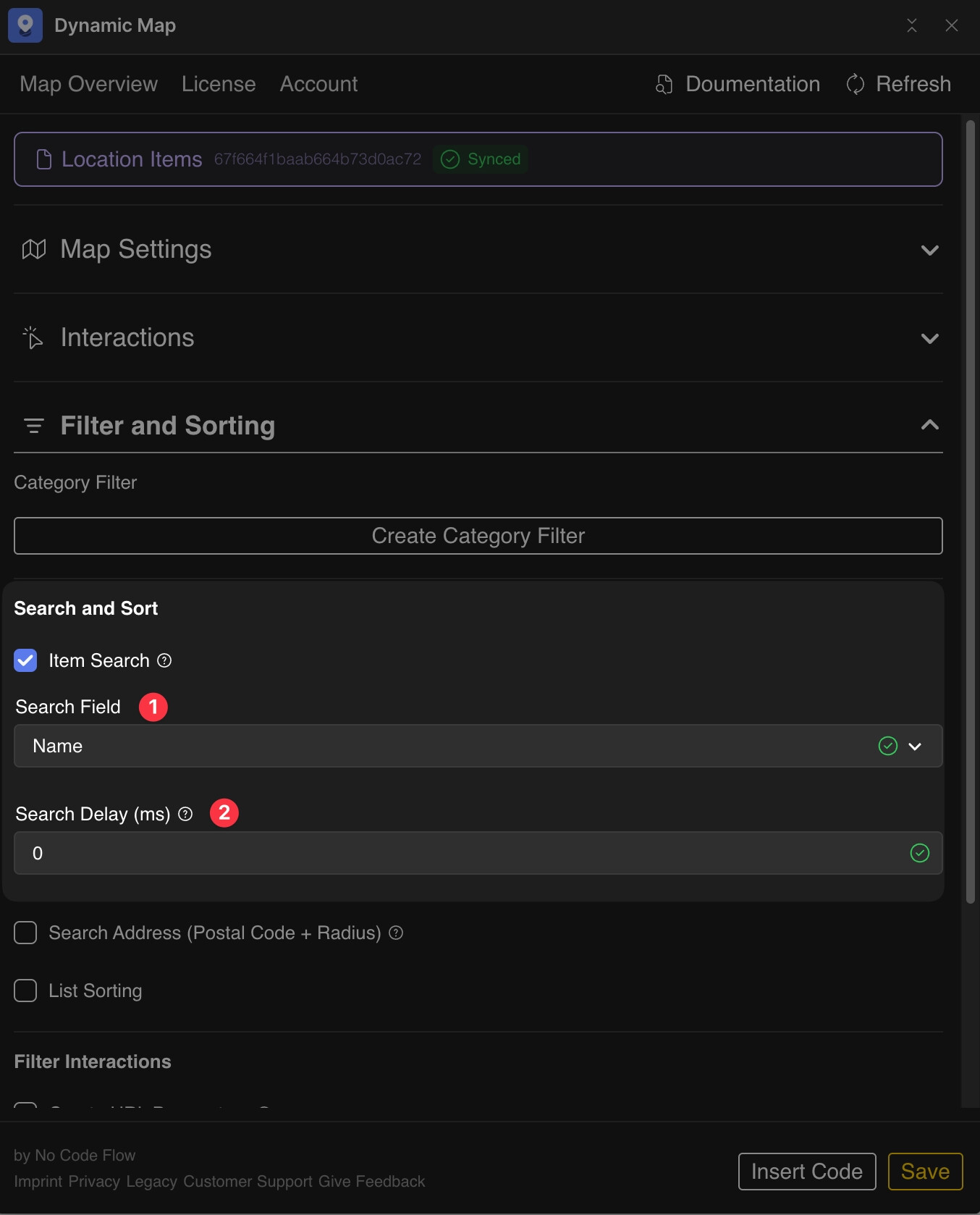
In Dynamic Map App, navigate to Filter and SortingItem Search.

  1. Select the text field you want to use as the search source.
  2. Optionally set a search delay to improve the user experience during fast typing.
Dynamic Map App Filter and Sorting panel showing the Item Search configuration with a text field selected and search delay set.

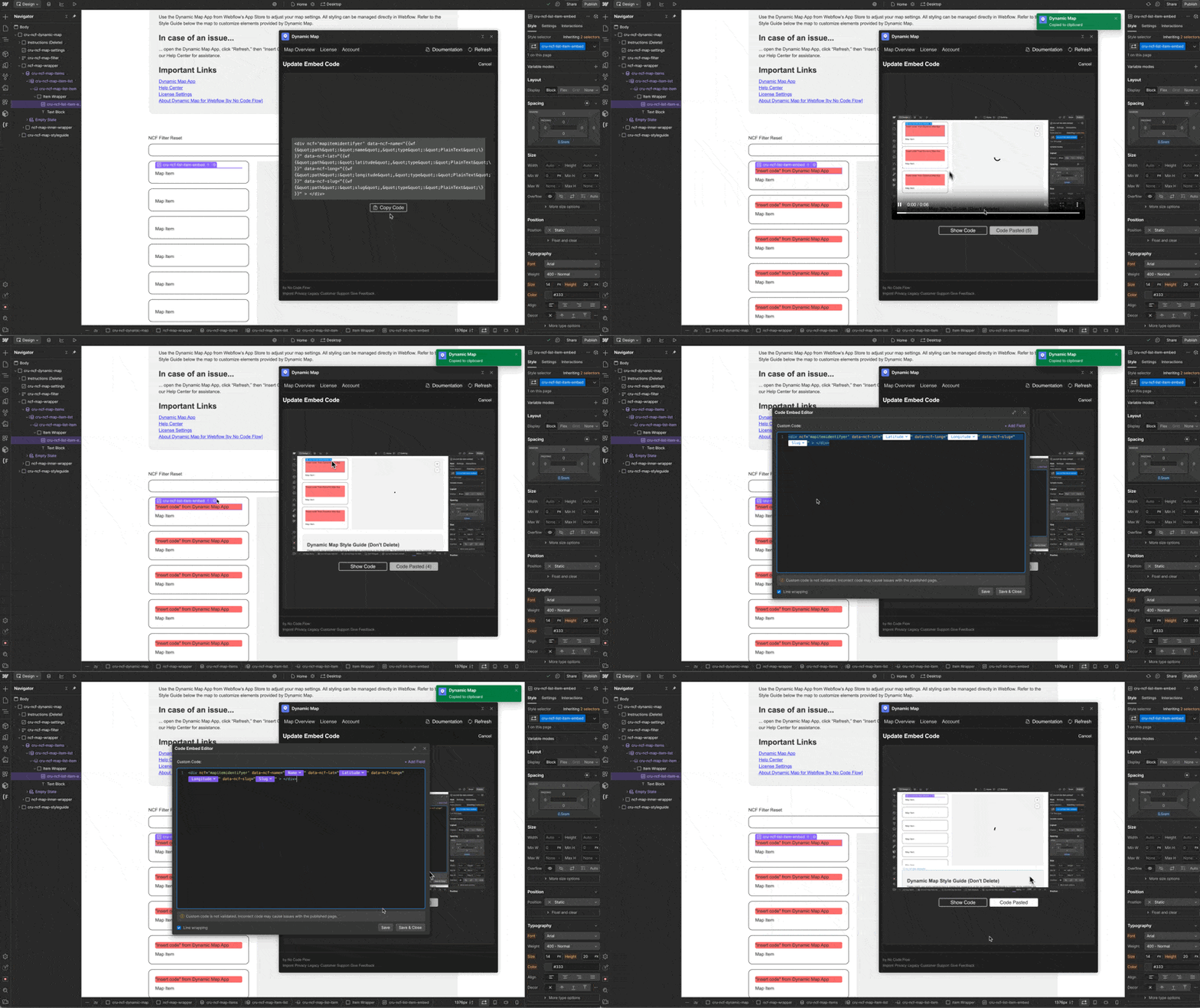
Update Code

Insert the updated code snippet into Dynamic Map's Custom Code embed.

Animated GIF showing how to copy the updated Dynamic Map code snippet and paste it into the Custom Code embed inside Webflow.

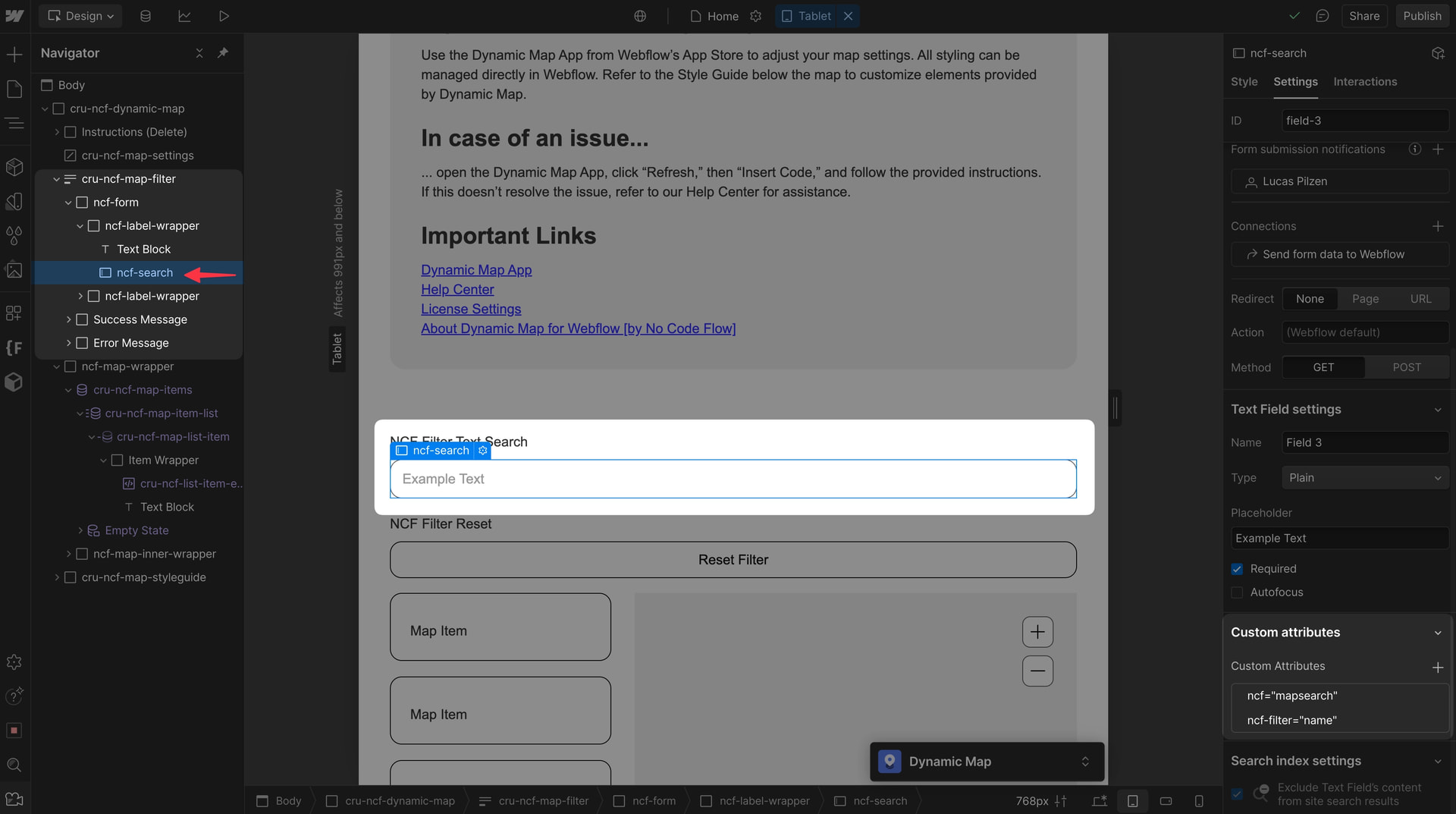
Locate in Webflow Designer

The ncf-search element will be placed inside the cru-ncf-map-filter div. Style it directly in Webflow.

Webflow Designer showing the ncf-search input element placed inside the cru-ncf-map-filter div, ready to be styled.

Create an Advanced Tag Search Field

💡 Pro Tip: For better search quality, create a dedicated Tag Search text field that combines multiple keywords per item. This significantly improves search result relevance.

Create Tag Search Field

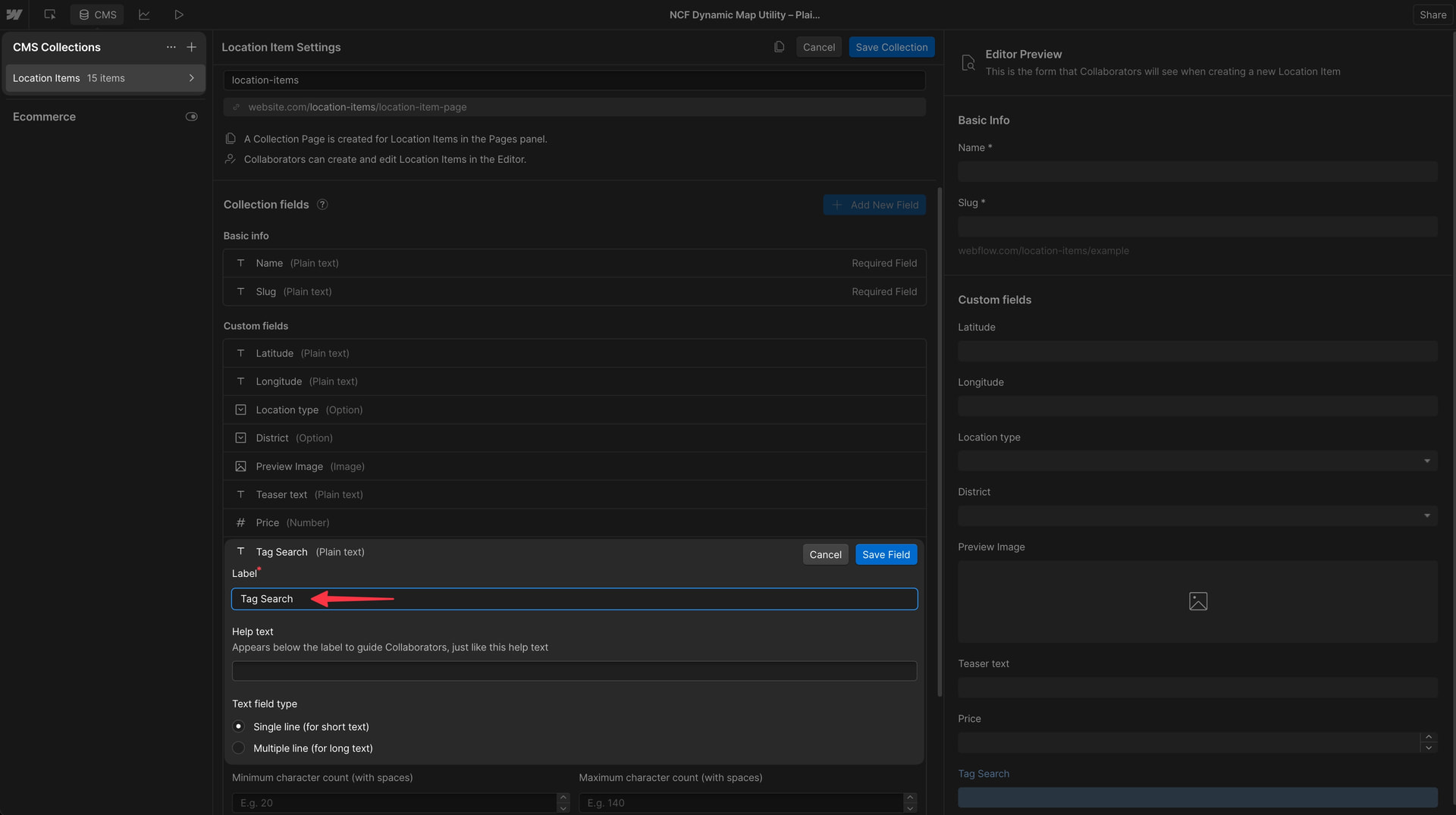
Add a plain Text field called "Tag Search" to your CMS collection.

Webflow CMS collection editor showing a new Text field called Tag Search being added to support advanced keyword-based item searching.

Set Tag Content

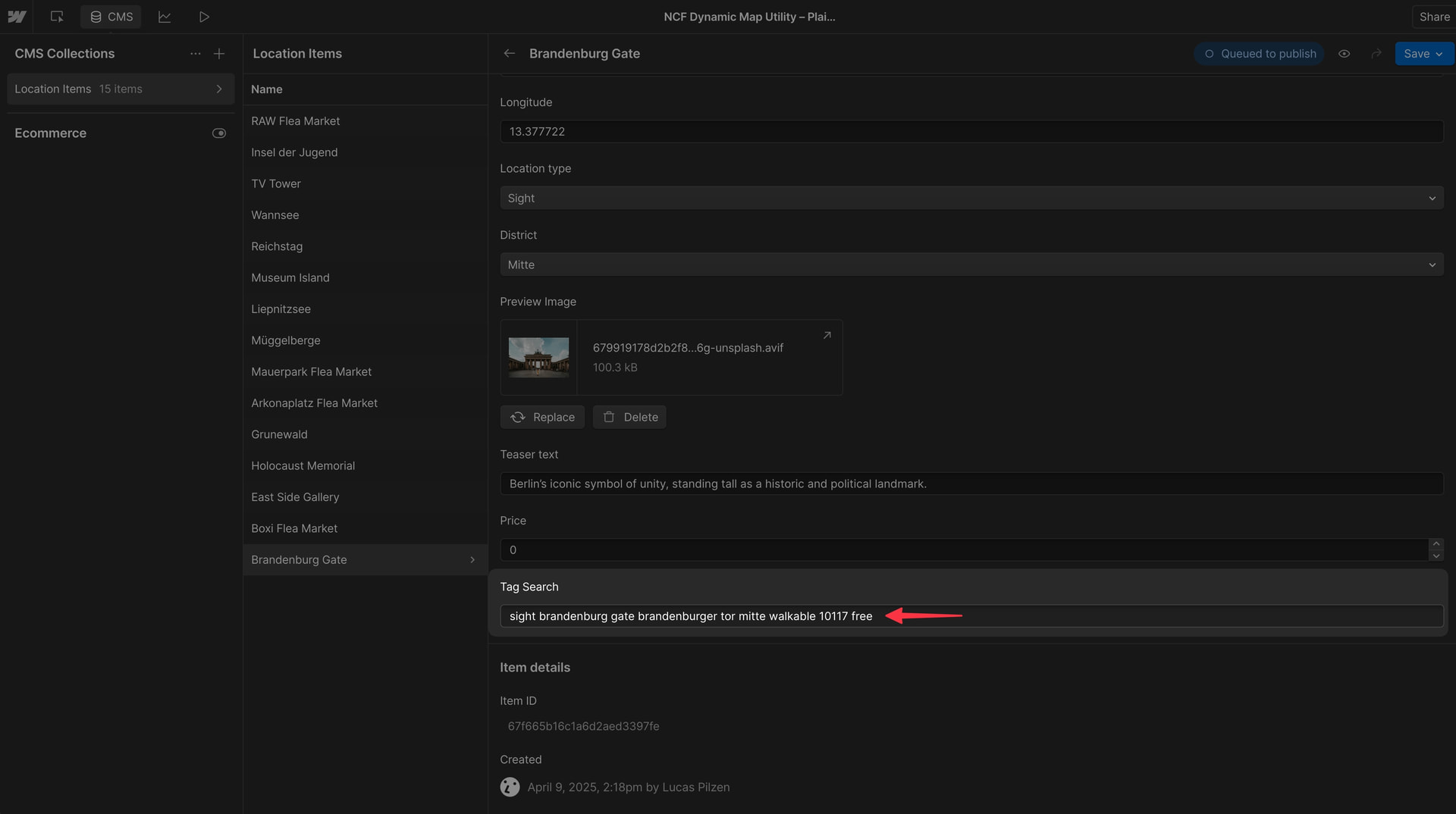
Fill in each item's Tag Search field with relevant keywords. The search will scan the full text content of this field for matches.

💡 Use an AI tool like ChatGPT to generate keyword lists for each CMS item quickly.

Webflow CMS editor showing a Tag Search text field filled with relevant keywords for a map item to improve search accuracy.

Update in Dynamic Map App

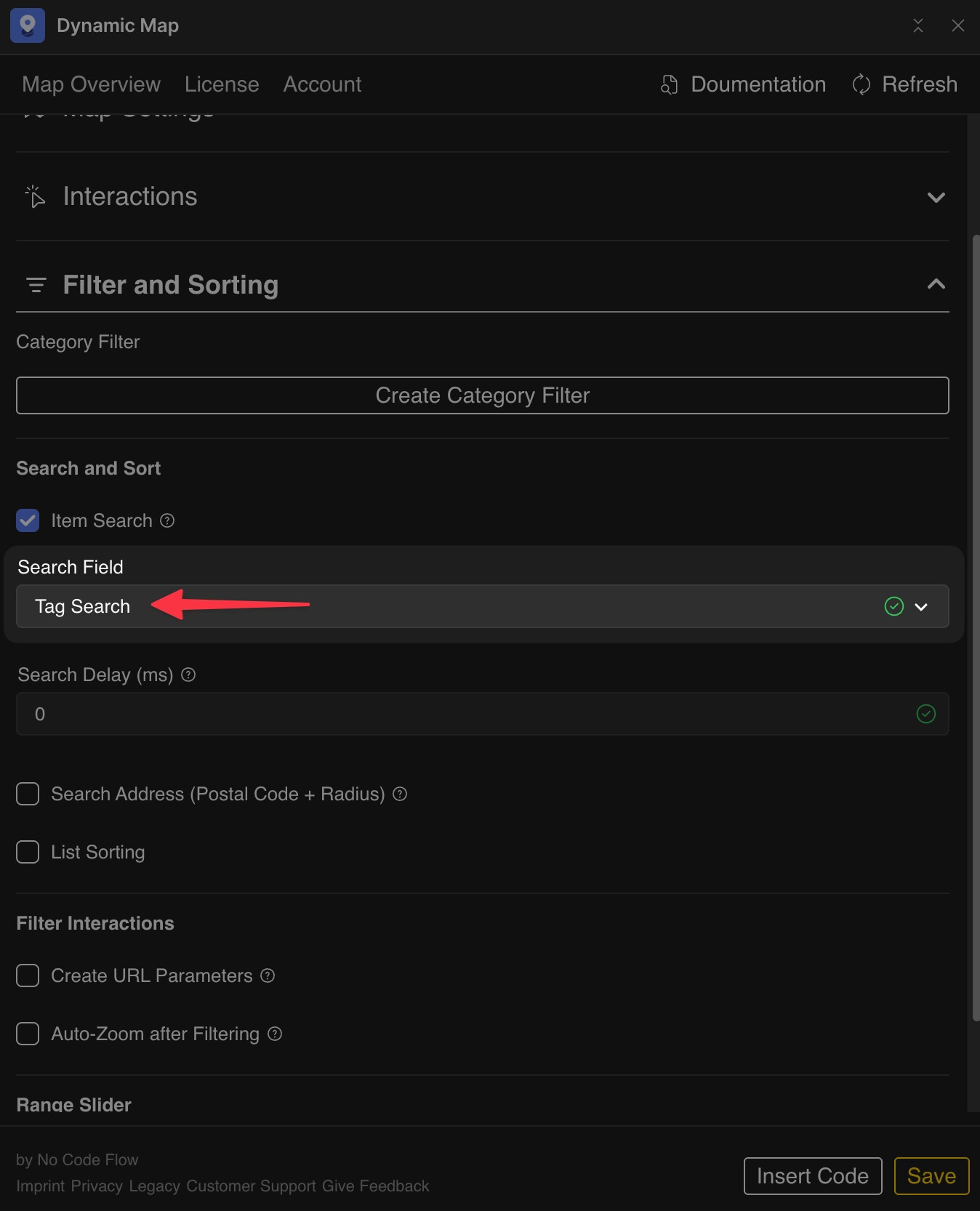
Switch the Search Field to your new Tag Search field in Dynamic Map's Filter and Sorting, then press Save.

Dynamic Map App Filter and Sorting panel showing the Search Field dropdown switched to the Tag Search CMS field.