Last updated:
May 28, 2026
Map Range Slider
Intro
The range slider lets users filter map items within a specific range of values, like properties priced between $1,000 and $2,000, or any other numerical range you define.
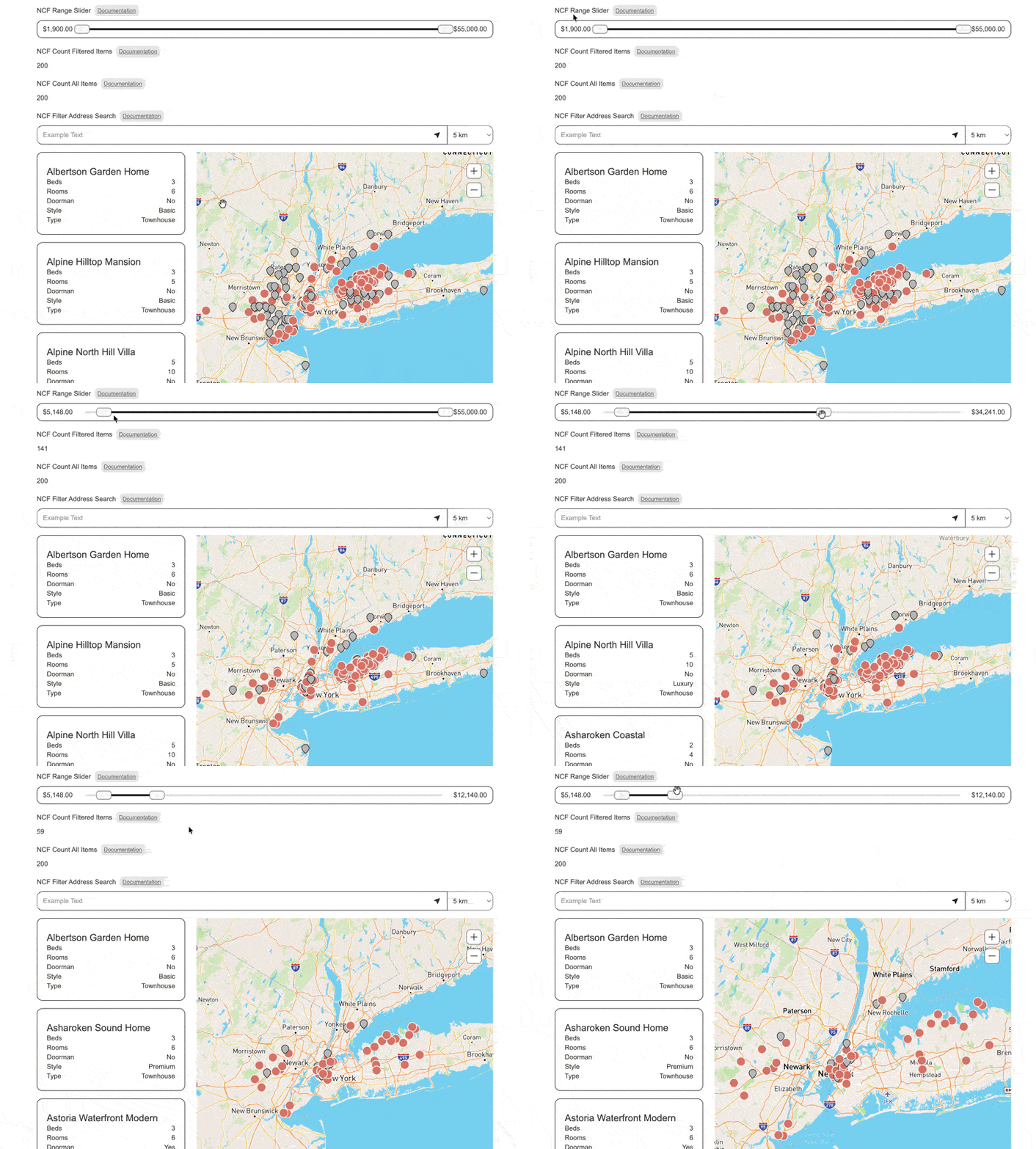
Range Slider Setup
Create number field for your map item collection list in Webflow
.png)
Create in Dynamic Map App
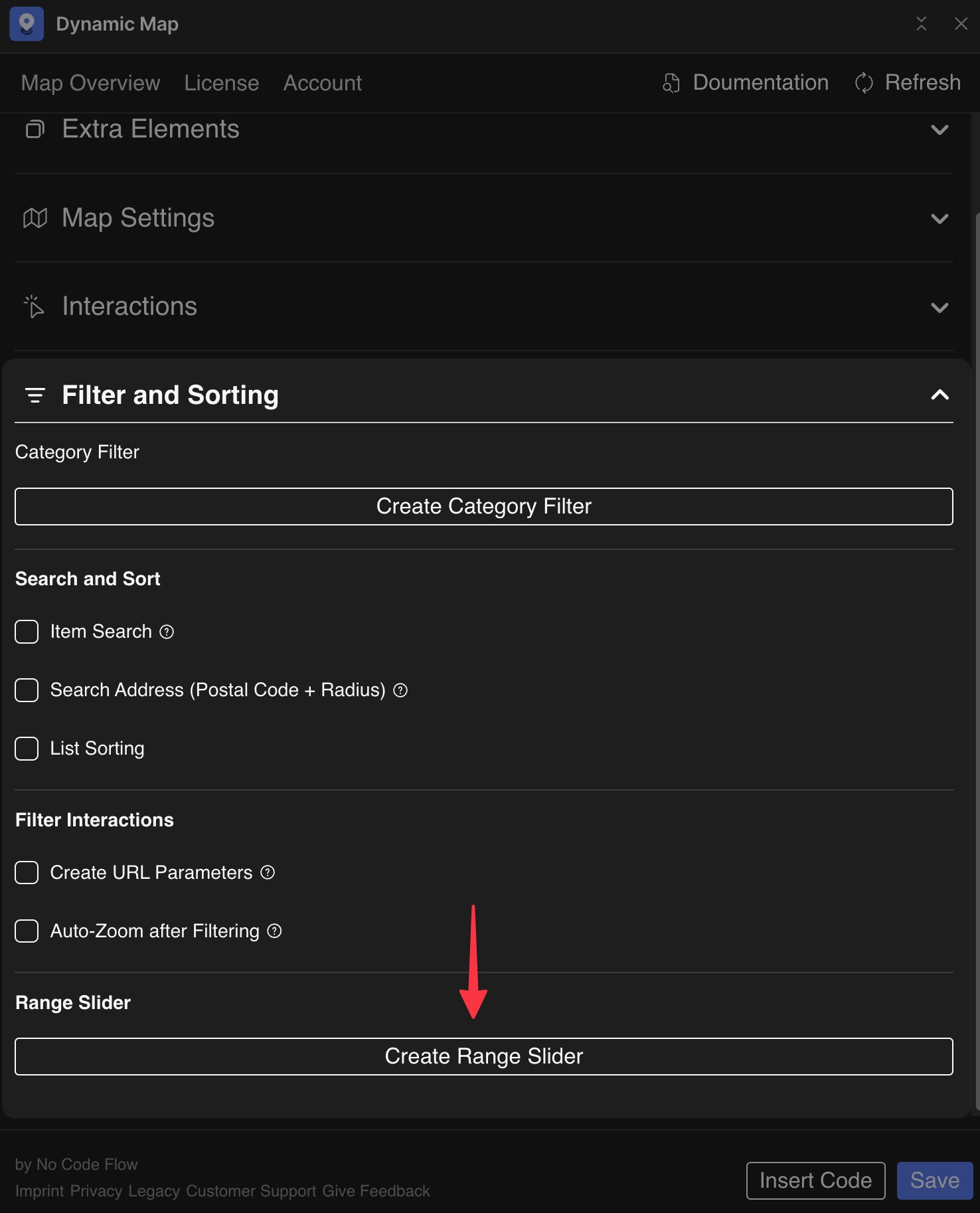
- Navigate to Filter and Sorting
- Click Create Range Slider
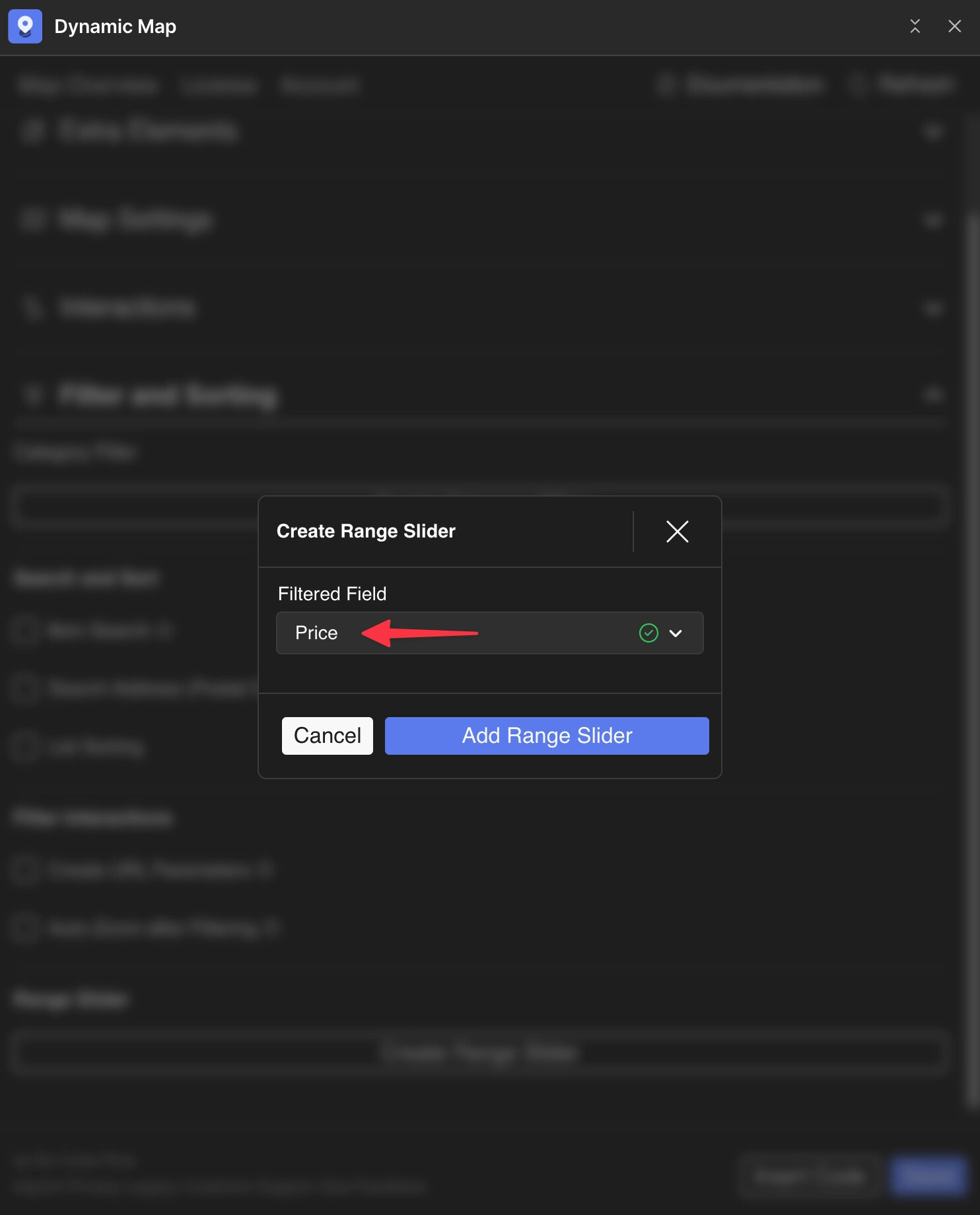
Configure Range Slider
Set desired number field that should be searched.
Prevent Live Updating while Sliding
You can set the range slider to apply on release only, which can enhance your filter’s user experience.
.png)
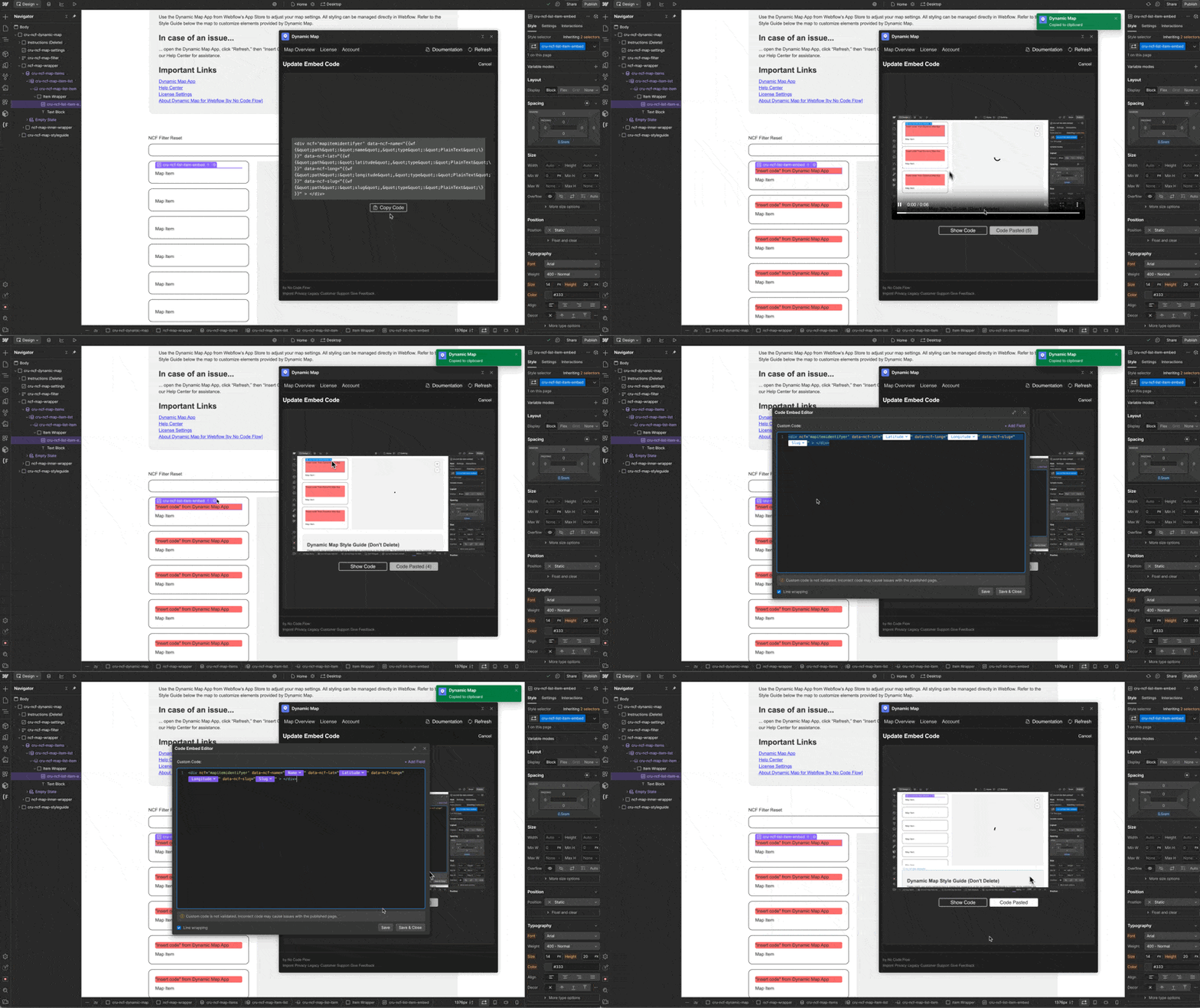
Update Code
Insert updated code into Dynamic Map’s Custom Code
Locate in Designer and style
Locate the range slider and its different elements in Webflow’s designer. The ncf-price-slider is placed inside the filter wrapper div cru-ncf-map-filter
Style the range slider and its individual elements:
- ncf-range-slider — the outer wrapper of the entire range slider component
- ncf-slider-wrapper — the container holding the track and handles
- ncf-slider-bar — the full background track of the slider
- ncf-slider-bar-active — the highlighted portion of the track between the two handles
- ncf-drag-handle — the draggable handle the user grabs to set min and max values
- ncf-range-label (optional) — the label displaying the current min or max value. Can be deleted without affecting the slider’s functionality.
- ncf-range-label-tick (optional) — the tick mark beneath the label. Can be deleted without affecting the slider’s functionality.
.png)
Range Slider Styling
Add a width to your slider numbers to make sure the range slider looks smooth always.
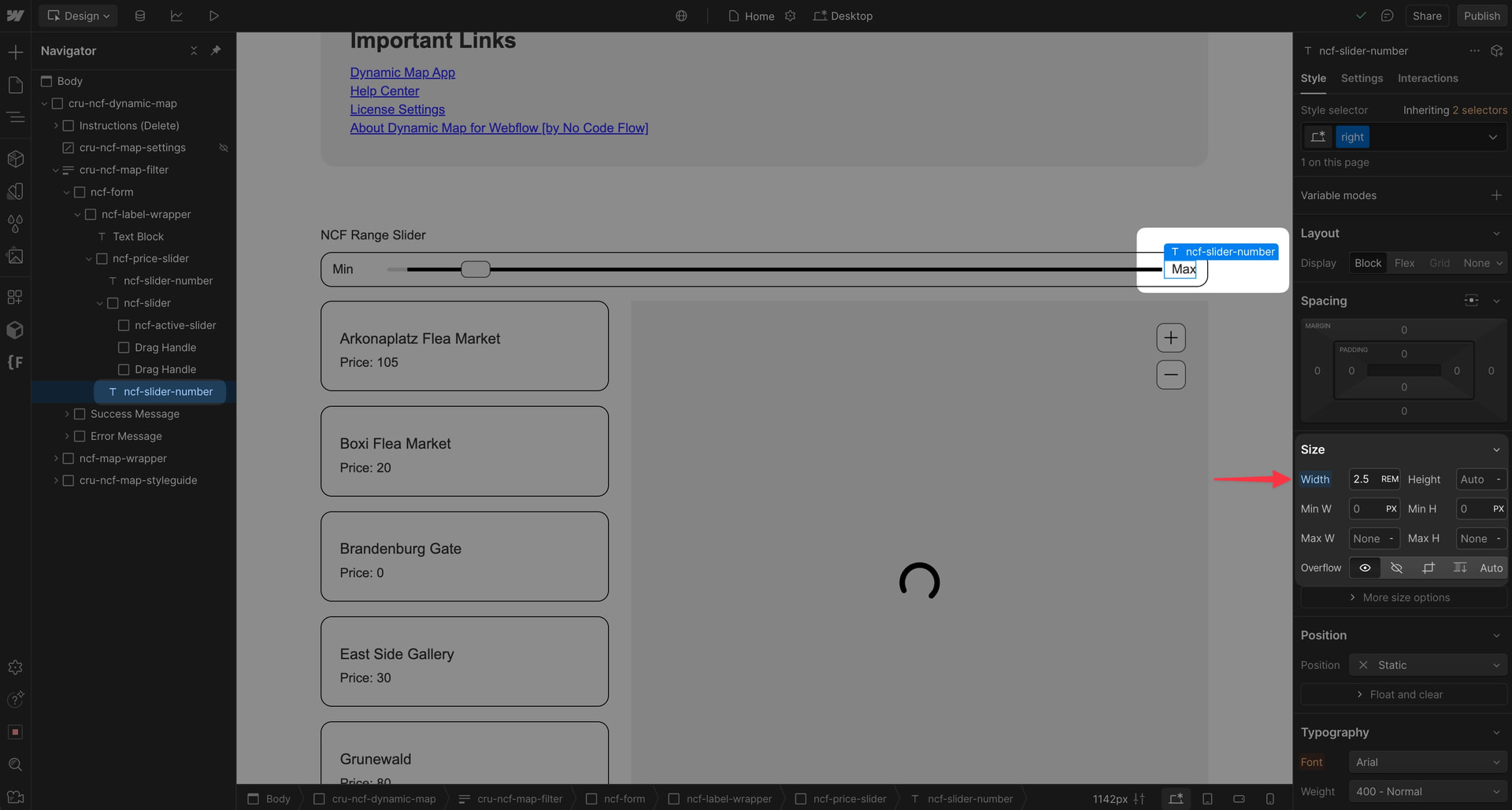
Add number formating to Range Slider
By default, number is displayed without any formatting. You can simply change the formatting by adding some text with the javascript “Number toLocaleString” method:
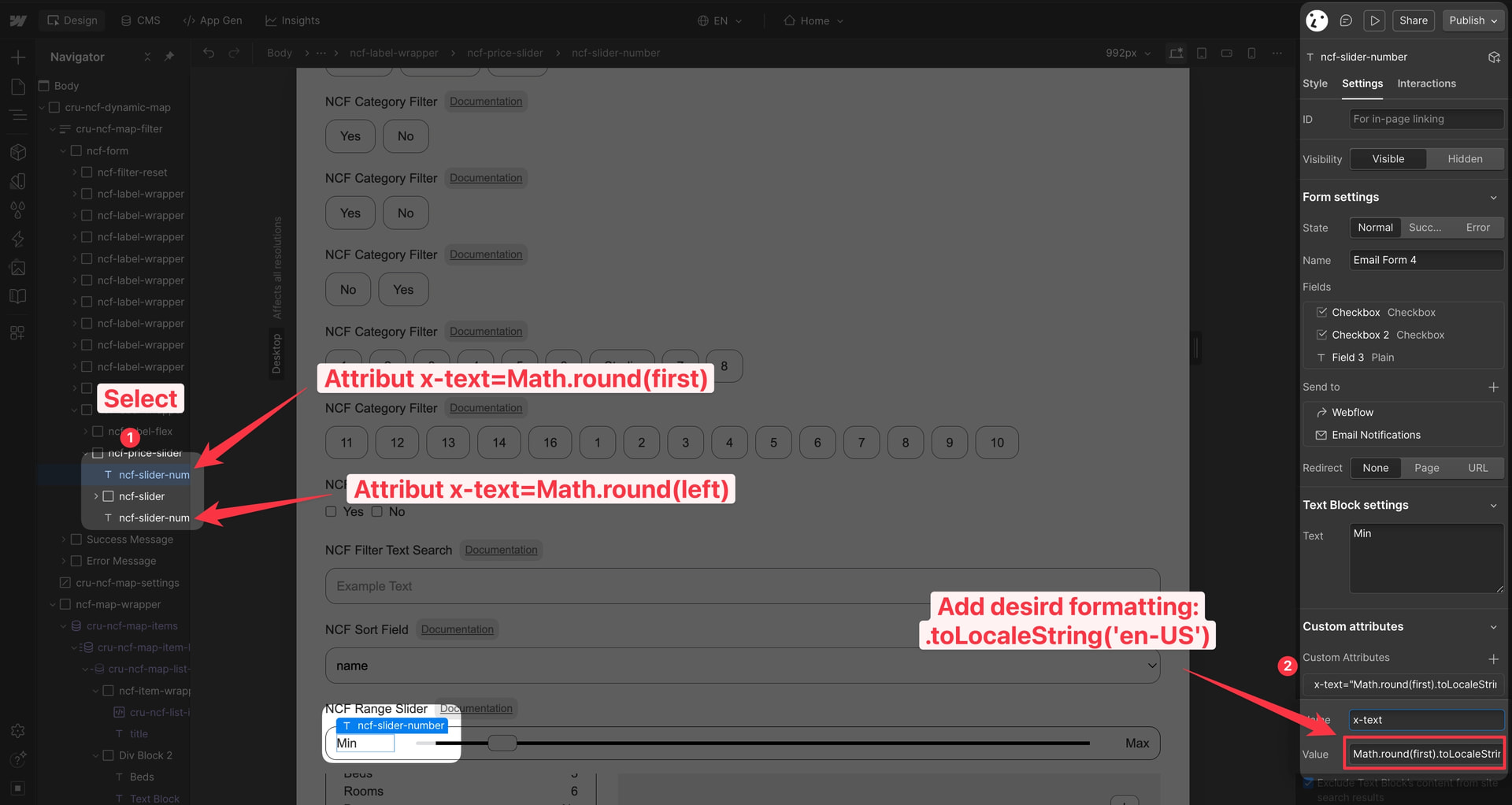
Append to:
Math.round(first)
Math.round(second)
Default formatting examples:
If you want simple US formatting use
.toLocaleString('en-US')
Left Min Text ⇒ Math.round(first).toLocaleString('en-US')
Right Min Text ⇒ Math.round(second).toLocaleString('en-US')
If you want US + dollar formatting just use:
.toLocaleString('en-US', { style: 'currency', currency: 'USD' })
Left Min Text ⇒ Math.round(first).toLocaleString('en-US', { style: 'currency', currency: 'USD' })
Right Min Text ⇒ Math.round(second).toLocaleString('en-US', { style: 'currency', currency: 'USD' })
If you want german + euro formatting just use:
.toLocaleString('de-DE', { style: 'currency', currency: 'EUR' })
Left Min Text ⇒ Math.round(first).toLocaleString('de-DE', { style: 'currency', currency: 'EUR' })
Right Min Text ⇒ Math.round(second).toLocaleString('de-DE', { style: 'currency', currency: 'EUR' })