Last updated:
May 28, 2026
Get My Invoice / VAT from Gumroad
To download your Dynamic Map invoice, open your Gumroad purchase confirmation email, click View Content, log into Gumroad, and click Download Invoice. For VAT: Gumroad does not add VAT information automatically, enter your VAT details manually in the Additional Information field on the invoice page.
Note that Gumroad handles billing independently from No Code Flow.
Download Your Invoice
- Open your Gumroad purchase confirmation email (subject: “You bought [Product Name]” or “Your purchase from Gumroad”).
- Click View content or View product.
- Log into Gumroad if needed (use the same email as your purchase, your order will be linked automatically).
- On the purchase page, scroll down and click Download invoice to save a PDF.
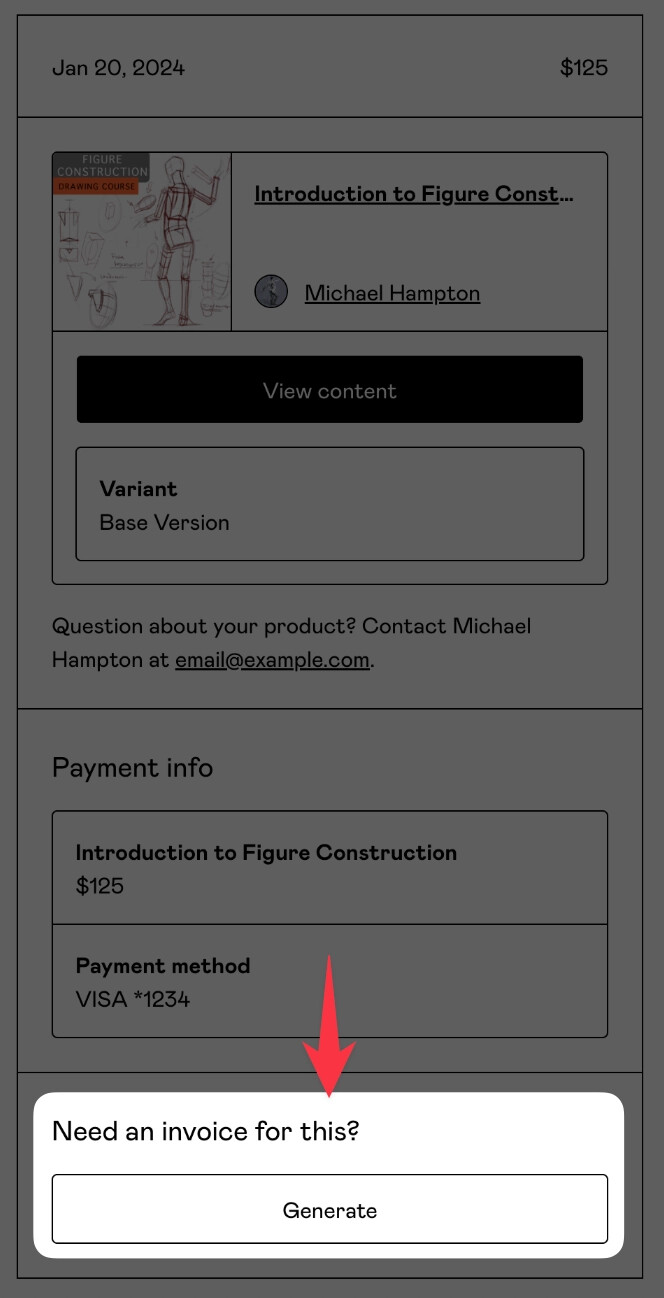
Can’t find the email? Contact us and we’ll resend your purchase confirmation.
VAT Information
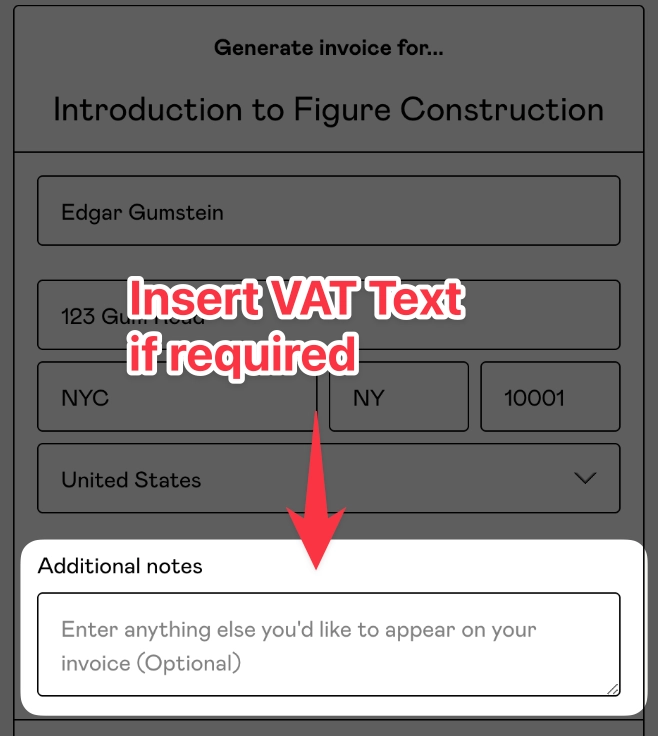
Gumroad handles all VAT processing and does not add VAT details to invoices automatically. You need to enter your VAT number manually in the Additional Information text field on the Gumroad invoice page.
For example, if you’re in Austria and the subscription is $190, Gumroad may add ~$38 in VAT. You would add a note such as: “This invoice includes $38 of VAT in Austria.”
Practical Tips
- Add VAT details in the Additional Information field before downloading. Gumroad does not automatically add VAT numbers to invoices. Open the invoice page and use the Additional Information text field to add your company name, VAT number, and any billing reference. Always add this before downloading, as you can’t edit the PDF after.
- Can’t find the Gumroad email? Search for ‘No Code Flow’ or ‘Gumroad’. The purchase confirmation email comes from a gumroad.com address. If you can’t find it, check your spam folder. You can also access your purchase history by logging into Gumroad with the email address used at checkout.