Last updated:
August 8, 2026
Load Map on User Consent (GDPR)
Map tiles are loaded from a third-party server — OpenStreetMap, MapLibre, Mapbox, or Google Maps — which means the visitor's IP address is sent to that provider the moment the map initialises. If your privacy policy requires consent before that happens, this guide shows you how to hold the map back until the visitor agrees.
The setup on this page solves that. It intercepts Dynamic Map's loader before it can inject anything, holds it, and releases it only when the visitor gives consent. Everything else on the page keeps working normally.
⚠️ This article explains a technical implementation. It is not legal advice. Whether your site needs consent for map tiles, and which consent category the map belongs in, is a question for your legal counsel or data protection officer.
What the Visitor Sees
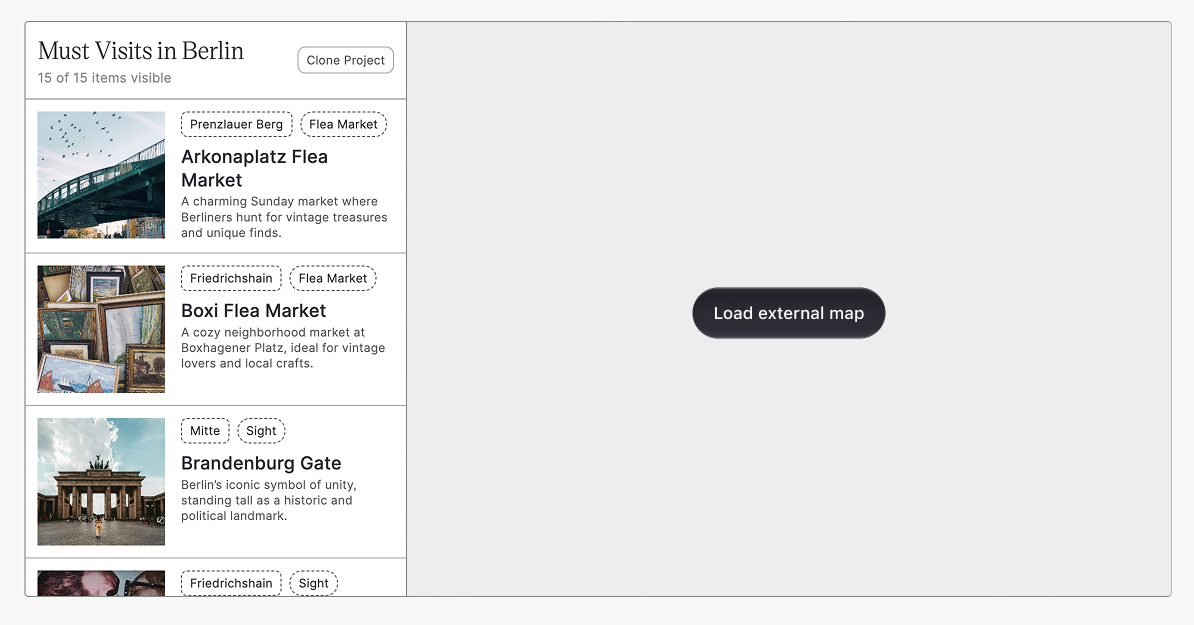
Before consent, the map area shows your placeholder with a consent button. Everything else on the page renders normally – in the example below the CMS item list, the images, the category filters, and the item counter are all fully functional. Only the map itself is held back, and no request has been sent to any map provider.
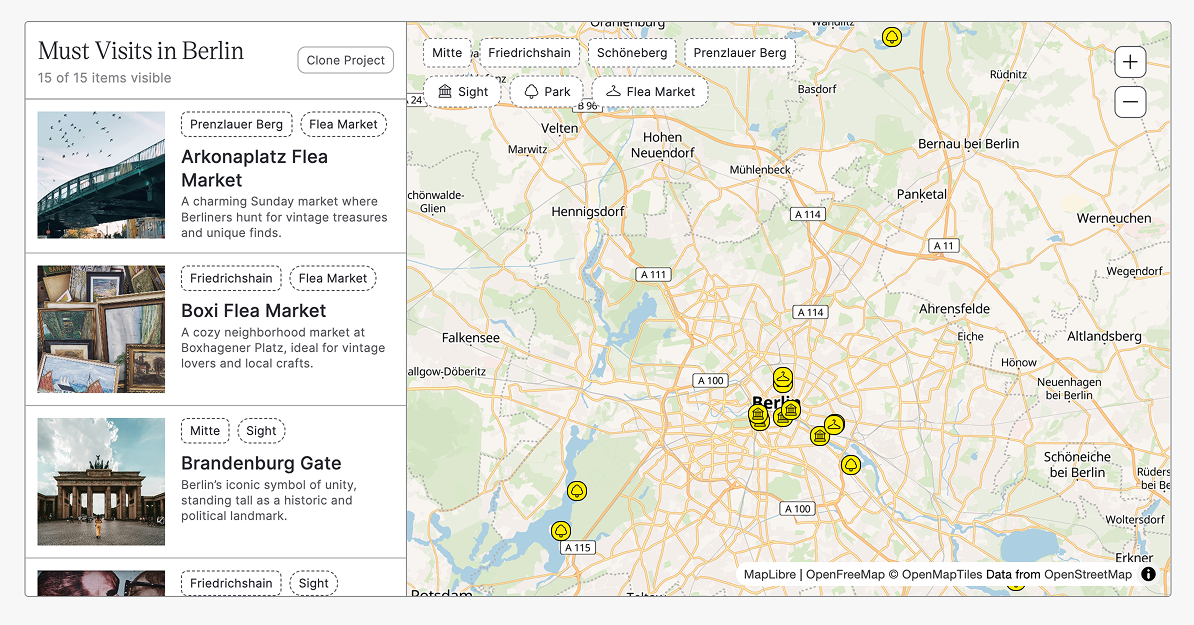
After the visitor clicks, the held scripts are released, the provider library loads, and the map renders with all pins, filters, and interactions intact.
How It Works
Dynamic Map boots in two stages. A small bootstrap script runs first and injects the actual map preloader. That preloader is what pulls in the provider library and starts requesting tiles.
The snippet below intercepts that injection and holds back only Dynamic Map's own preloader script. Every other script on the page loads as normal. When the visitor clicks your consent button, the held script is released and the map initialises as usual.
If consent was already stored from a previous visit, the interception is never installed at all, and the map loads immediately with no delay.
Setup GDPR consent in Dynamic Map
1. Add a consent button to the map placeholder
In the Webflow Designer, open your map's loading state (ncf-map-loading-state, inside cru-ncf-map) and add a Button, Link Block, or Text Block. Give it a label your visitors will understand, for example Allow external map or Show map (OpenStreetMap).
2. Add the custom attributes
Select the element and open Settings → Custom attributes. Add:
ncf=consentbutton— document.addEventListener('DOMContentLoaded', callback, { once: The script only listens to elements carrying this attribute.ncf-persist=true— optional. Remembers the decision for future visits.
Leave ncf-persist off if you want consent to apply to the current page view only. See Session-only vs. remembered consent below.
3. Hide the button once consent is given
The script adds the class ncf-consented to every consent button after consent. Define what that class does; normally hiding it, so the button doesn't flash on screen for returning visitors before the map appears. Add this to the same page head code block you'll use in the next step:
<style> [ncf="consentbutton"].ncf-consented { display: none; }</style>
Doing this in code rather than as a Webflow class is deliberate: Webflow may strip styles for classes that aren't applied to any element in the Designer, and this class is only ever applied at runtime.
4. Paste the script into the page's head code
Go to Pages → your map page → Settings → Custom code → Inside <head> tag and paste:
<script>
 (() => {
   const storageKey = 'ncf-consent';
   const consentClass = 'ncf-consented';
   const buttonSelector = '[ncf="consentbutton"]';

   let hasPersistedConsent = false;

   try {
     hasPersistedConsent = localStorage.getItem(storageKey) === 'true';
   } catch {}

   function getButtons() {
     return document.querySelectorAll(buttonSelector);
   }

   function markButtonsAsConsented() {
     getButtons().forEach((button) => {
       button.classList.add(consentClass);
     });
   }

   function onDomReady(callback) {
     if (document.readyState === 'loading') {
       document.addEventListener('DOMContentLoaded', callback, { once: true });
     } else {
       callback();
     }
   }

   if (hasPersistedConsent) {
     onDomReady(markButtonsAsConsented);
     return;
   }

   const head = document.head;
   const originalAppendChild = head.appendChild;
   const blockedScripts = [];

   let haveScriptsLoaded = false;

   head.appendChild = function (node) {
     if (
       node instanceof HTMLScriptElement &&
       node.src.startsWith('https://cdn0.nocodeflow.net/preloader')
     ) {
       blockedScripts.push(node);
       return node;
     }

     return originalAppendChild.call(this, node);
   };

   function loadBlockedScripts() {
     if (haveScriptsLoaded) {
       return;
     }

     haveScriptsLoaded = true;
     head.appendChild = originalAppendChild;

     blockedScripts.forEach((script) => {
       originalAppendChild.call(head, script);
     });

     blockedScripts.length = 0;
   }

   function initialize() {
     getButtons().forEach((button) => {
       button.addEventListener(
         'click',
         () => {
           if (button.getAttribute('ncf-persist') === 'true') {
             try {
               localStorage.setItem(storageKey, 'true');
             } catch {}
           }

           markButtonsAsConsented();
           loadBlockedScripts();
         },
         { once: true },
       );
     });
   }

   onDomReady(initialize);
 })();
</script>
💡 Put this on the map page only, not in Project Settings. In the site-wide head code it would run on every single page of your site, where there is no map to block. Page-level head code runs on the map page only.
5. Publish and verify the requests are actually blocked
This step is not optional. A consent gate that looks right but still fires requests is worse than none at all, because you'll believe you're covered when you aren't.
- Publish to your staging or live domain and open the map page in a private/incognito window.
- Open DevTools → Network tab, then reload the page.
- Filter for your provider's domain:
openstreetmapfor OpenStreetMap;maplibre,openfreemapandopenmaptilesfor MapLibre;mapboxfor Mapbox;googleapisfor Google Maps. Also checkcdn0.nocodeflow.net. - Before clicking the button there must be zero requests to any of these. If you see even one, the block isn't working — stop and contact support.
- Click the consent button. The requests should now appear and the map should render.
- Reload the page. With
ncf-persist="true"the map loads immediately; without it, you're back to the blocked state.
Session-Only vs. Remembered Consent
ncf-persist controls whether the decision survives a page reload.
- Without
ncf-persist— consent applies to the current page view only. Reloading the page brings the consent button back. This is the more conservative option and the one to choose if you're unsure. - With
ncf-persist="true"— the choice is stored in the browser'slocalStorageunder the keyncf-consent, and the map loads automatically on every future visit until the visitor clears their browser storage.
You can also offer both at once. Add two buttons inside the placeholder — one with ncf-persist="true" labelled Always show maps, one without it labelled Show map this time — and let the visitor choose. The script wires up every element carrying ncf="consentbutton".
Let Visitors Withdraw Their Consent
If you use ncf-persist="true", give visitors a way to reverse the decision. GDPR requires withdrawing consent to be as easy as giving it.
Add a link anywhere on the page — in the footer or next to the map — with the custom attribute ncf = consentreset, then add this below the main script in the same head code block:
<script> document.addEventListener('DOMContentLoaded', () => { document.querySelectorAll('[ncf="consentreset"]').forEach((element) => { element.addEventListener('click', (event) => { event.preventDefault(); try { localStorage.removeItem('ncf-consent'); } catch {} window.location.reload(); }); }); });</script>
Clicking it clears the stored consent and reloads the page, putting the map back behind the consent button.
Advanced: Trigger the Map From Your Consent Manager
If you already run a consent management platform (CMP) such as Cookiebot, Usercentrics, CookieYes, or Osano, you probably don't want a second, separate consent UI just for the map. Instead, let the CMP decide and have it release the map for you.
The consent button is still the switch — you just click it programmatically. Keep everything from the Setup section, then add the integration snippet after the main script in the same head code block.
Cookiebot:
<script> window.addEventListener( 'CookiebotOnAccept', function () { if (window.Cookiebot && window.Cookiebot.consent.marketing) { document.querySelectorAll('[ncf="consentbutton"]').forEach((button) => { button.click(); }); } }, false, );</script>
Cookiebot.consent also exposes preferences and statistics. Use whichever category your privacy policy assigns the map to and swap marketing for that category. Other CMPs work the same way; only the event name and the consent check change.
Three things to get right when a CMP is in charge:
- Remove
ncf-persist="true"from the button. Otherwise the map's own stored consent would keep it loading even after the visitor withdraws consent in the CMP, and the CMP's setting would silently stop working. - Give the placeholder a reason, not a spinner. Replace the loading spinner with a short message such as This map is only loaded after you accept marketing cookies, plus a link that reopens the CMP dialog. For Cookiebot that's a link pointing to
javascript: Cookiebot.renew(). - Hide your own consent button if the CMP is the only way to consent, so visitors aren't shown two competing prompts.
display: noneis fine — a hidden element can still be clicked programmatically. What it must not be is deleted: the element has to exist in the DOM for the snippet to find it.
Practical Tips
- Design the placeholder as real content, not a broken state. A blank grey box with a spinner reads as an error. Give the placeholder a static map image or a solid brand colour, one sentence explaining why the map isn't loading, the name of the provider it will contact, and the button. Click-through goes up and support requests go down.
- Name the provider in or next to the button. Load map (OpenStreetMap) is more informative than Load map, and informed consent is the point of the exercise.
- Test in a private window every time. Once you've clicked a button with
ncf-persist="true", your own browser will keep loading the map immediately, which makes it look as if the block stopped working. - Re-verify after every Dynamic Map update. The snippet depends on the preloader URL. After updating Dynamic Map, repeat step 5 before assuming it still blocks.
- Consider the trade-off. If a large share of your visitors decline, the map effectively doesn't exist for them. Make the placeholder informative enough that consenting feels reasonable.