Last updated:
May 28, 2026
Multi-Reference Fields
Dynamic Map’s native filter currently supports only the Option Field. This guide provides a workaround to simulate multi-reference field filtering using option fields. Native multi-reference support is in development — submit feedback to request it.
Workaround: Simulate Multi-Reference Filtering
Step 1: Navigate to Your Reference Collection
Open the reference collection you want to filter by (e.g. “Amenities”).
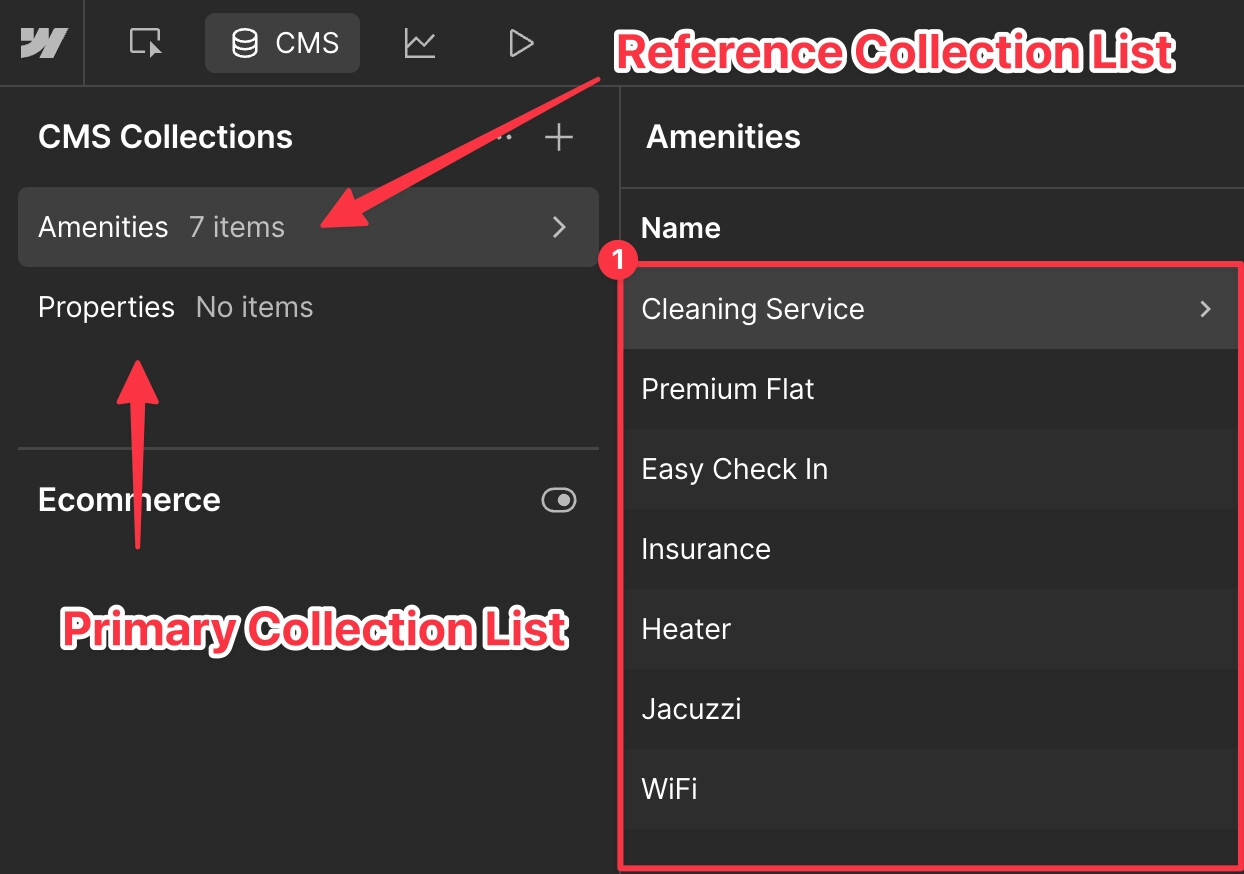
Step 2: Create Option Fields
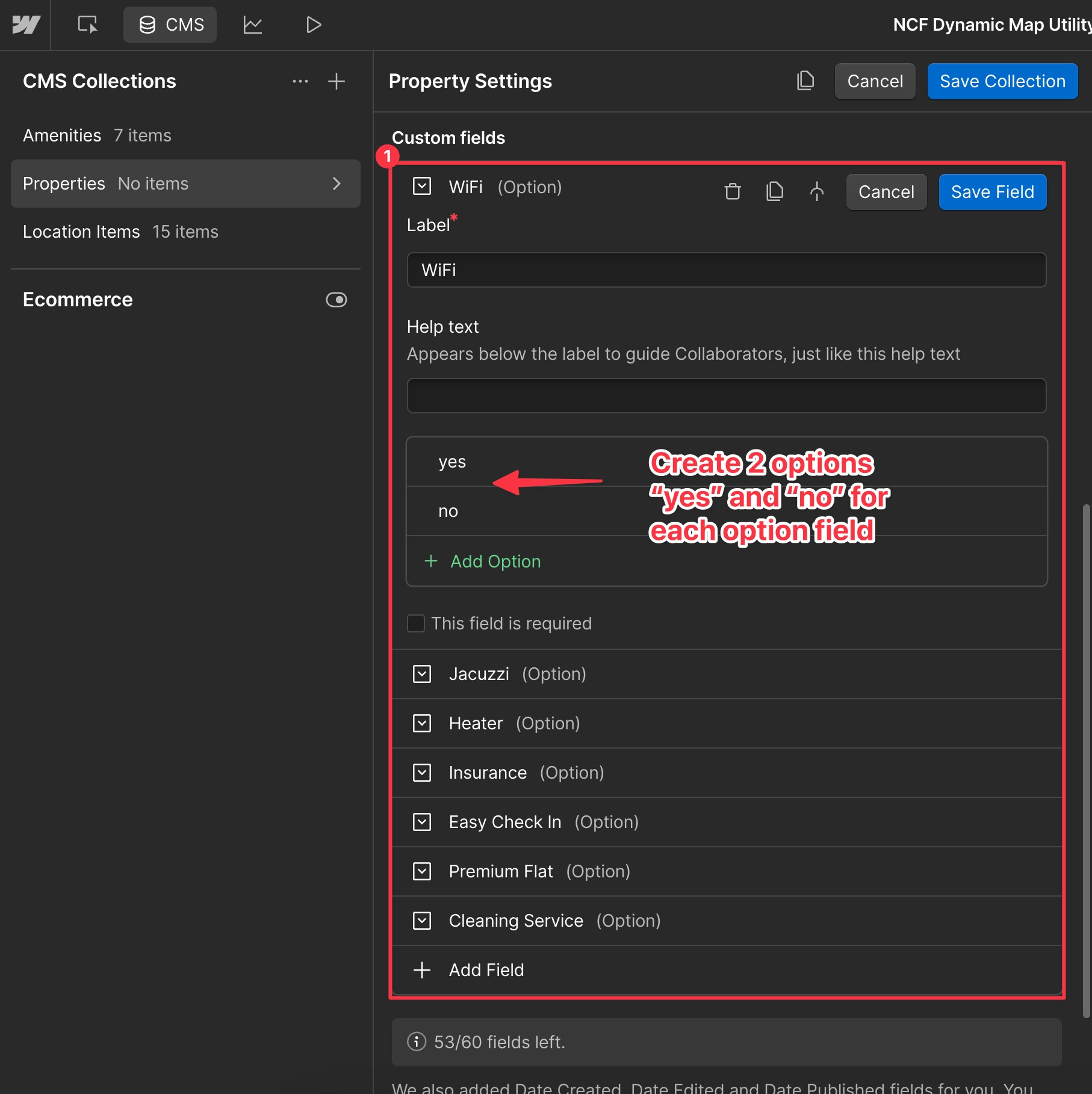
In your main CMS collection, create one Option field for each reference item (e.g. one field per amenity). Each field gets two options: “yes” and “no.”
Step 3: Create Category Filters
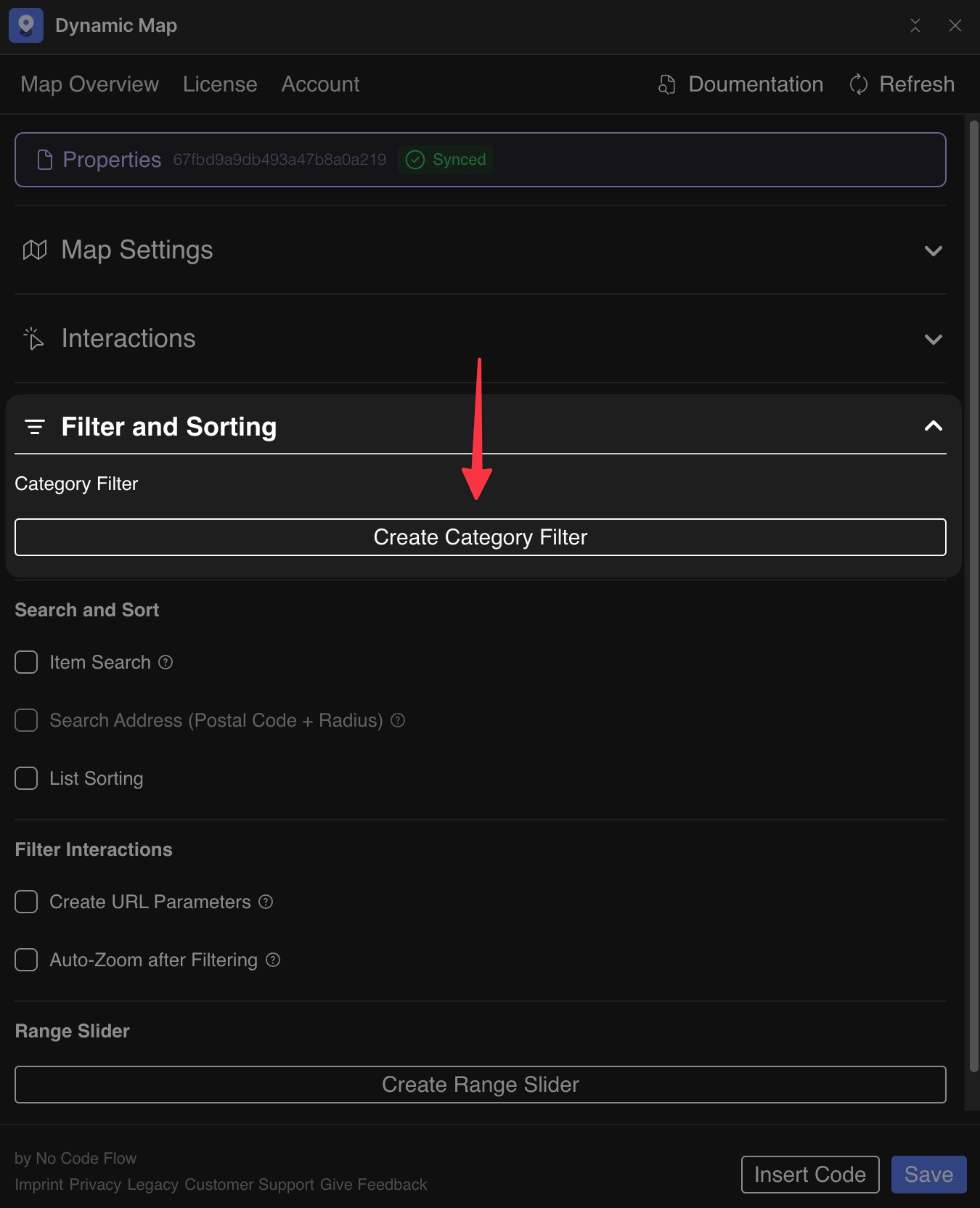
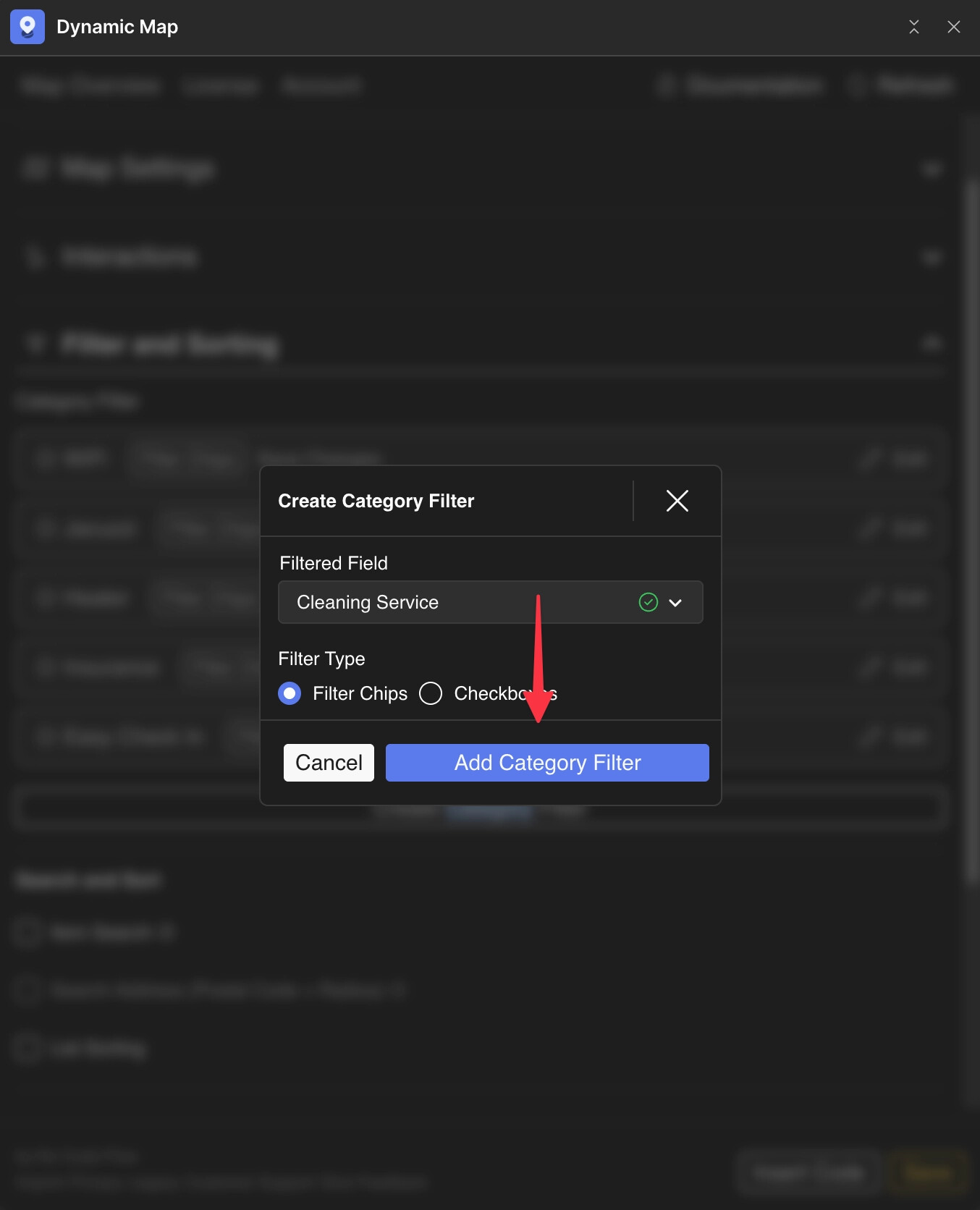
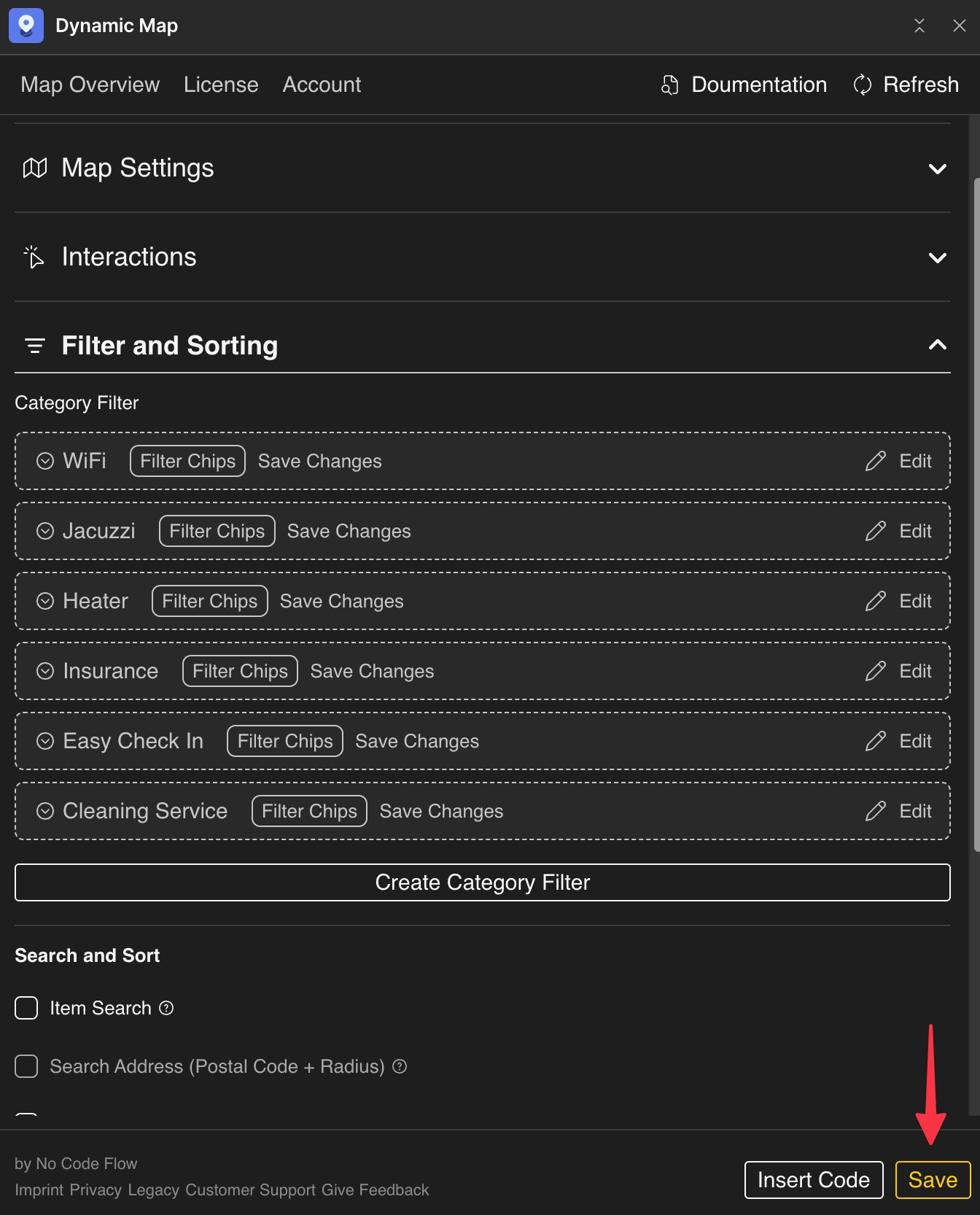
In Dynamic Map App, create one category filter for each Option field, then press Save.
Step 4: Identify Filter Chips in Webflow
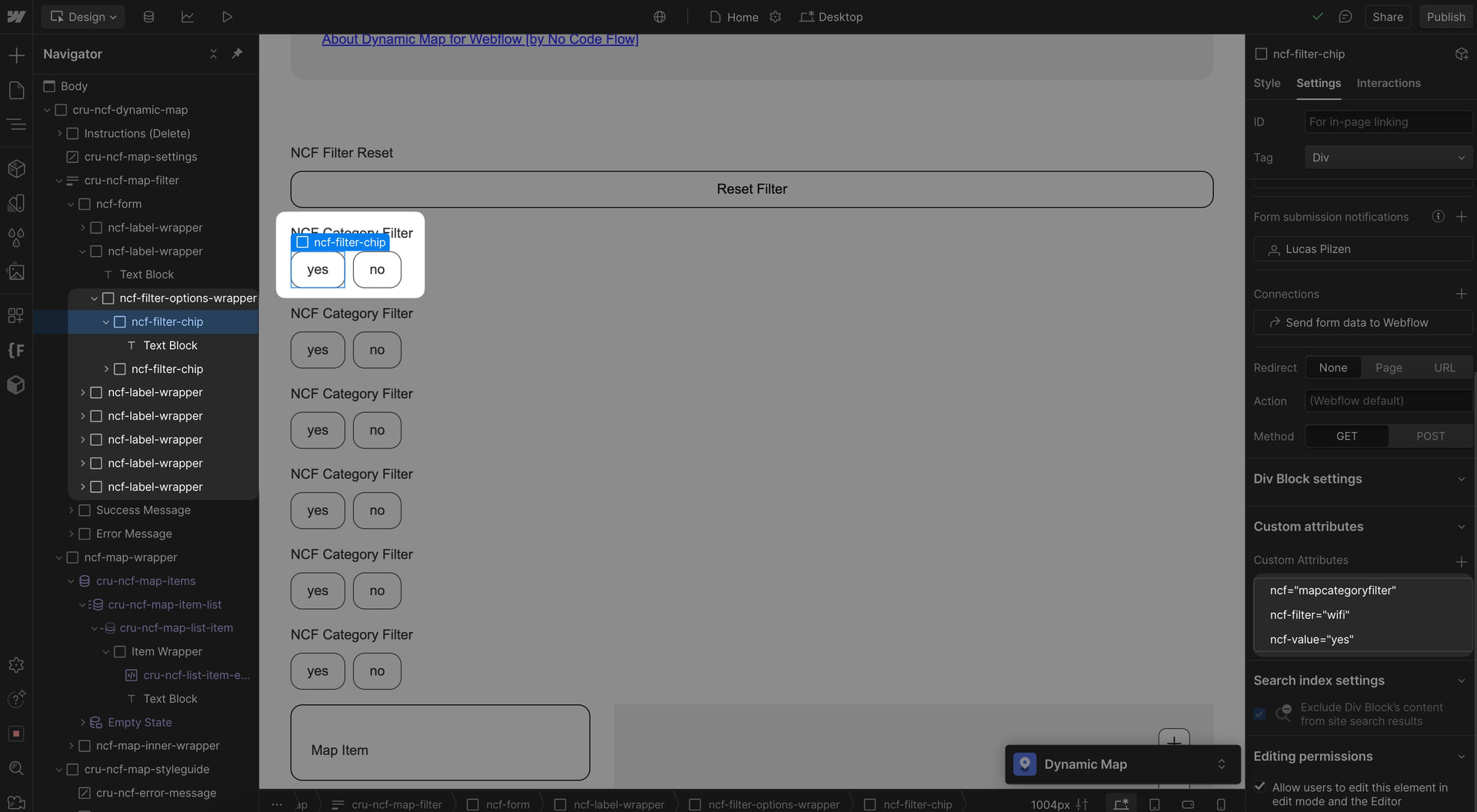
Navigate to your Option field filter chips in Webflow Designer. Each chip’s category assignment is visible in the Custom Attributes panel.
Step 5: Rename and Clean Up
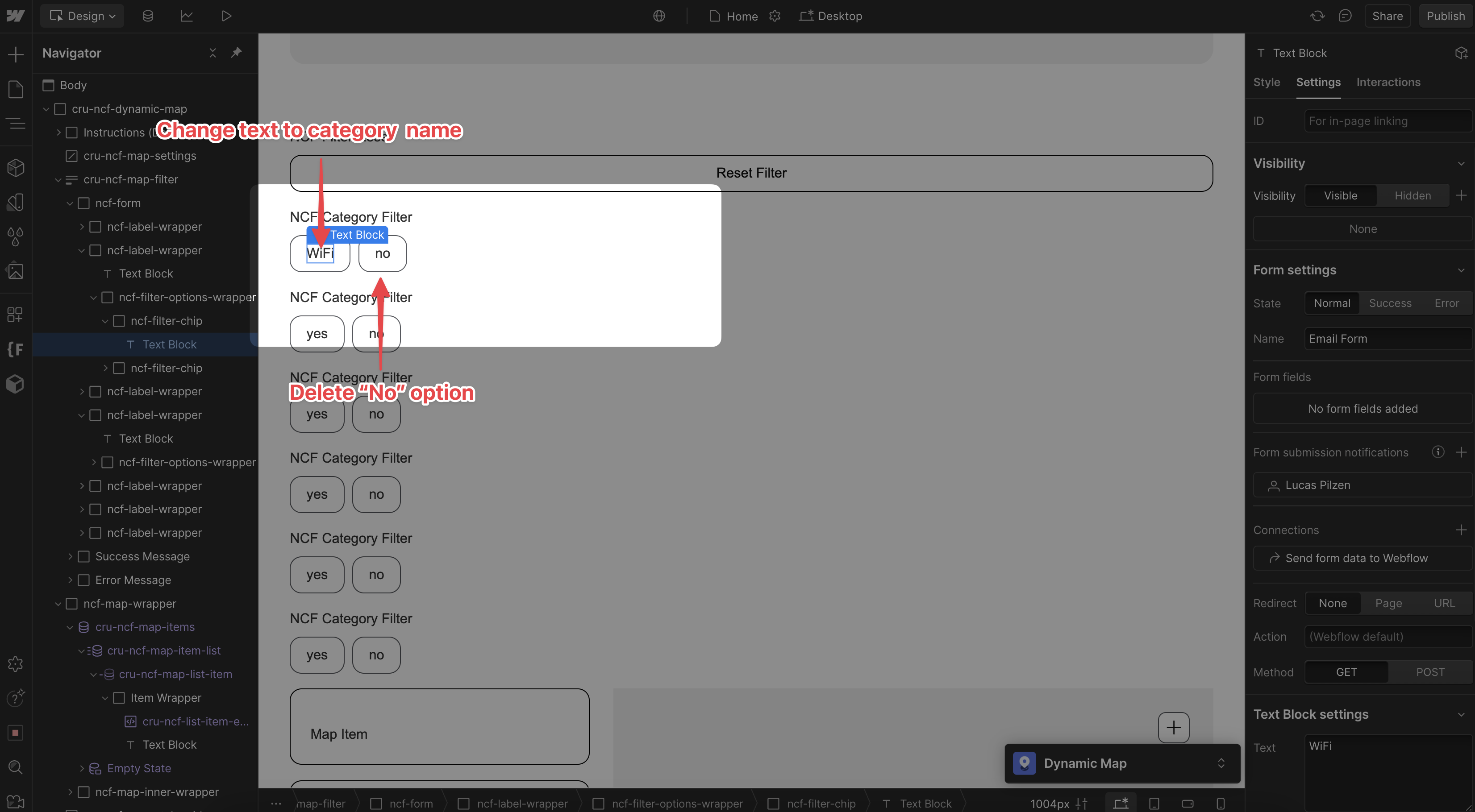
Rename each “yes” chip to your desired display label (e.g. “WiFi”). Then delete all “no” option chips — they’re not needed in the UI.
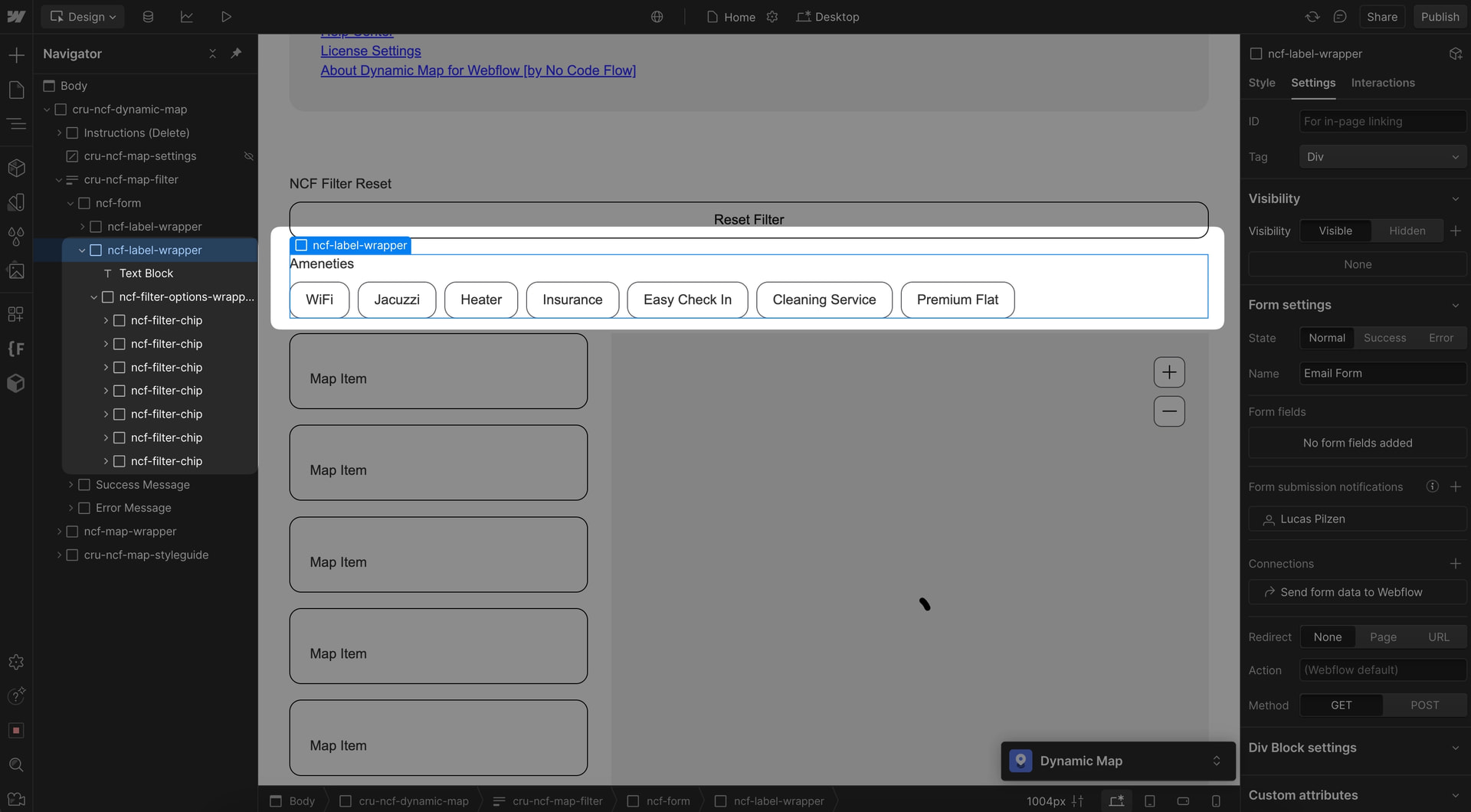
Arrange and style the remaining chips however you like.
Step 6: Ignore the Sync Warning
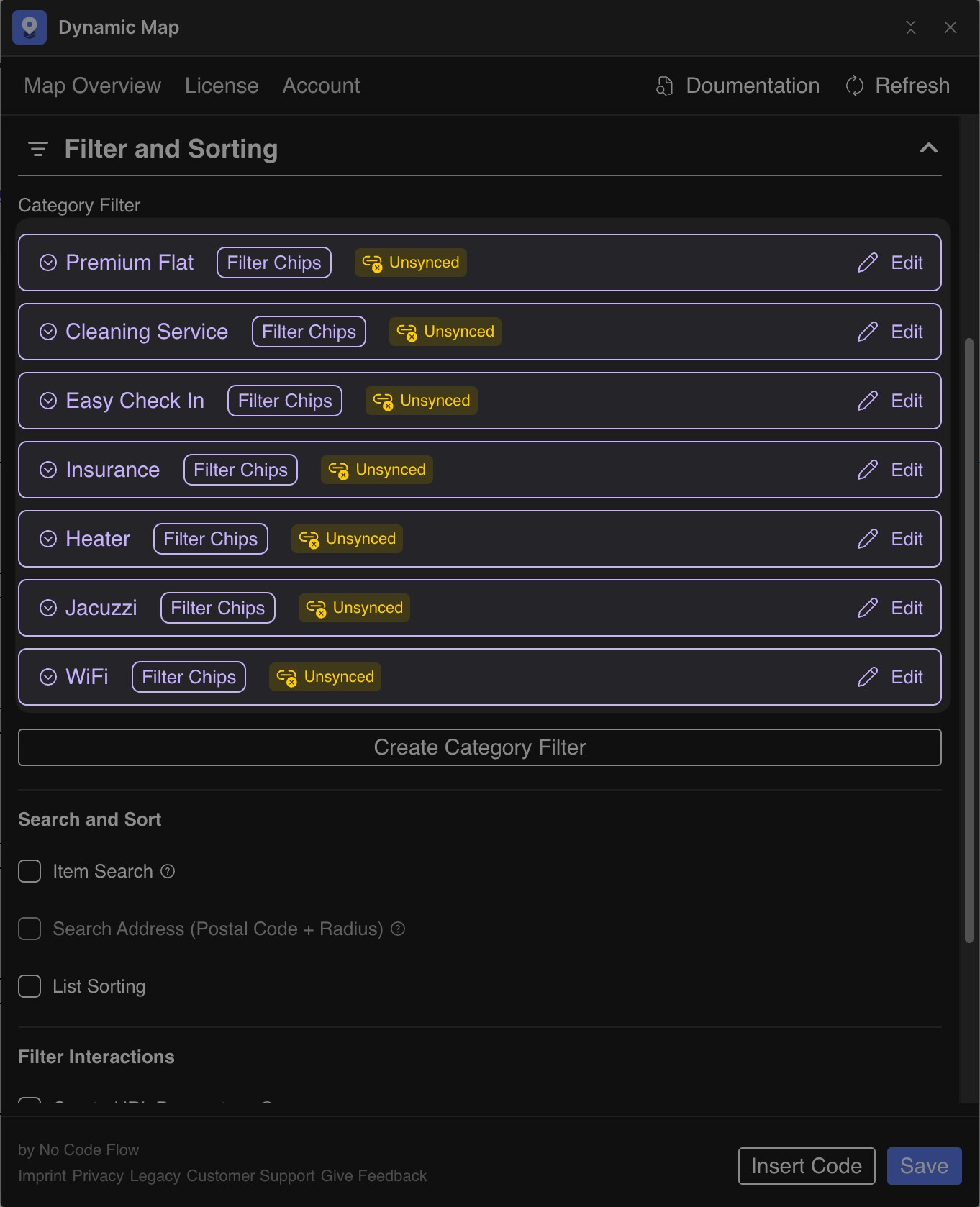
Dynamic Map App will show a warning about deleted option tags. You can safely ignore it — it simply flags the removed “no” chips.
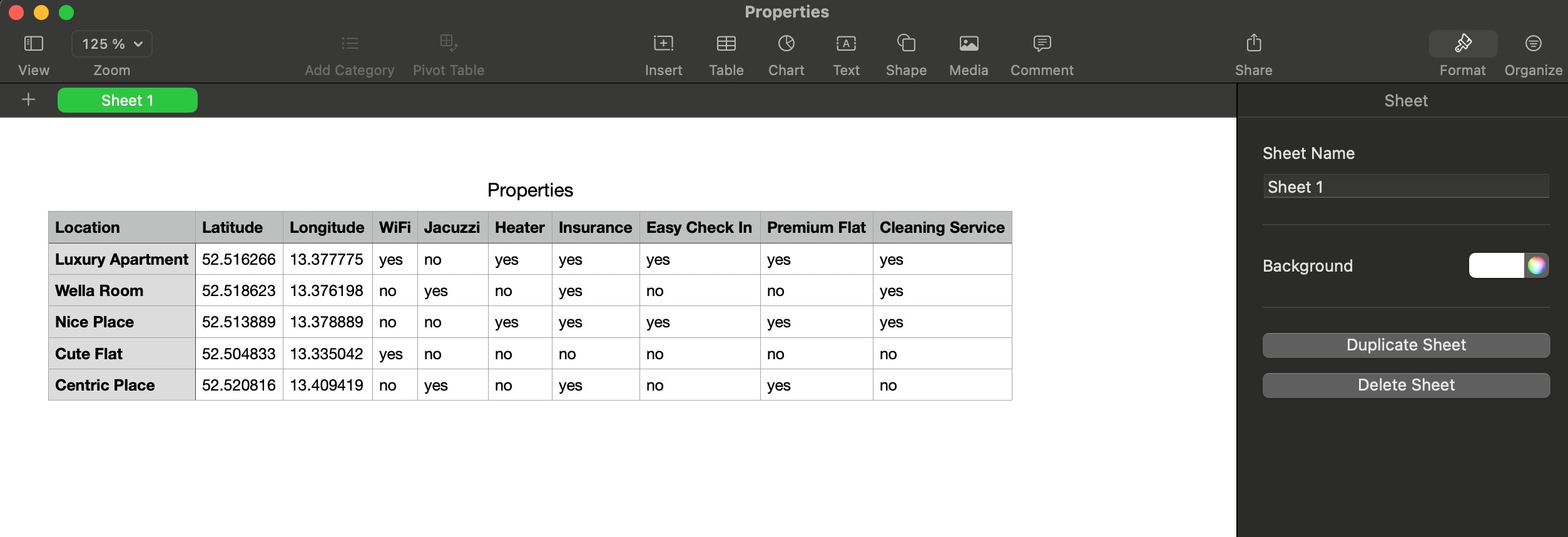
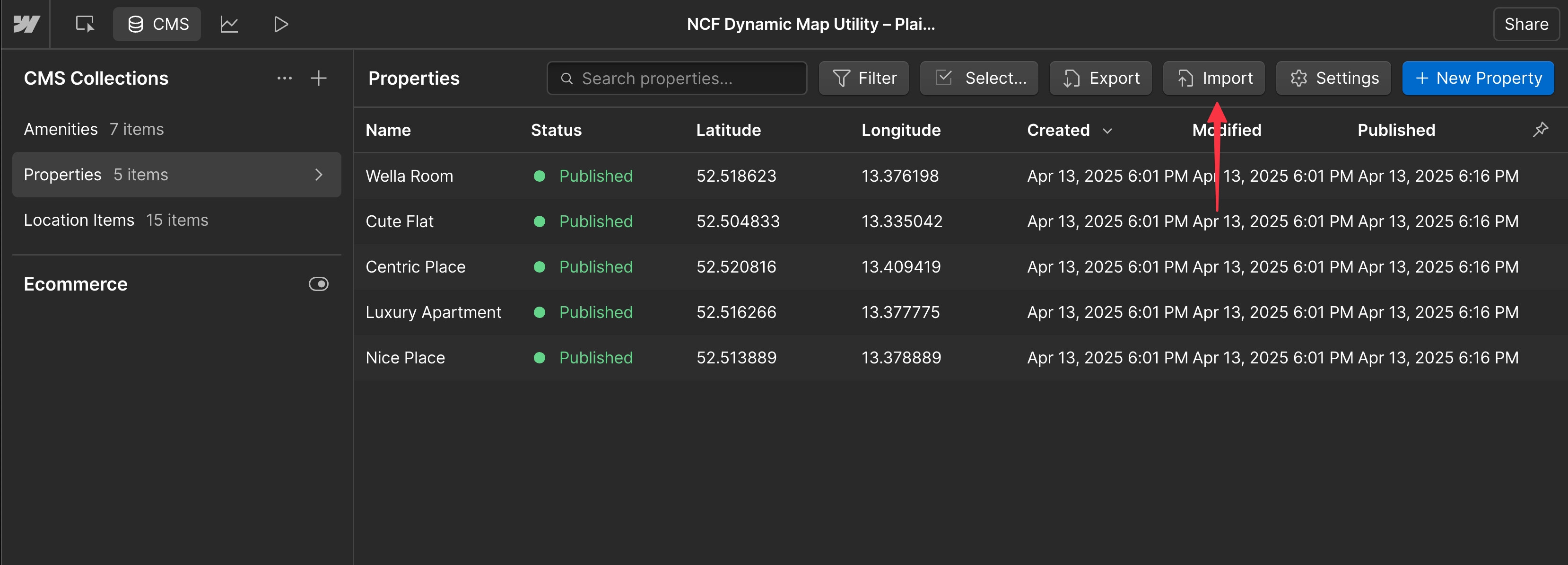
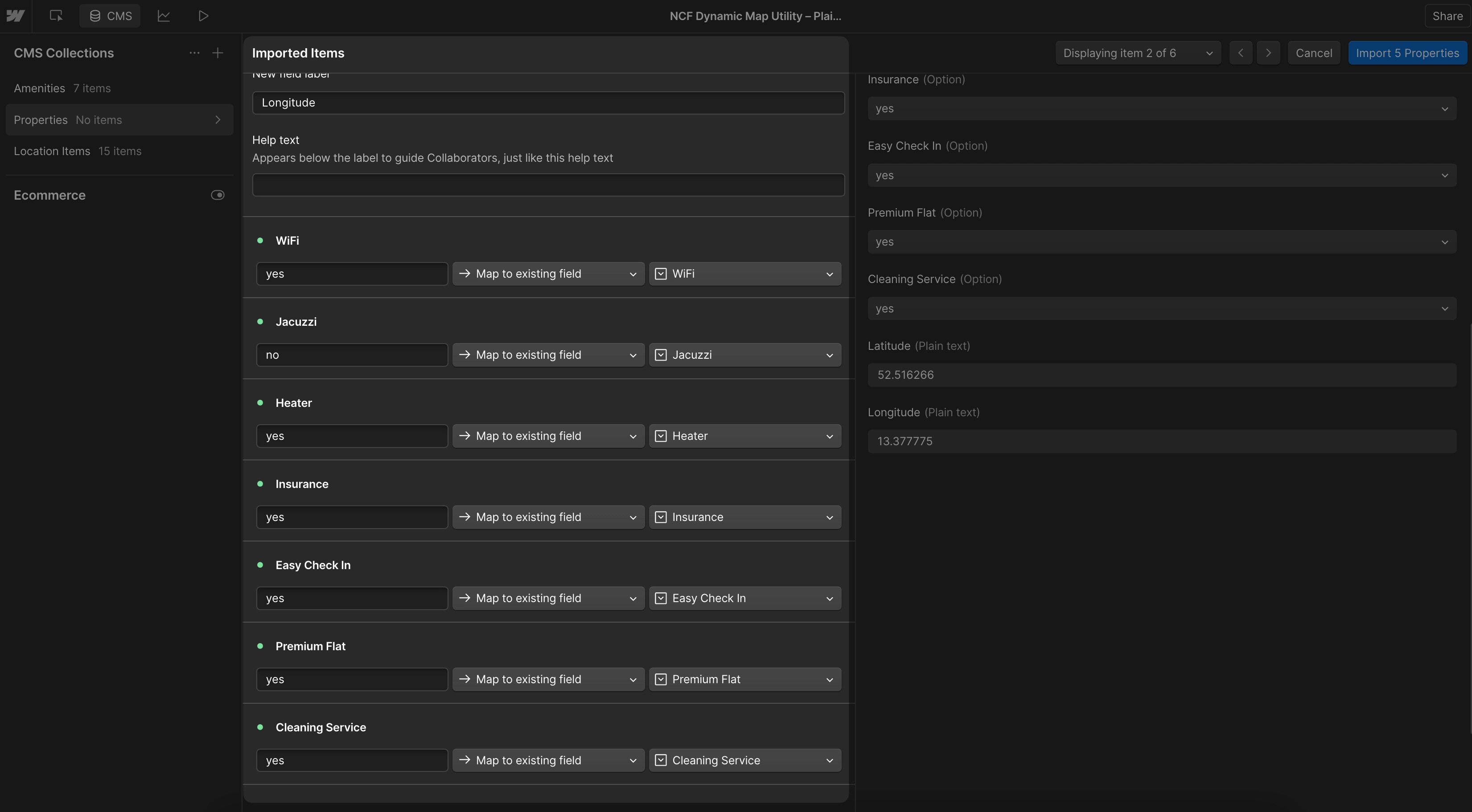
Pro Tip: Use Webflow’s CSV Import
To populate many items at once without manual editing, use Webflow’s CSV import feature.