Last updated:
May 28, 2026
Hide Elements on Page Load / Prevent Flickering
This article explains when and why elements flicker, how ncf-hide-on-load works, and a common Designer quirk with the address range container.
Why Elements Flicker
Dynamic Map’s scripts load asynchronously after the page HTML is rendered. During the brief gap between HTML render and script load, any Dynamic Map element that should be hidden (like the filter reset button, which should only show when a filter is active) is briefly visible. This flash is what users experience as flickering.
How to Prevent Element Flickering
To prevent map UI elements from briefly appearing in their unstyled or unfiltered state during page load, add the ncf-hide-on-load class to any element you want hidden until the map has fully initialized.
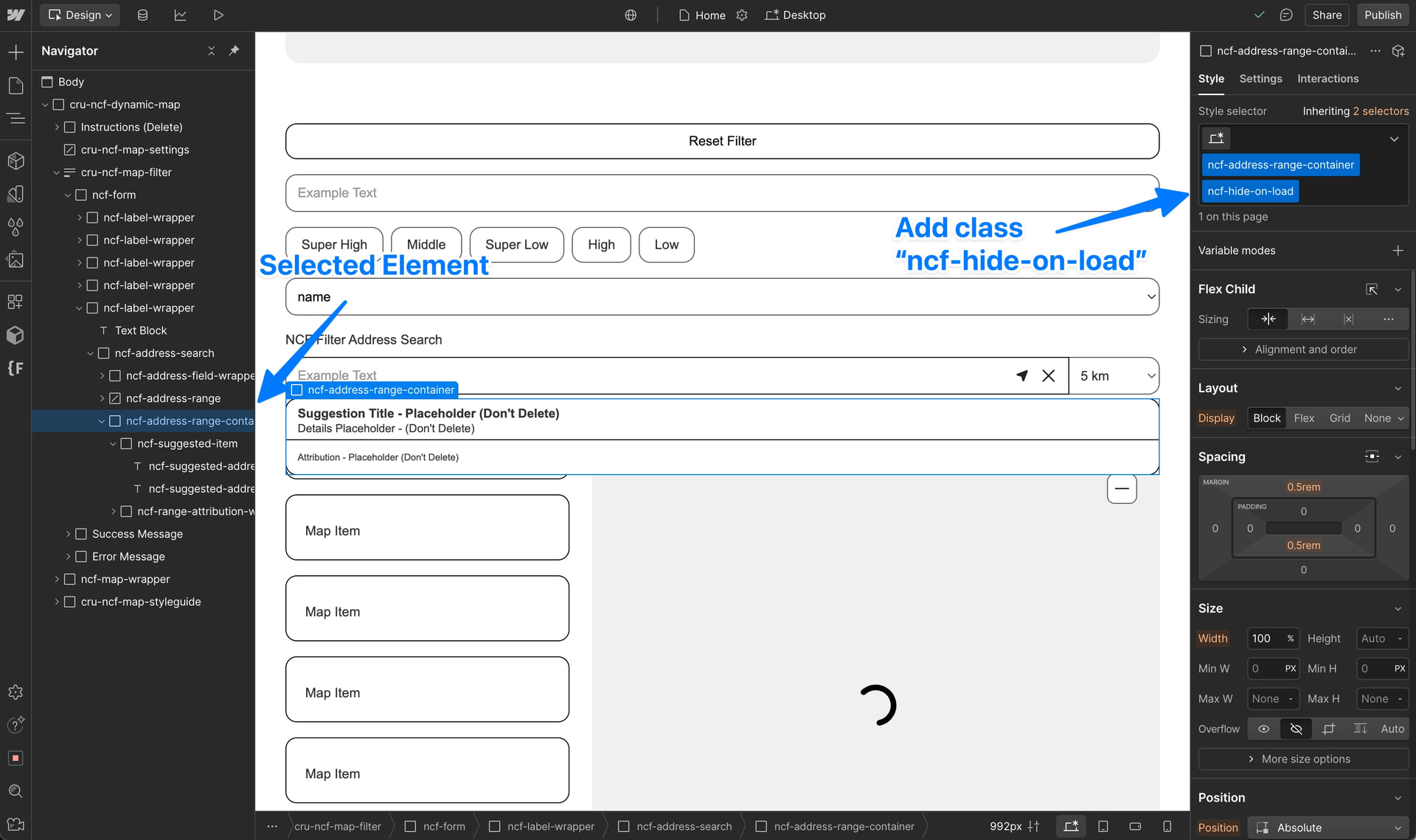
With ncf-hide-on-load applied: Elements are hidden during load and revealed once the map is ready.

Without ncf-hide-on-load: Elements flash into view before the map scripts finish, causing a flickering effect.
💡 Pro Tip: Set ncf-address-range-container to Display: None in Webflow Designer so it doesn’t show during design — Dynamic Map will still render it on the live site. See also: Map Address Search.