Last updated:
May 28, 2026
Map Category Filter
Category filters let users narrow down map items by category tags or checkboxes, such as “Sightseeing Spots” or “Nature Parks.” This improves the browsing experience and makes large maps far easier to navigate.
💡 Good to Know: Currently, Dynamic Map’s category filter only supports the Option Field in Webflow CMS. Need multi-reference field support? Share your feedback here, or see the Multi-Reference Fields workaround guide.
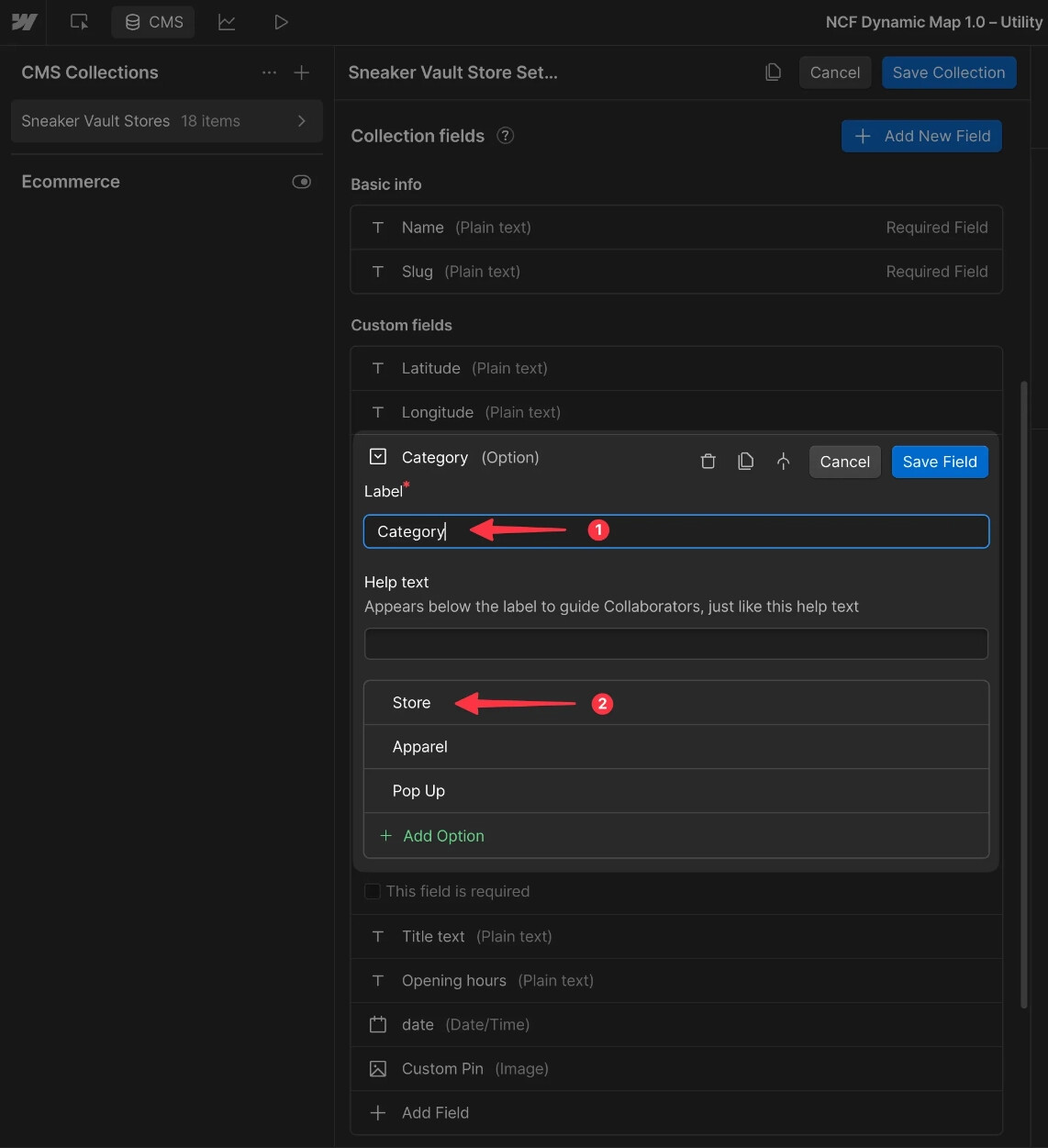
Create Option Field
- Navigate to your CMS Collection List.
- Create an Option field. Each option represents one filterable category.
Create a Filter in Dynamic Map App
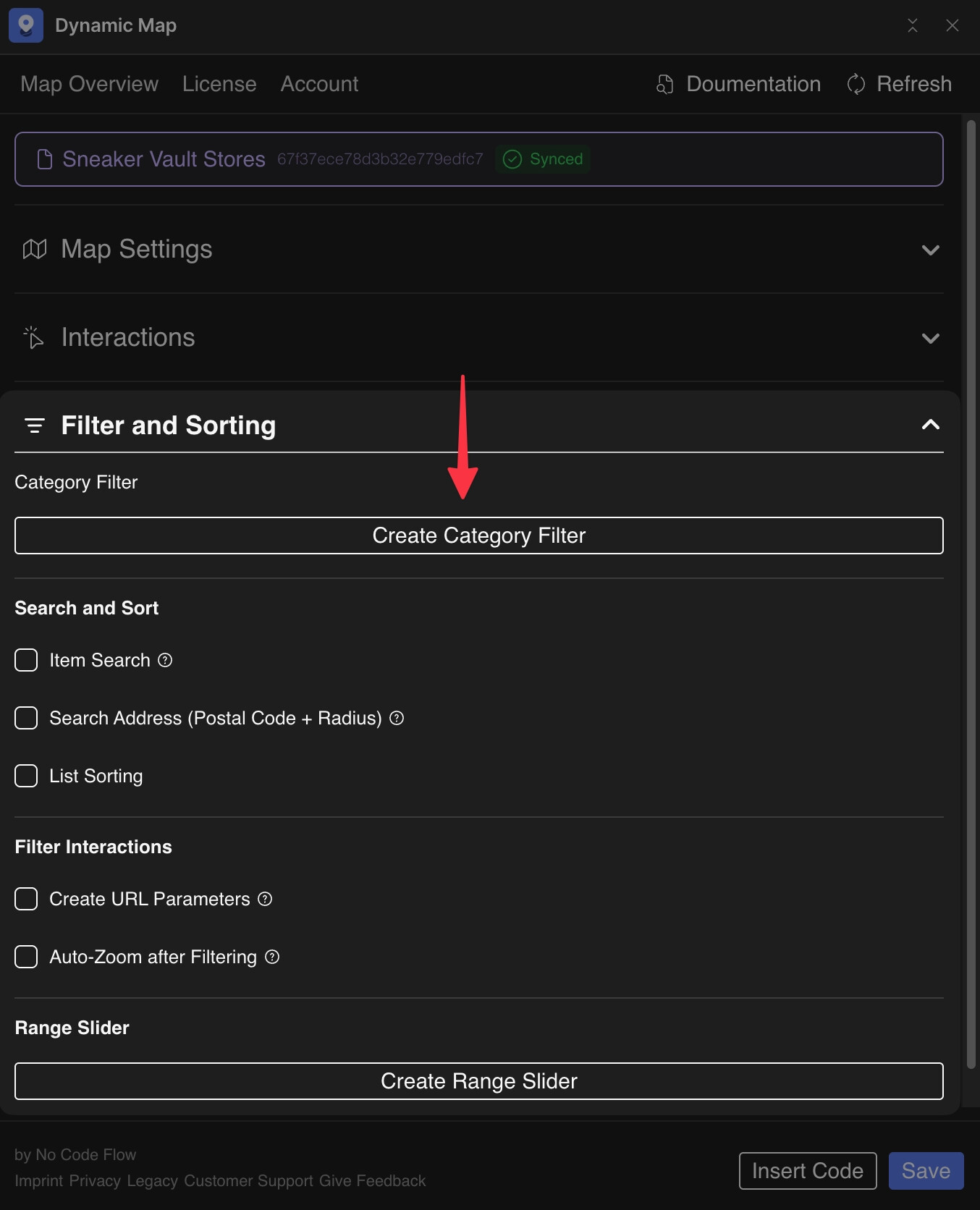
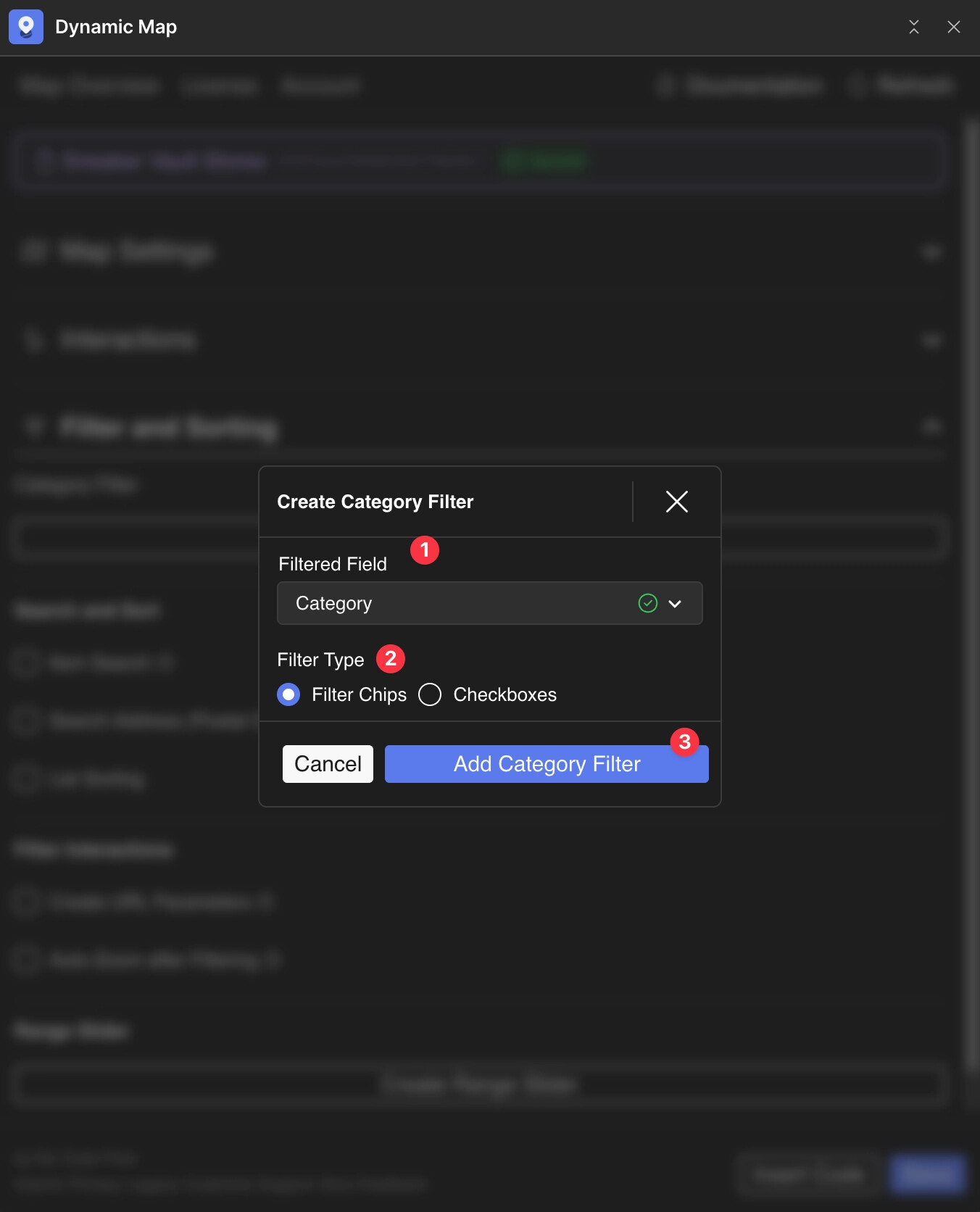
In Dynamic Map App, navigate to Filter and Sorting and click Create Category Filter.
Configure Filter
- Select the Option field from your collection list.
- Choose between Filter Chips or Checkbox (UI preference only).
- Press Add Category Filter.
- Press Save in Dynamic Map.
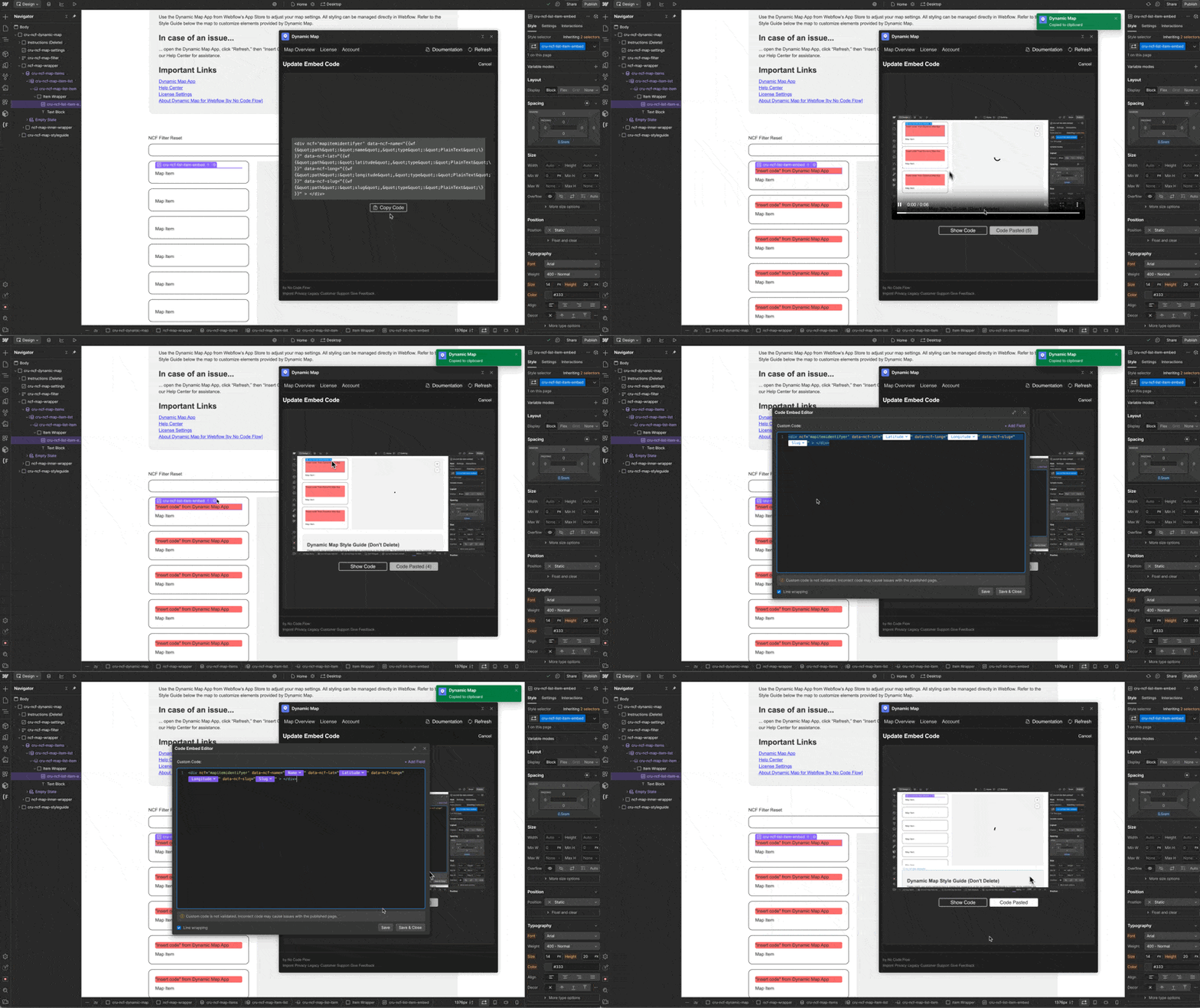
Update Code
Insert the updated code snippet into Dynamic Map’s Custom Code embed.
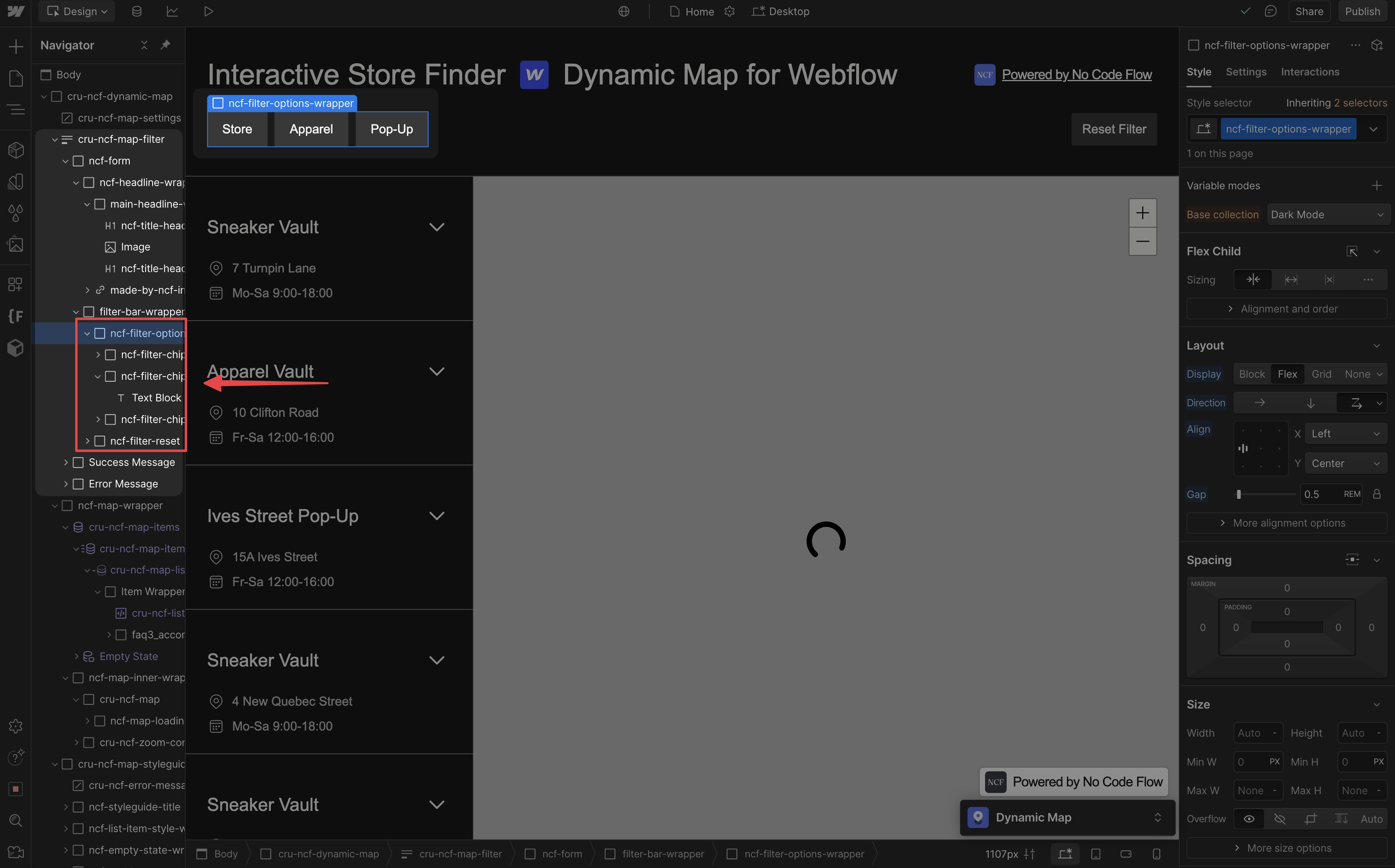
Locate in Webflow Designer
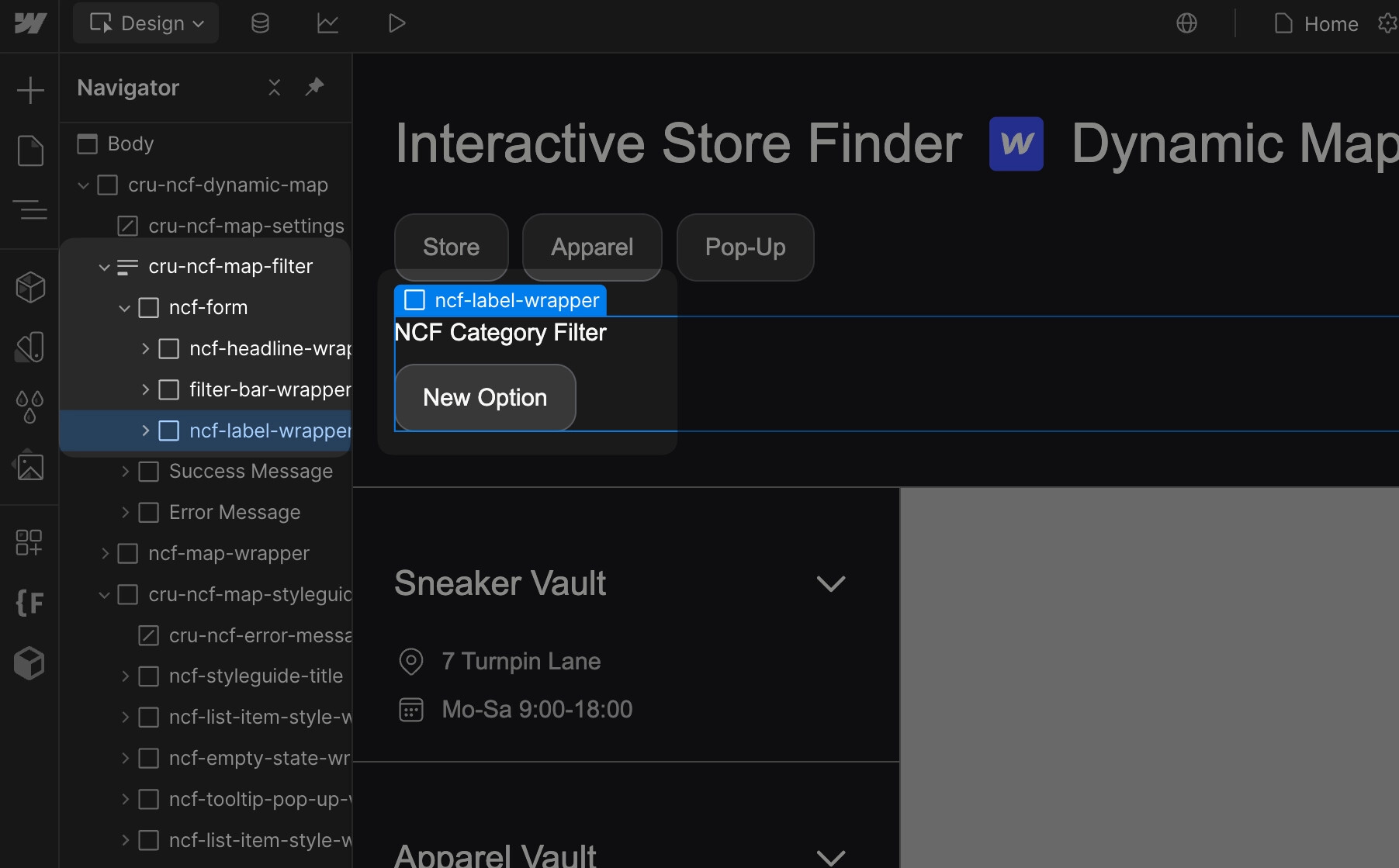
The filter will appear inside the cru-ncf-map-filter div. Style the filter elements directly in Webflow from there.
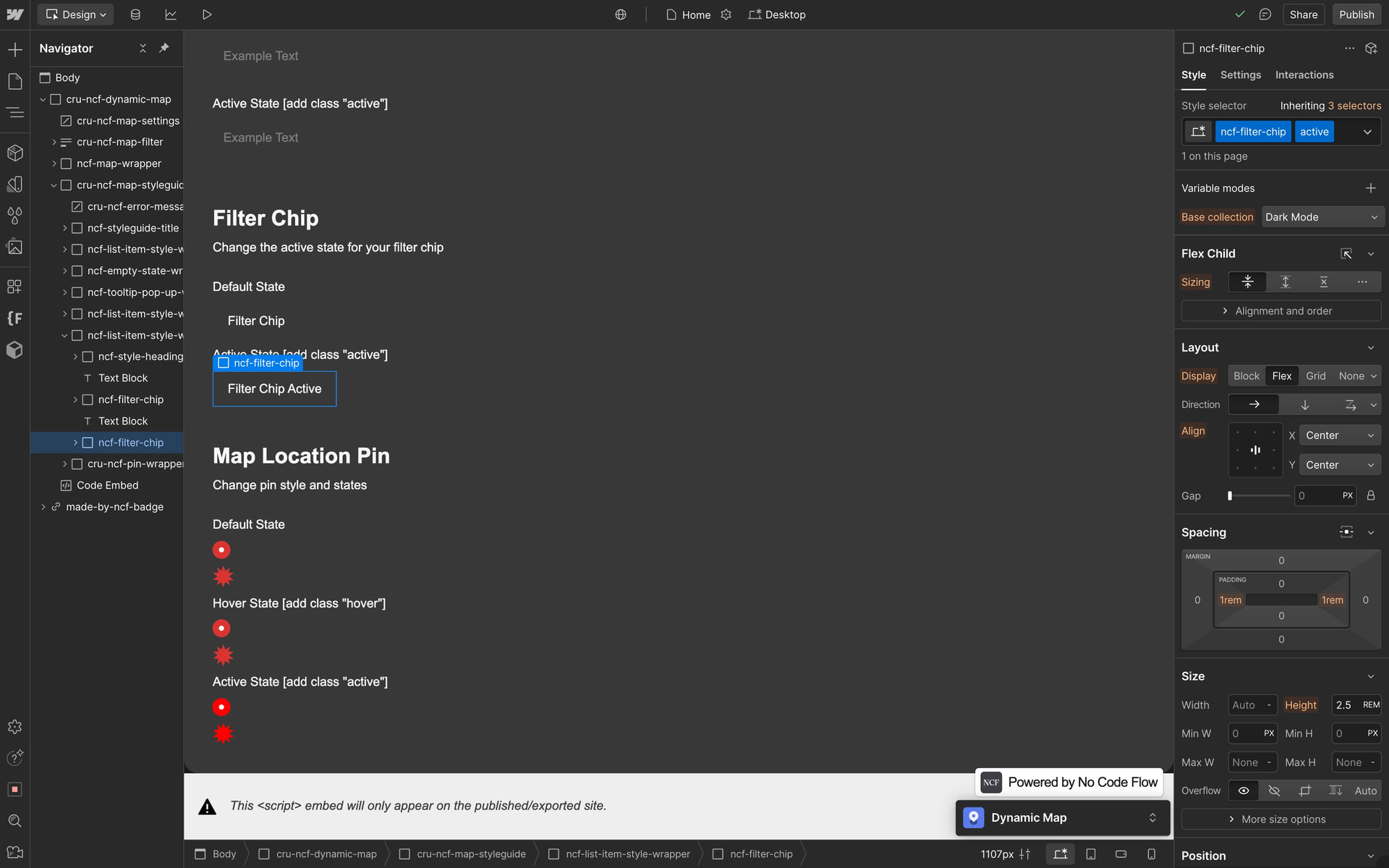
Style the Active State
To style the active (selected) chip state, go to the Style Guide, add the class active to the second filter chip, and style it.
⚠️ Be Aware: Renaming your option fields might cause issues: If you rename an option field in your collection list, you’ll need to recreate the filter chip. Open the Dynamic Map App and follow the resync process. Be sure to delete the old category filter chip linked to the renamed option, as it will no longer work.
Adding New Categories and Resyncing
Create a New Category
Add a new option to your collection’s category Option field in Webflow CMS.
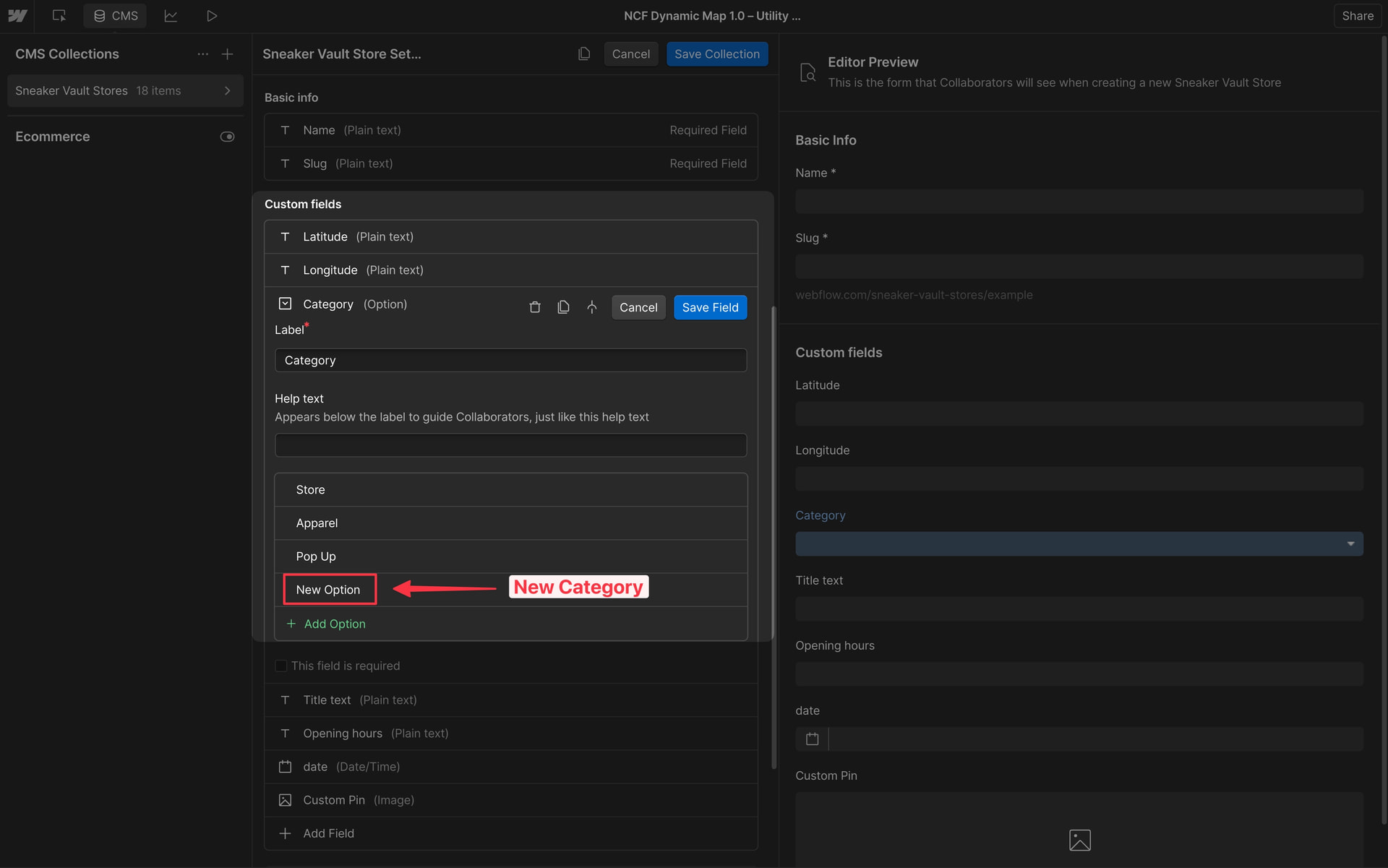
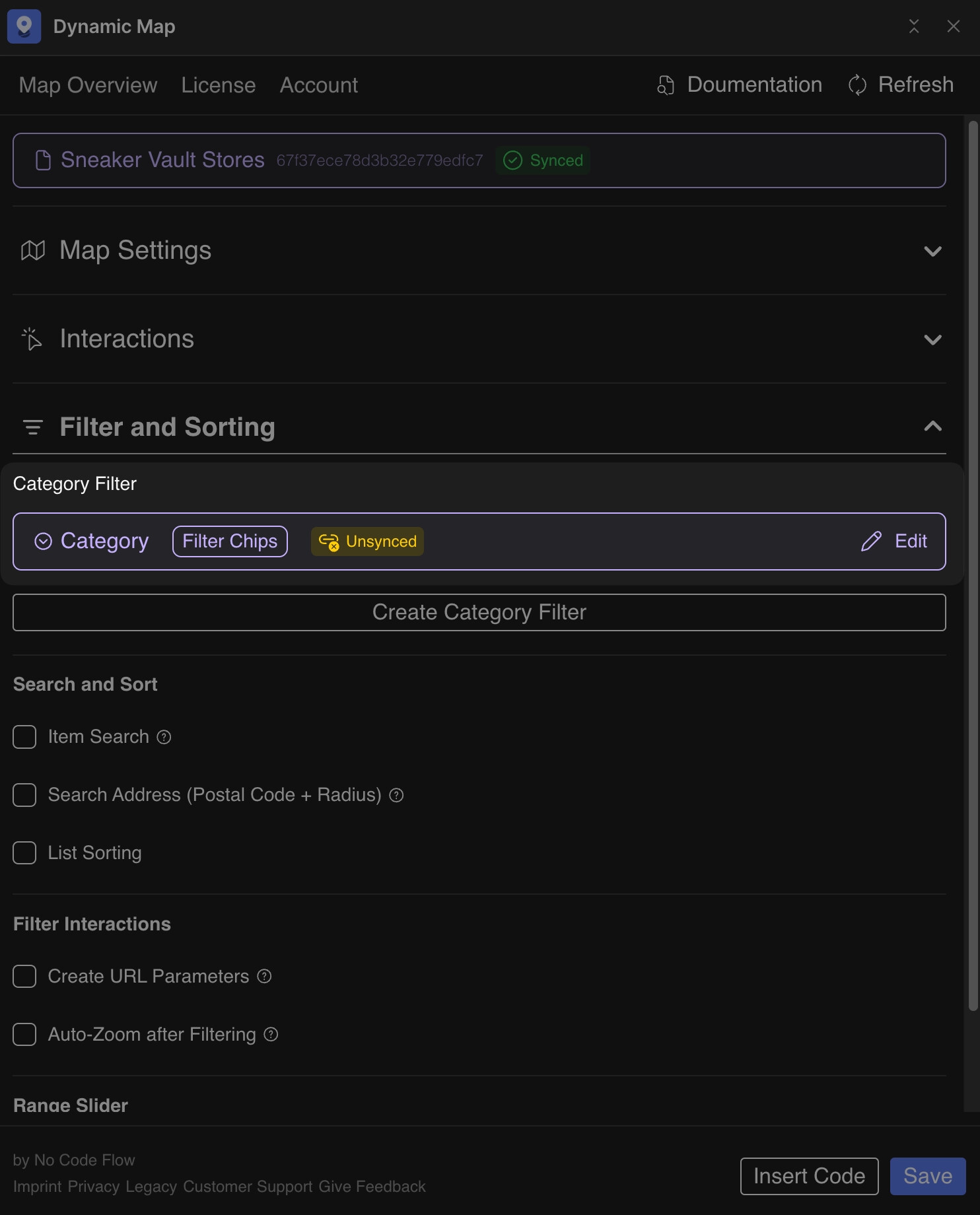
Locate the Unsynced Chip
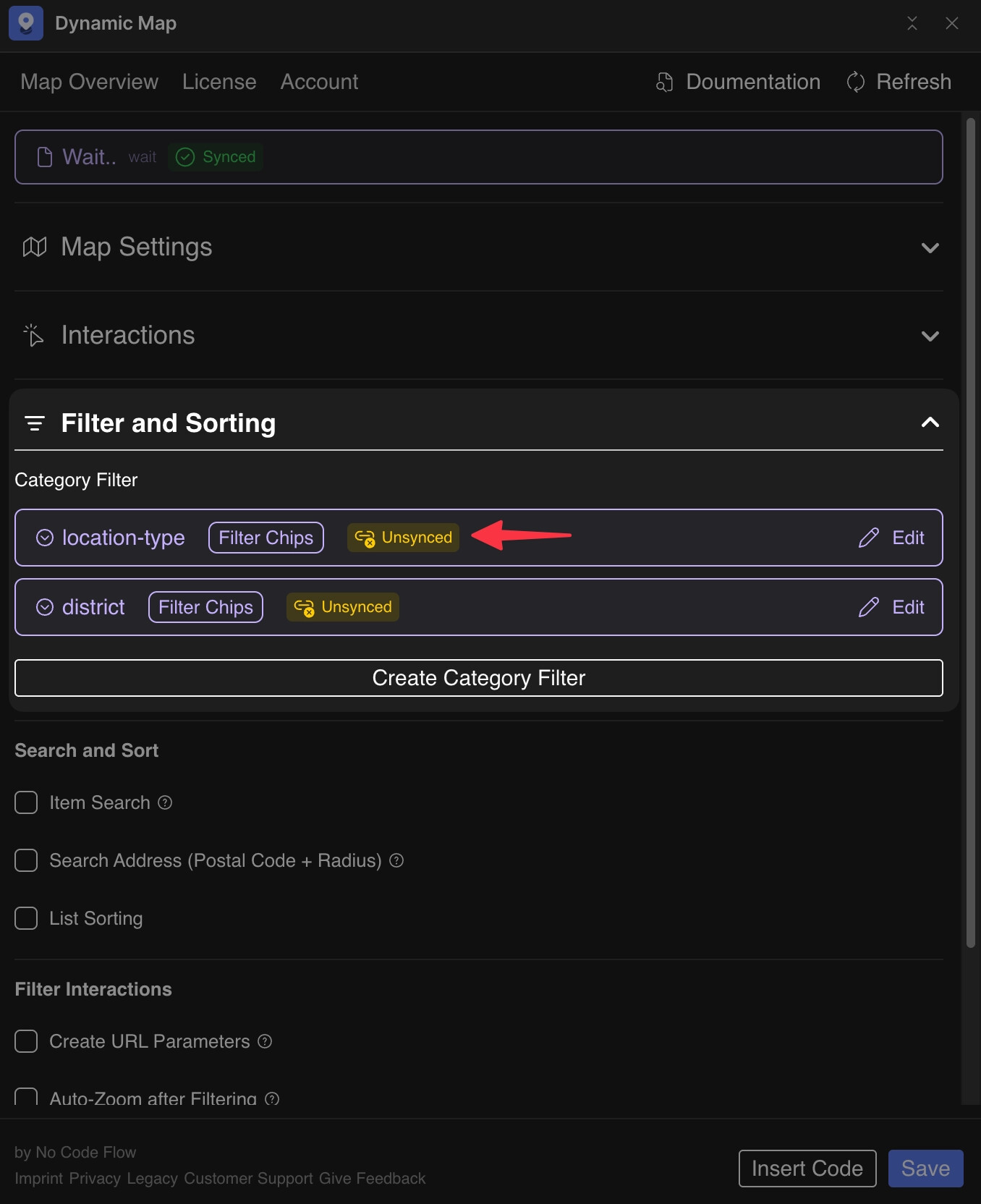
Open Dynamic Map App, click Refresh, then navigate to Filter and Sorting. The new category chip will be marked as Unsynced. Click Edit to add the missing tag.
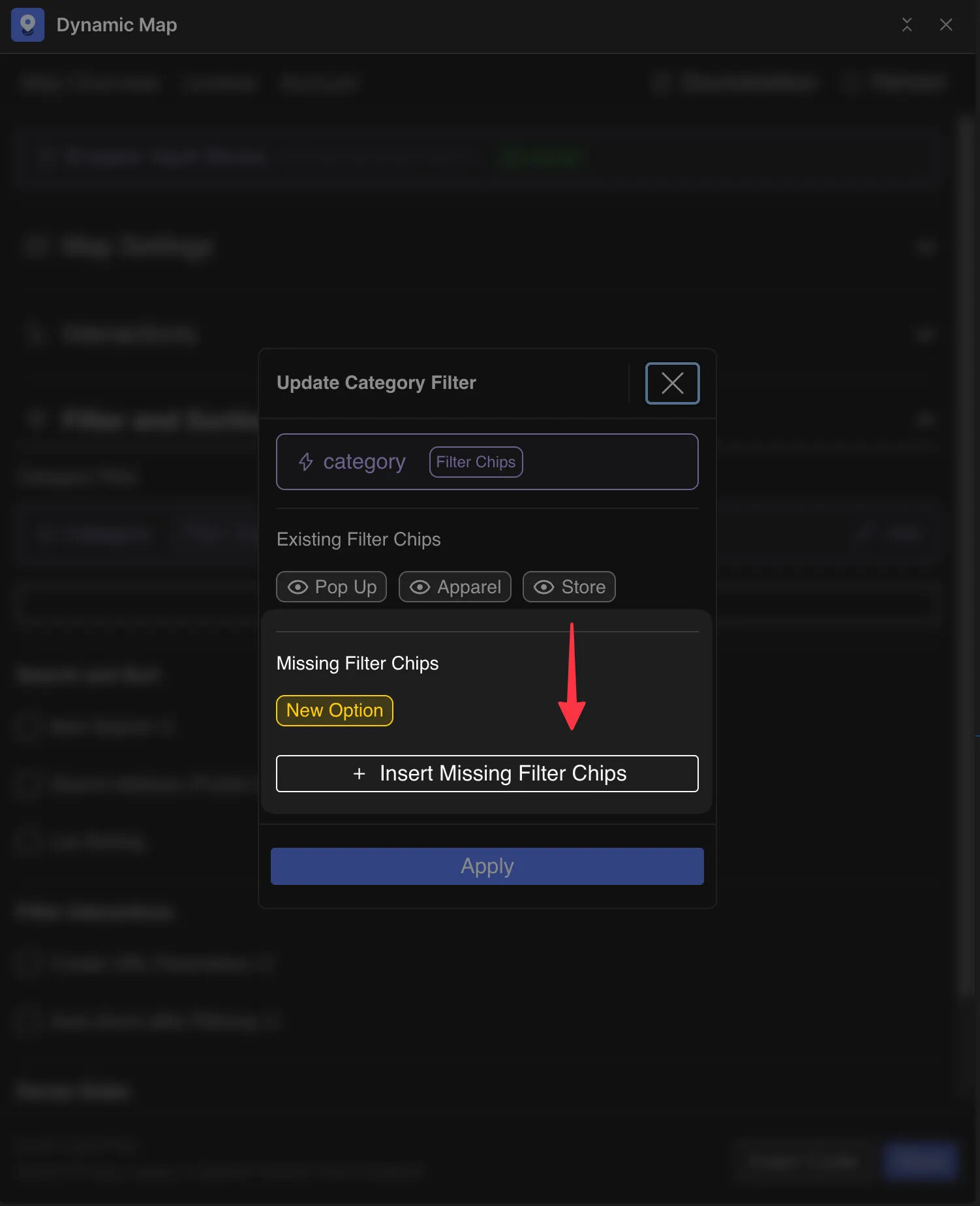
Reconfigure the Filter
In the Filter Modal, click Insert Missing Filter Chips, then Apply.
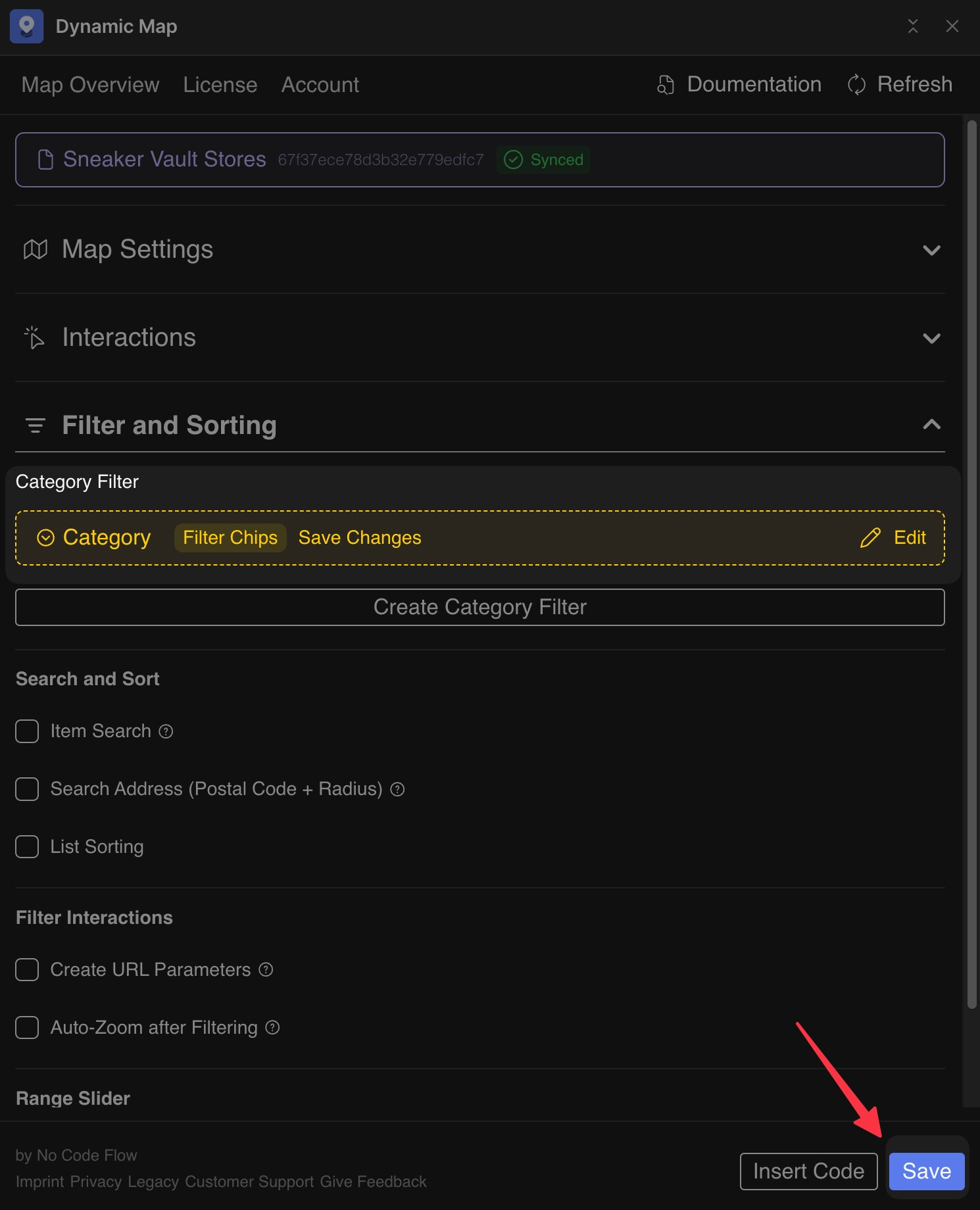
Save Changes
Click Save. The new filter chip will appear at the bottom of the cru-ncf-map-filter element in Webflow.
Troubleshooting
For a complete diagnosis guide, see Why is my Category Filter not Working?
Option 1: Filter Out of Sync
Edit the filter and click Insert Missing Filter Chips. Re-insert the code embed to ensure the snippet is current.
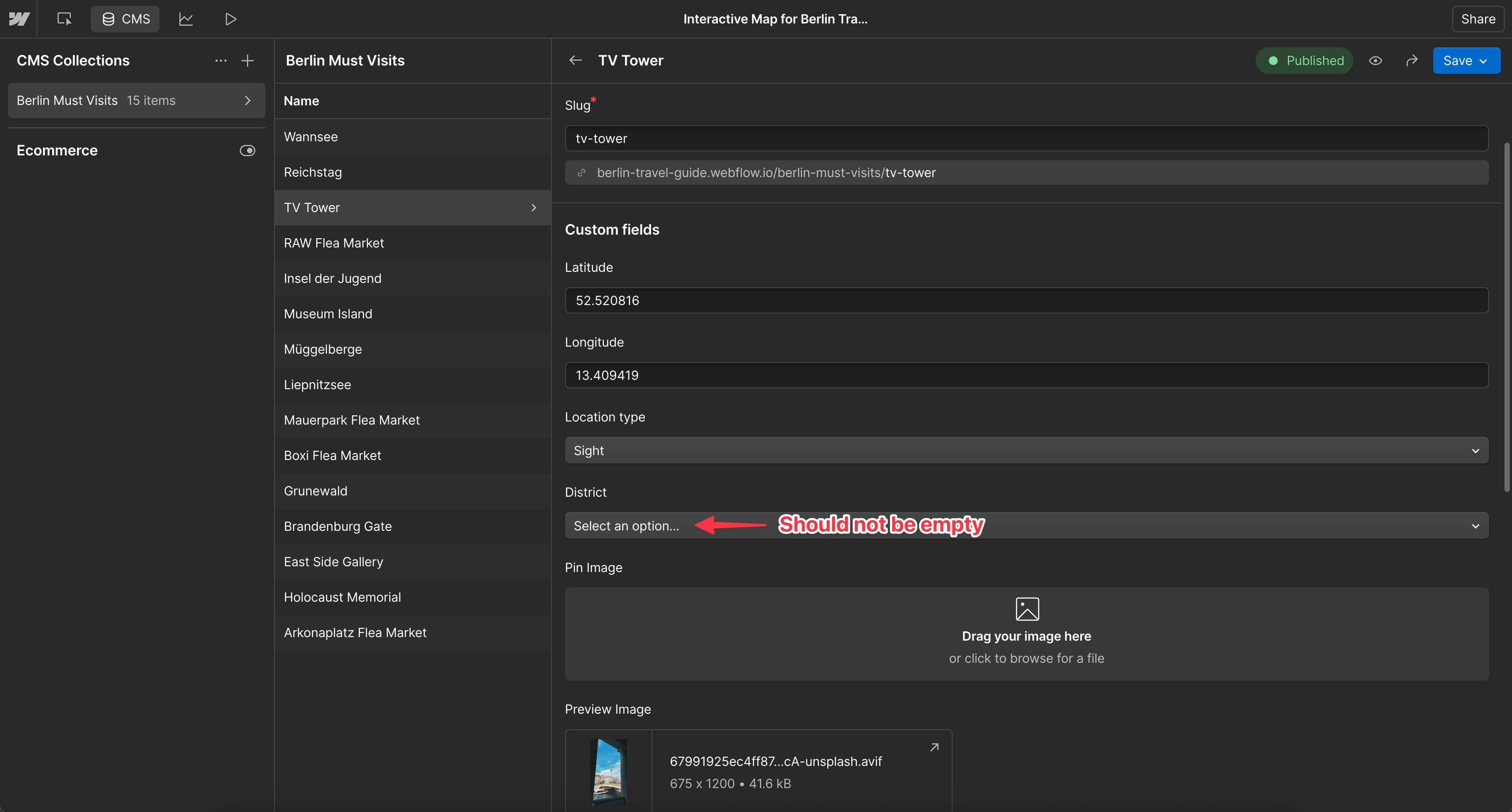
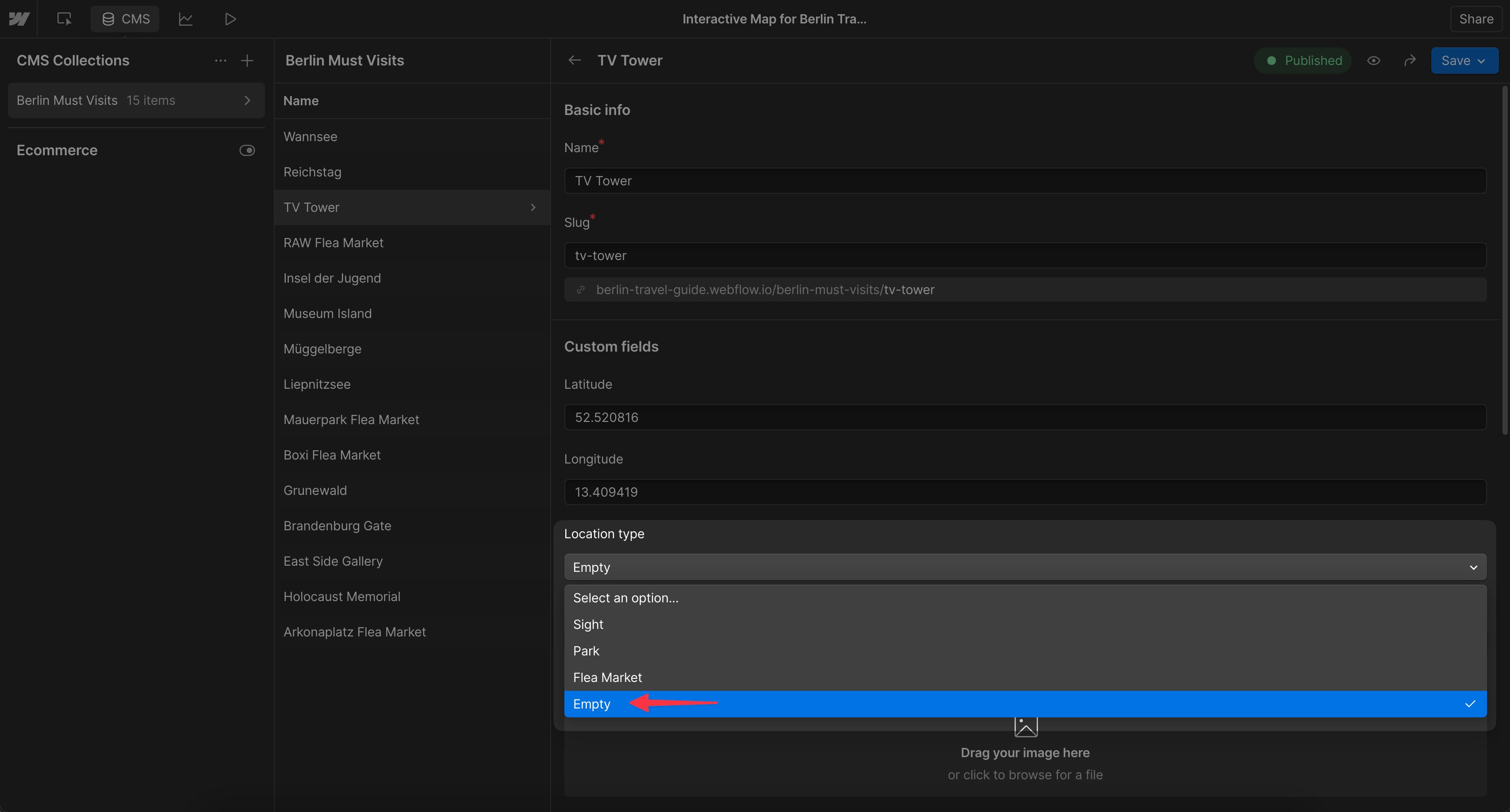
Option 2: Empty Option Fields
If any CMS items have an empty category option field, the entire filter breaks. Fix this by creating a placeholder option (e.g. “empty”) and applying it to all items without a real category, then hide it from the UI.