Last updated:
June 4, 2026
Transition Your License Key to a Different Account
License key transitions happen most often in agency workflows: a freelancer builds a site using their own No Code Flow account, then hands the project to a client who will manage it independently. Or a studio’s central account has accumulated license keys that need to be distributed across individual client accounts. Because Dynamic Map ties each project’s settings to the No Code Flow account that last saved it, the account holding the license must match the one making changes.
There are two ways to resolve this. Option A is for short-term re-linking without changing ownership. Option B is for permanent account transfers.
This issue occurs when the license key was set up under a different No Code Flow account than the one currently connected to your Webflow project.

For example:
- License Account: The email used to activate the Gumroad license key (e.g. yourclient@email.com)
- Active Account: The email currently logged into Dynamic Map in Webflow (e.g. you@email.com)
How to transition your License Key
Option A: Save with the License Account
Log into Dynamic Map using the License Account email and press Save on the map’s page. This re-links the map settings to the correct account.
Option B: Transfer the License Key to the Active Account
Remove the license key from the License Account and add it to the Active Account. Follow the steps in License Settings to edit the key.
How should I transfer a license key to a client?
If you’re permanently handing the license to a client, use Option B to fully transfer the key. Make sure to update payment and account information in Gumroad’s settings as well.
Understand the warnings shown by Dynamic Map App
You’re in the “wrong” account and didn’t press save yet
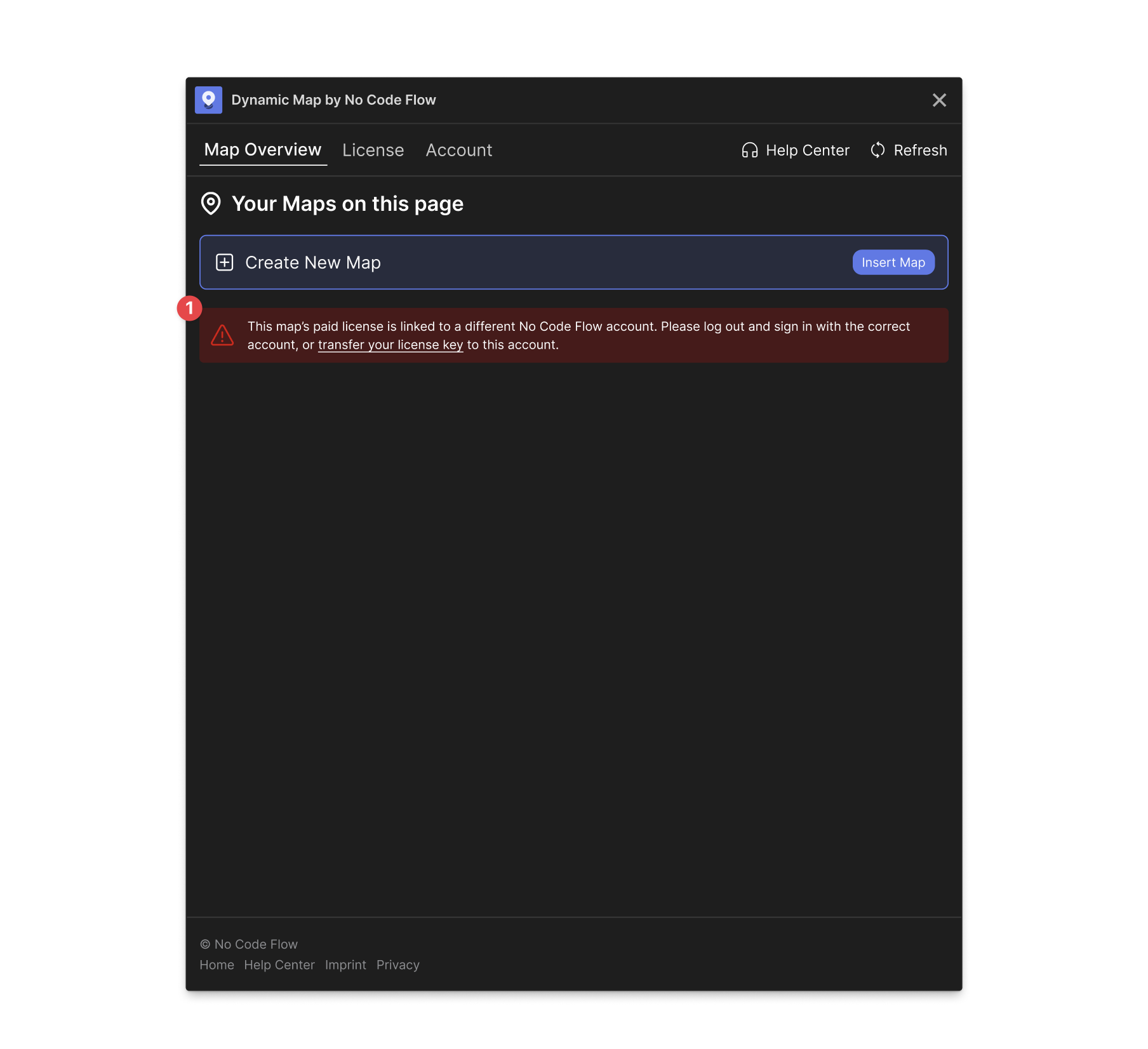
You’re in the “right” connected account and pressed save in the wrong account before
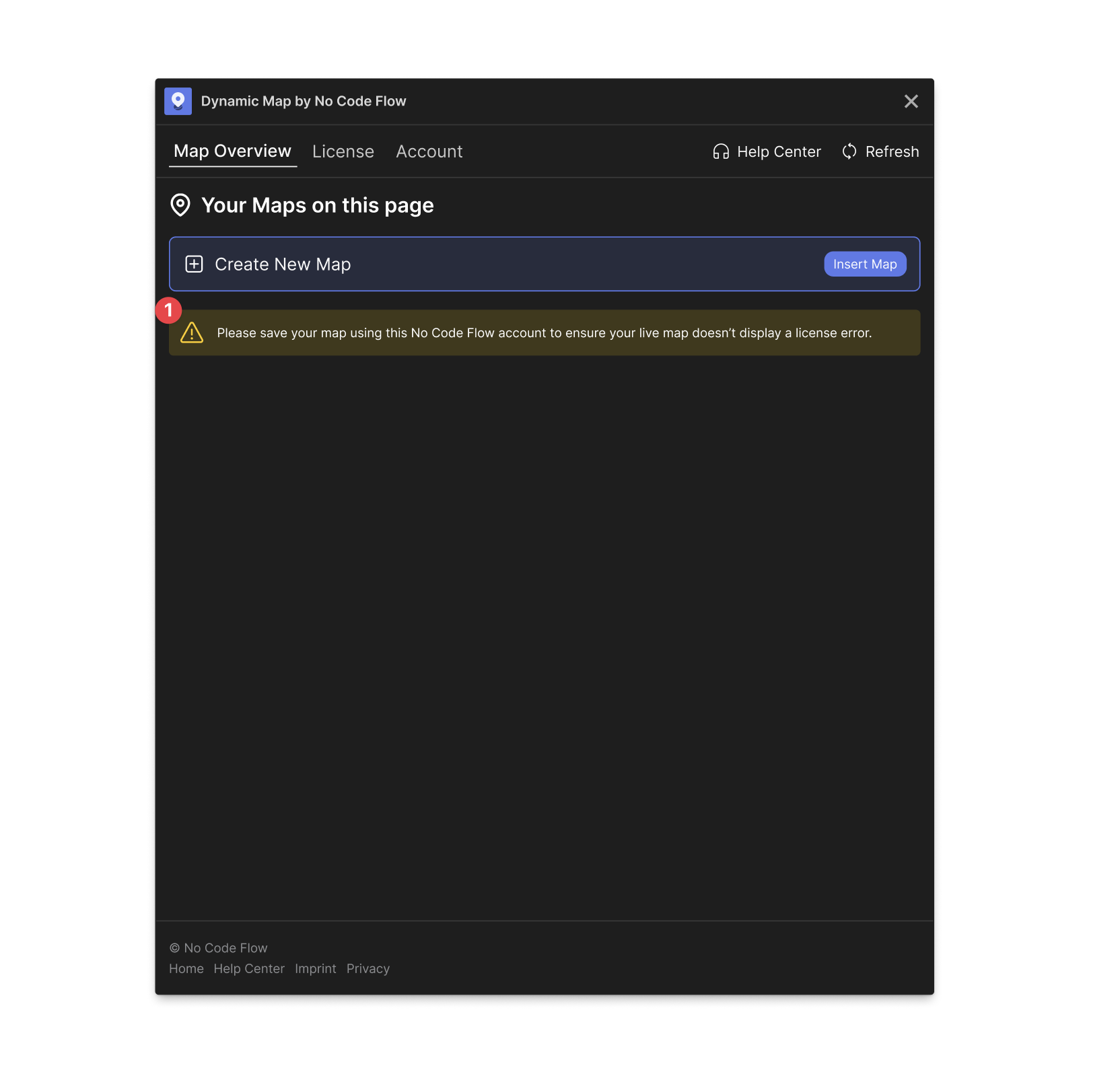
Practical Tips
- Option A for quick re-links, Option B for permanent transfers. If you just need to re-link a project you already control under a different login, use Option A. Log in with the license account email and press Save. If you’re permanently handing the license to a new owner, use Option B to fully transfer the key.
- Remove the key from the old account before adding it to the new one. The same license key cannot be active on two No Code Flow accounts simultaneously. During a transfer, remove all live domains and delete the key from the original account before adding it to the target account. Skipping this step causes a conflict.
- Transferring the key does not affect the map’s published output. The live, published Dynamic Map continues to work during a key transfer. Only the ability to make changes in Webflow Designer is temporarily affected. Users visiting the site won’t notice anything.