Last updated:
May 28, 2026
CMS Category Pins
CMS Category Pins give each CMS option field category a distinct pin style with full hover and active state support. Create an Option field in your CMS, set up a category filter in Dynamic Map App, duplicate the default pin, apply the combo class ncf-[field_name]-[field_value], and style it in Webflow. For assigning unique icons to individual items instead, see Custom Pins for Individual Items.
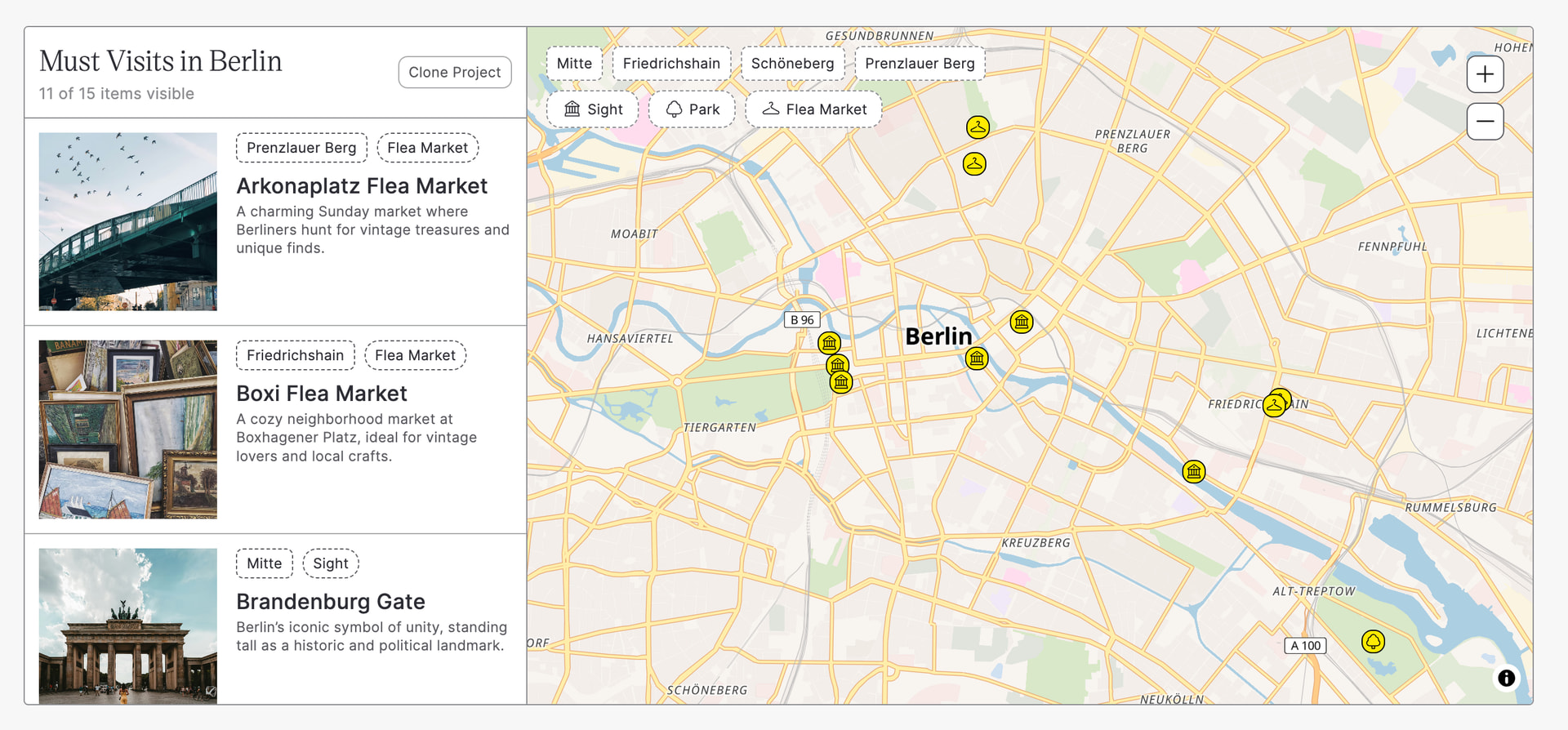
Create different pin types for each CMS category using category pins.
Category Pins vs Custom Pins: Which Should I Use?
- CMS Category Pins: Use when all items of the same category should share a pin style (e.g., all coffee shops get the same icon, all restaurants get another). Supports hover and active states. Best for most projects.
- Custom Pins for Individual Items: Use when each individual item needs its own unique icon uploaded to its CMS record. Does not support hover or active states. Best for cases where every location is genuinely unique (chain store logos, individual property markers).
- Most projects use Category Pins. If you’re unsure which to choose, start with CMS Category Pins.
Need a unique icon per item? See Custom Pins for Individual Items.
Video Tutorial to set up CMS Category Pins
Setup CMS Category Pins
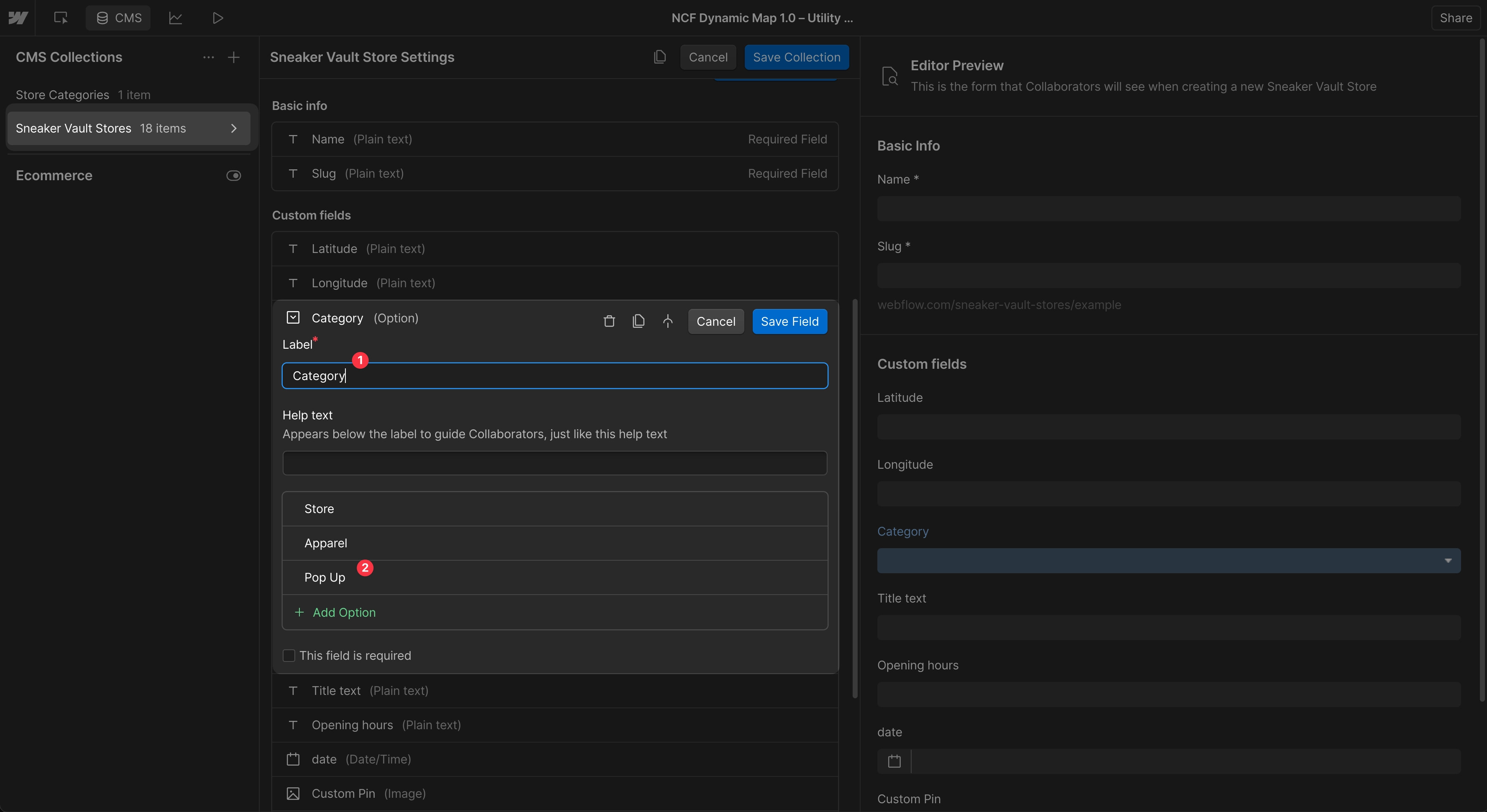
Create Option Field
Create a new option field or use an existing one. Make sure that your CMS items have an option field selected
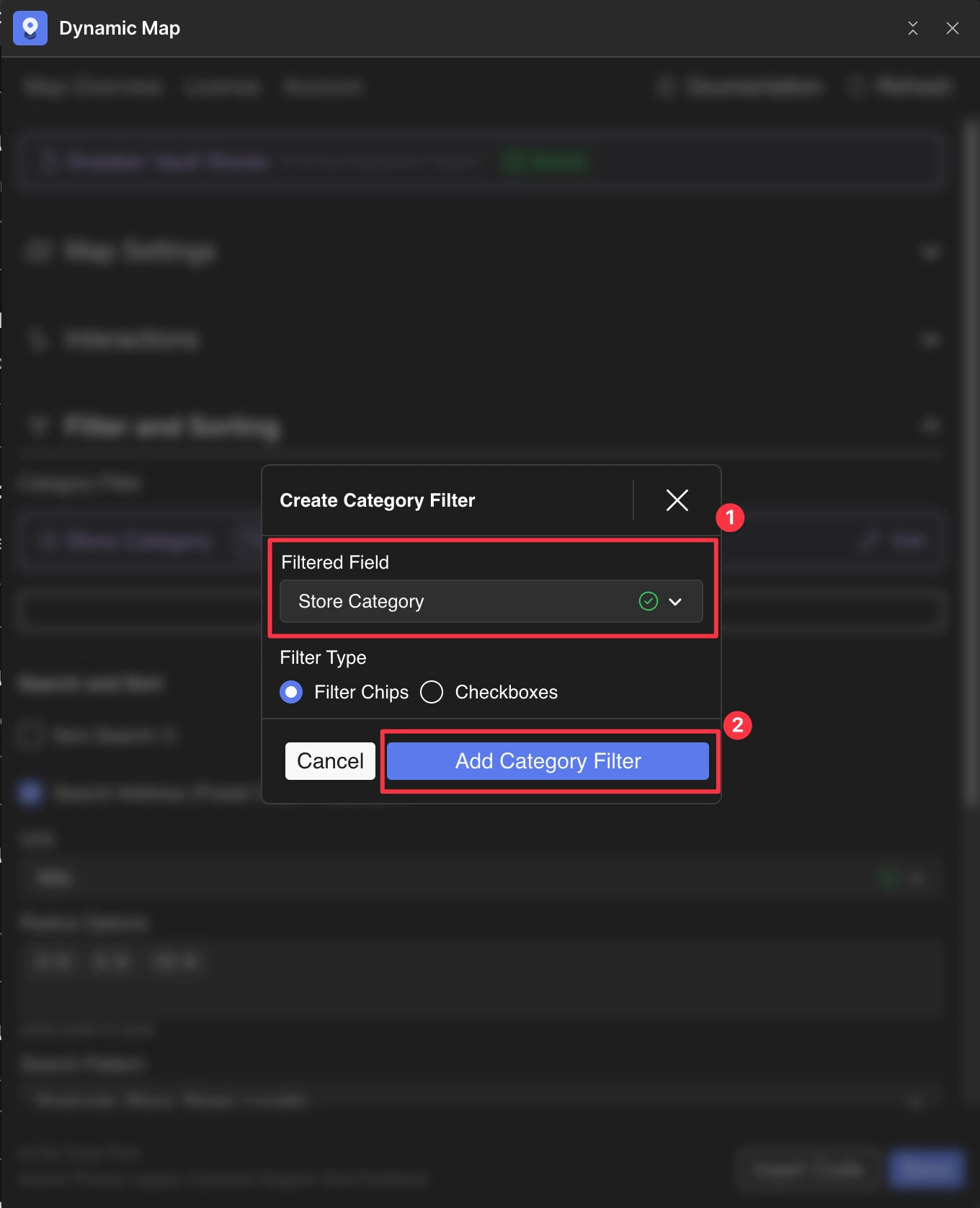
Create Category Filter in Dynamic Map
- Create a new Category Filter in Dynamic Map App based on your option field.
- Press Save.
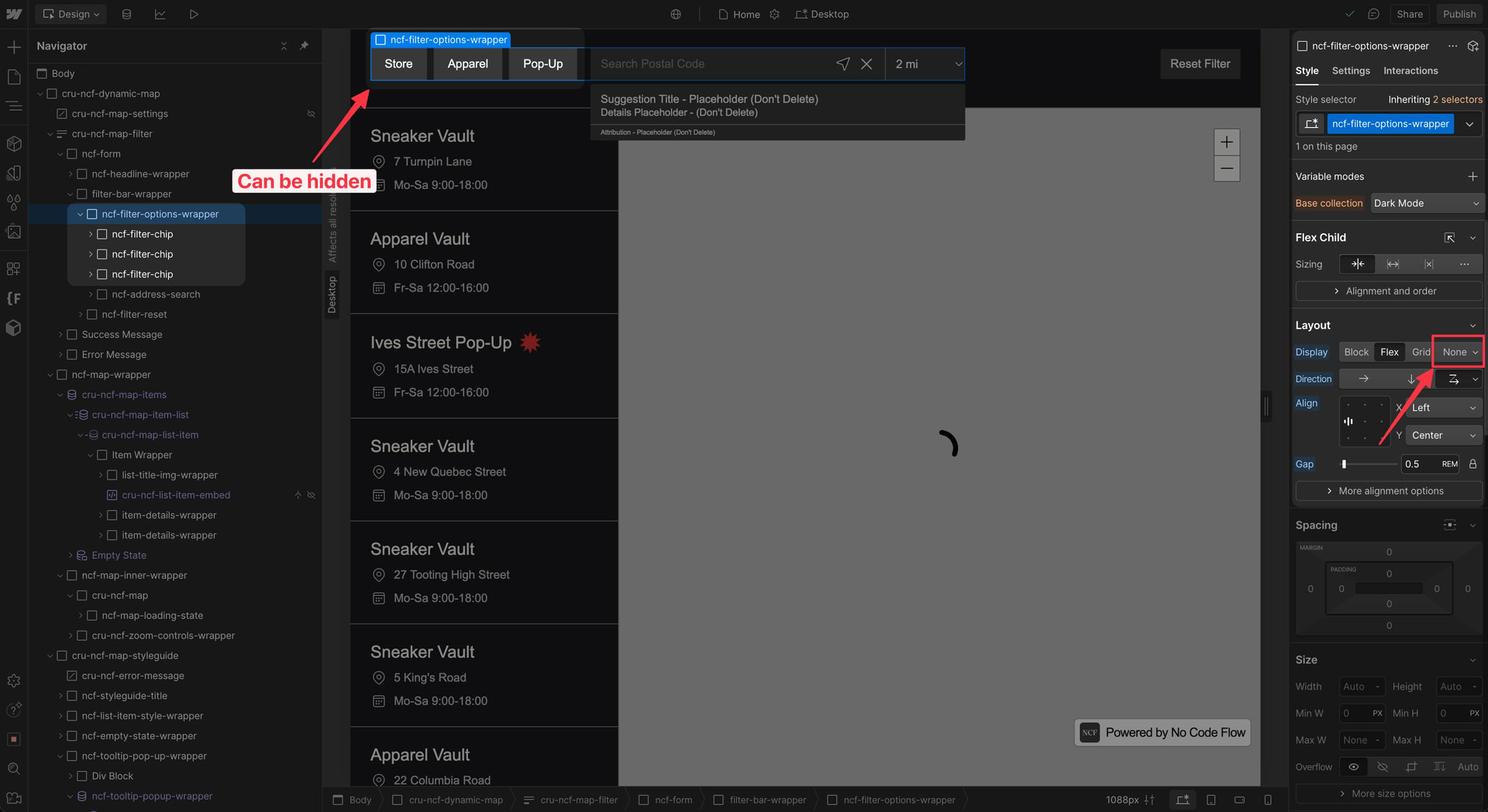
💡 Good to know: You can hide the filter element with Display: None if you don’t need visible filter UI.
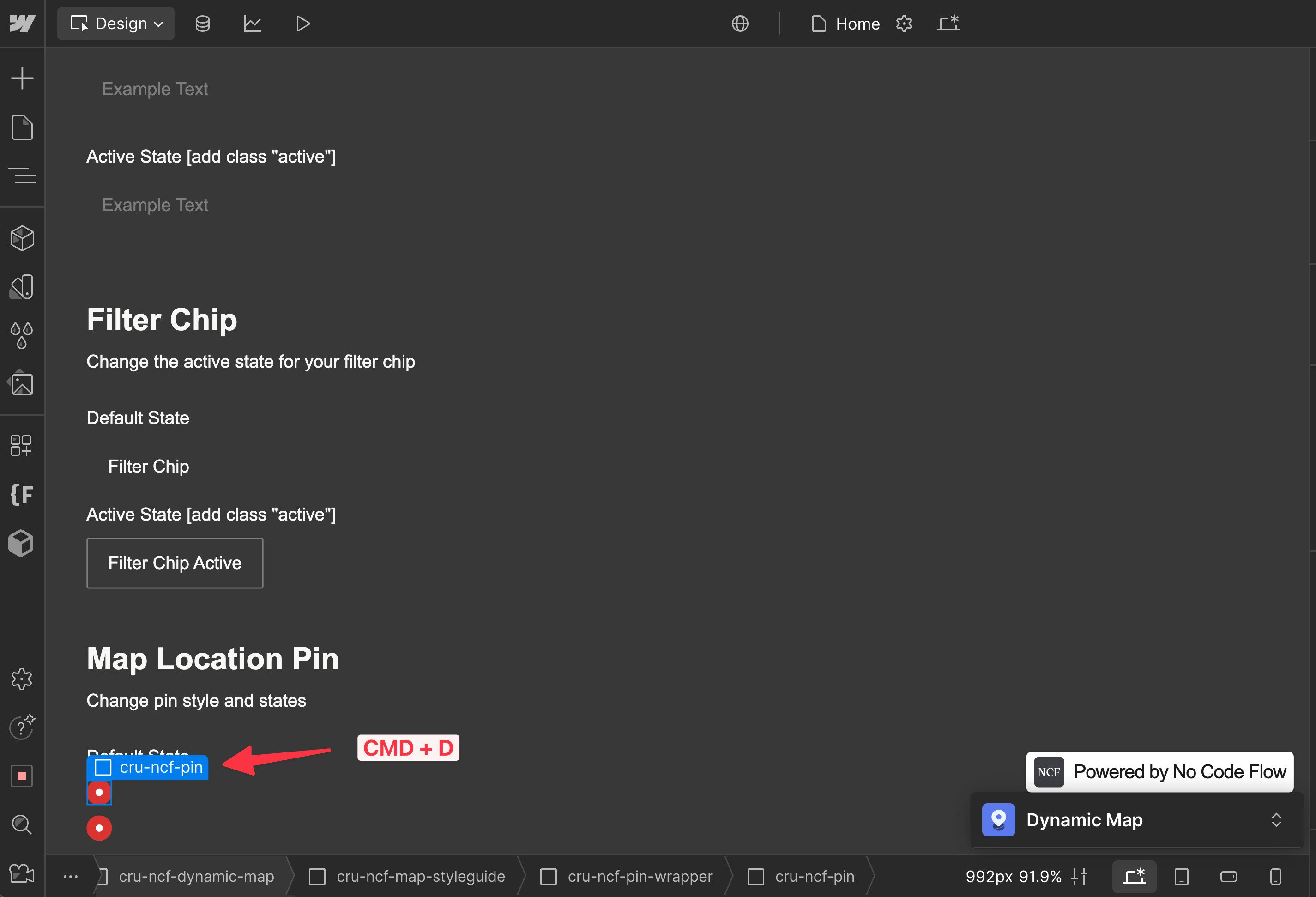
Duplicate the Default Pin
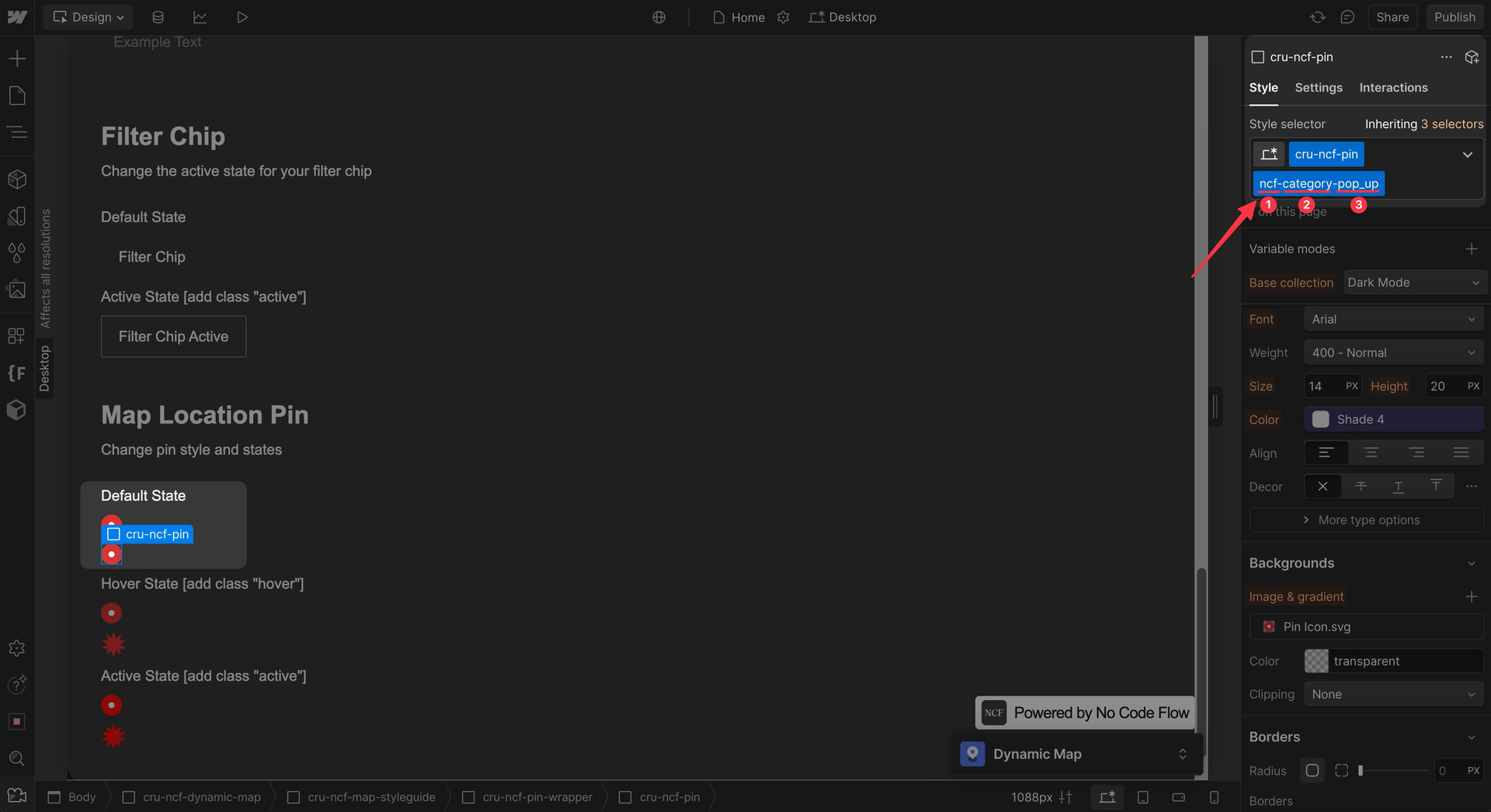
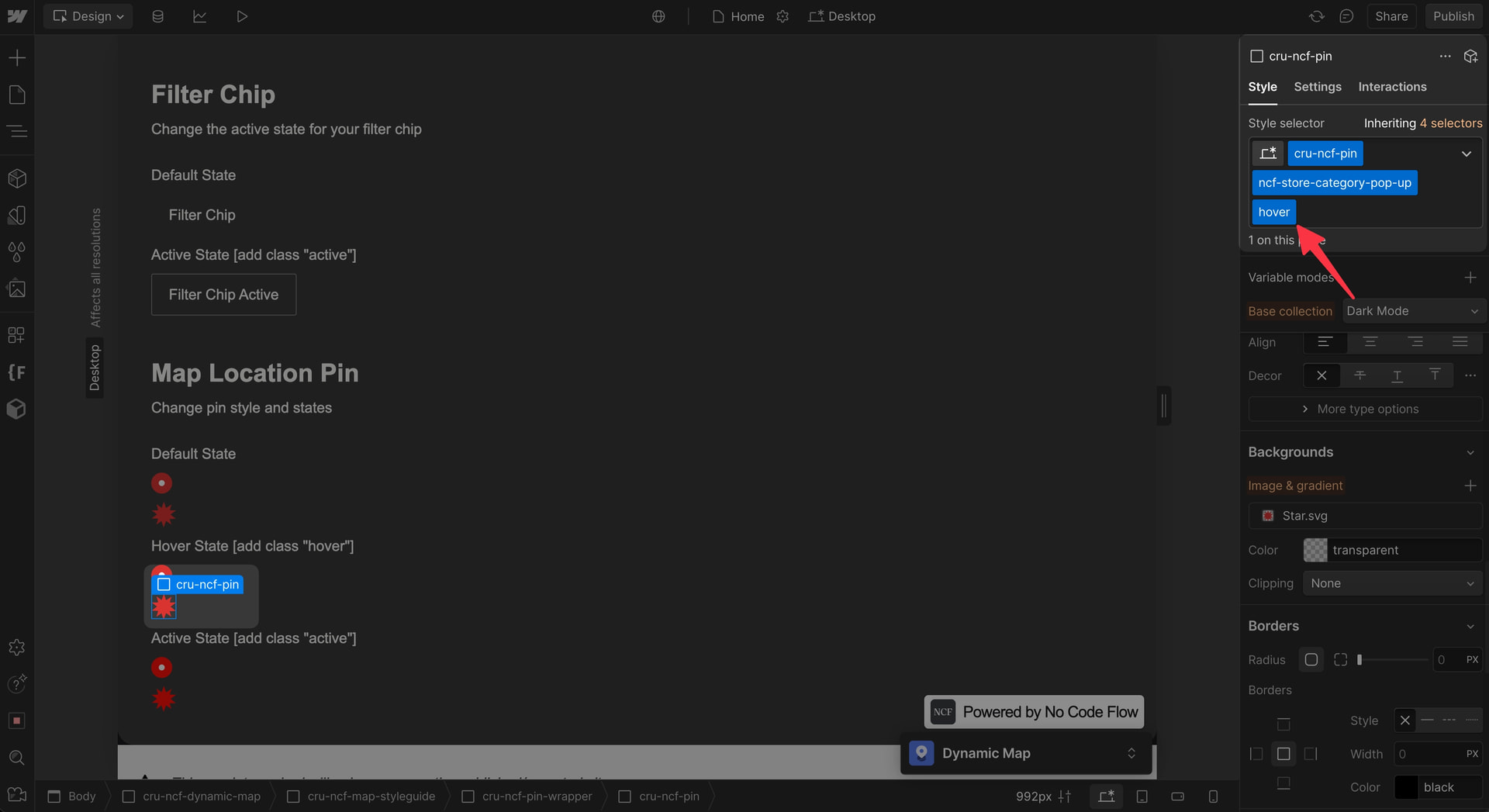
Add Category Pin Combo Class
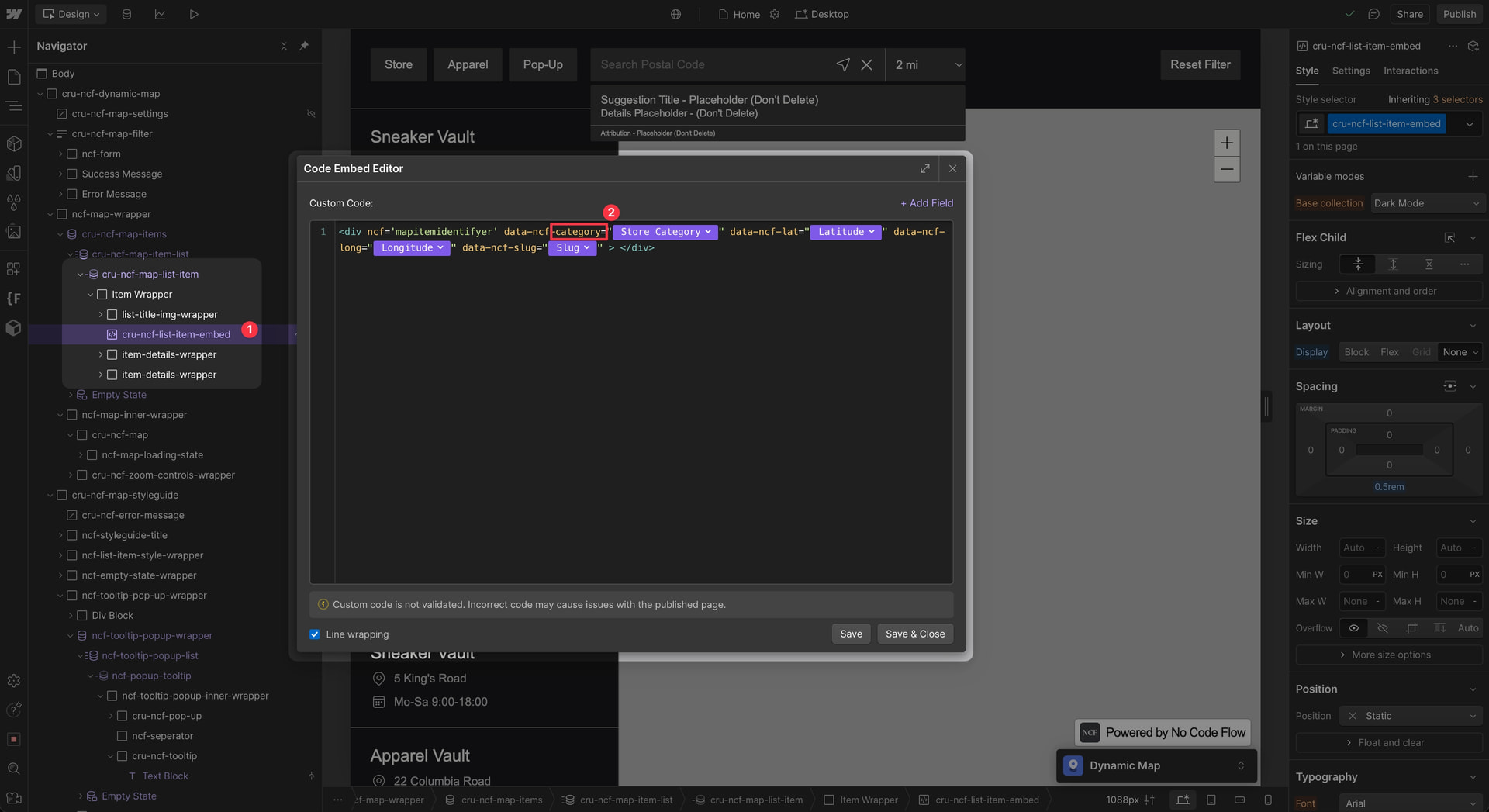
Name the class: ncf-[option_field_name]-[option_field_value]
Example: ncf-category-pop_up
How to find the exact field name in the list item code embed:
Style in Webflow
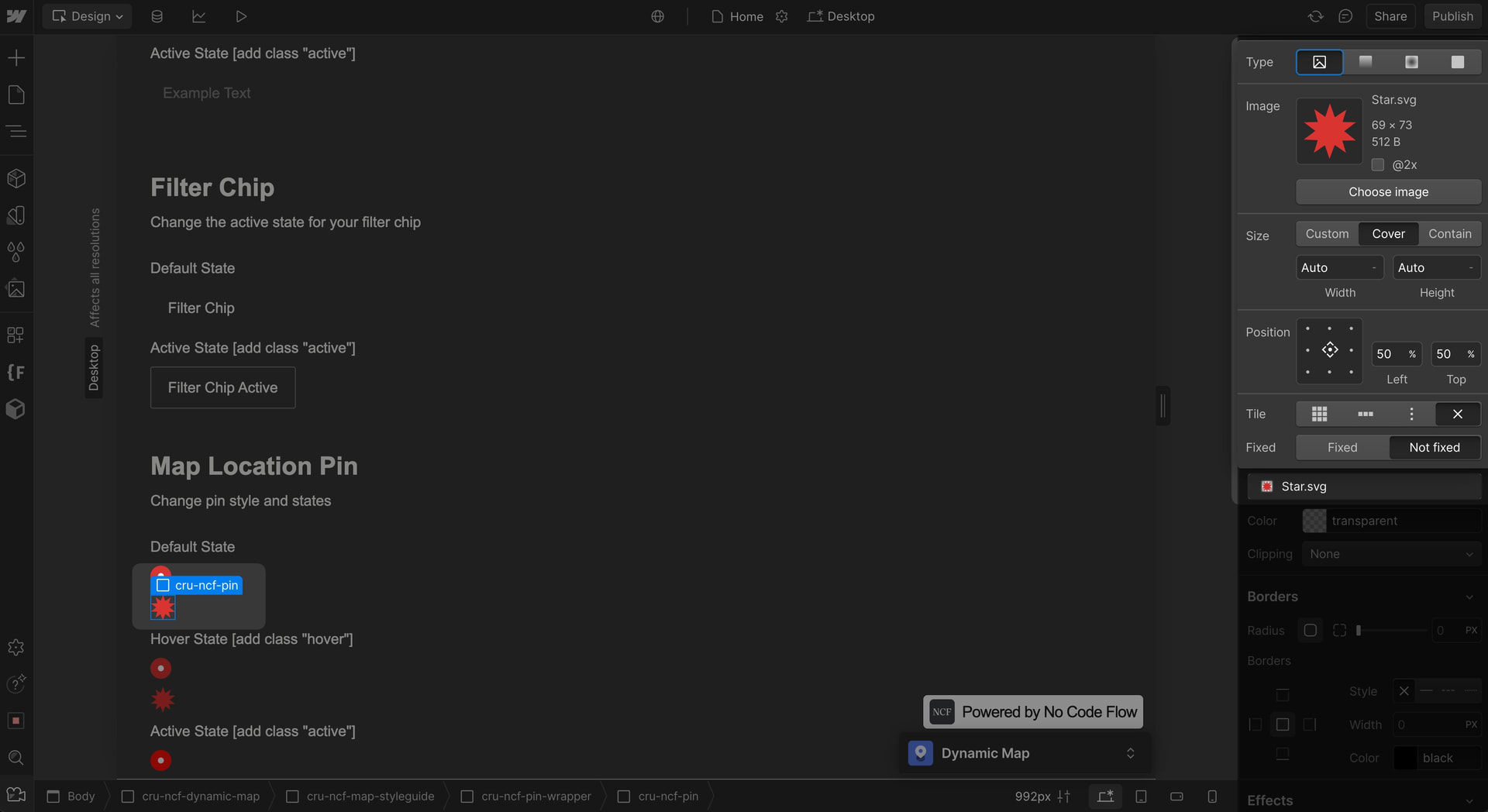
Add Hover and Active States
Troubleshooting
If category pins aren’t working after renaming, make sure your CSS combo class still uses the original naming from the Dynamic Map code embed.