How to create a Store Locator with an interactive Map in Webflow
.avif)
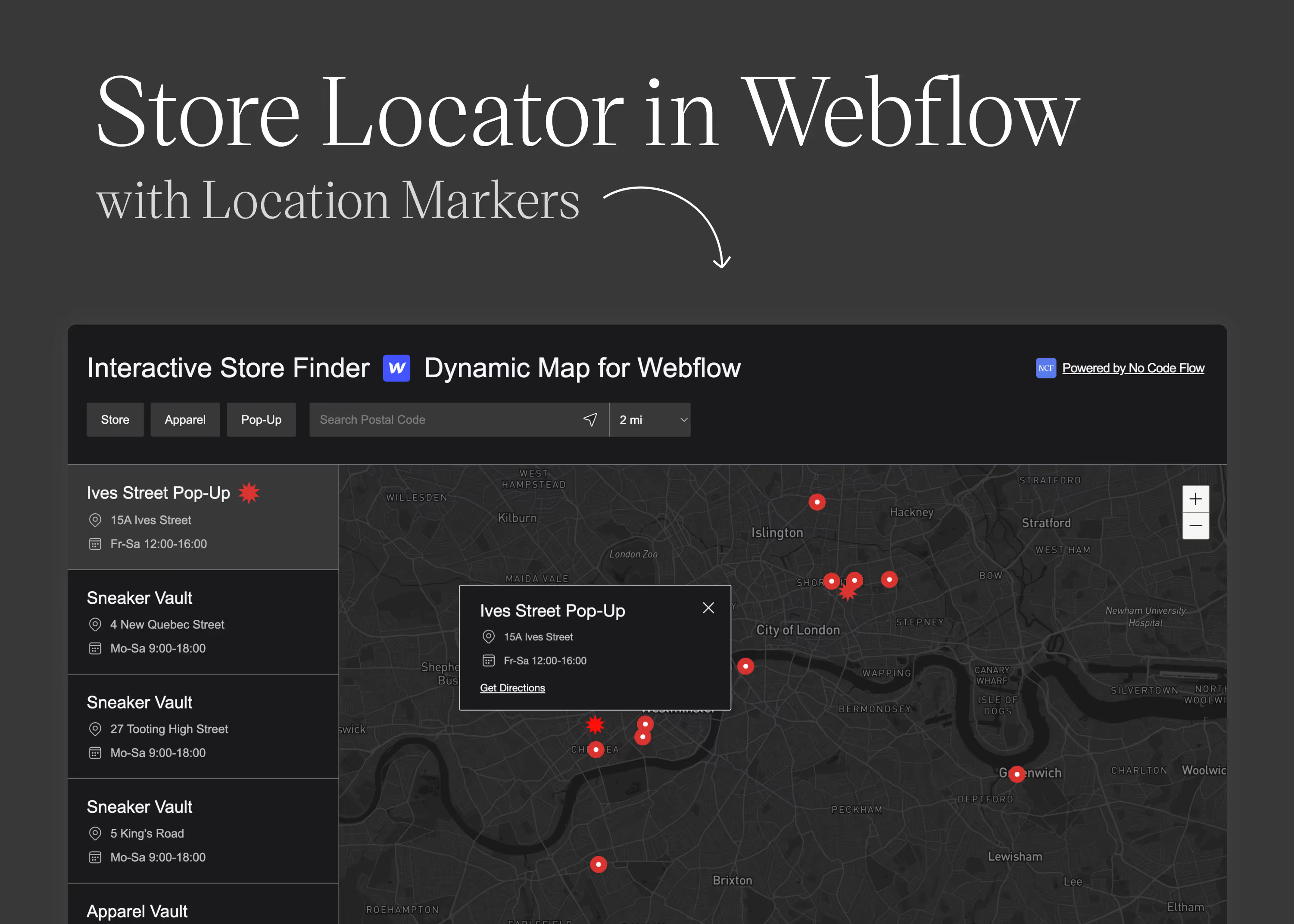
This guide explains how to create a Store Locator in Webflow using the Dynamic Map App. It covers setting up the CMS, building an interactive map, customizing the Store Locator, and choosing between Google Maps and Mapbox for different map styles. The article also highlights the benefits of using Dynamic Map, such as CMS-ready integration, custom design options, and interactive user features. Additionally, it provides a step-by-step guide and mentions useful resources and tutorials.
If you want to build a proper Store Locator in Webflow, your goal is probably to show your stores on an interactive map where each location is marked with a pin. You may also want to display a list of your stores alongside the map.
All of this and more is possible by using Dynamic Map App. With it, you can create a Store Locator in Webflow that includes opening hours, store images, and additional details. You can even add filters so visitors can easily refine which stores they see.
What You’ll Learn in This Article
- How to set up your CMS in Webflow to create your store items
- How to build an interactive map for your Store Locator using the Dynamic Map App
- How to customize your Store Locator to fit your needs
- How to set different Map Styles with Google Maps or Mapbox
Create your Store Locator in Webflow – Step by Step Guide
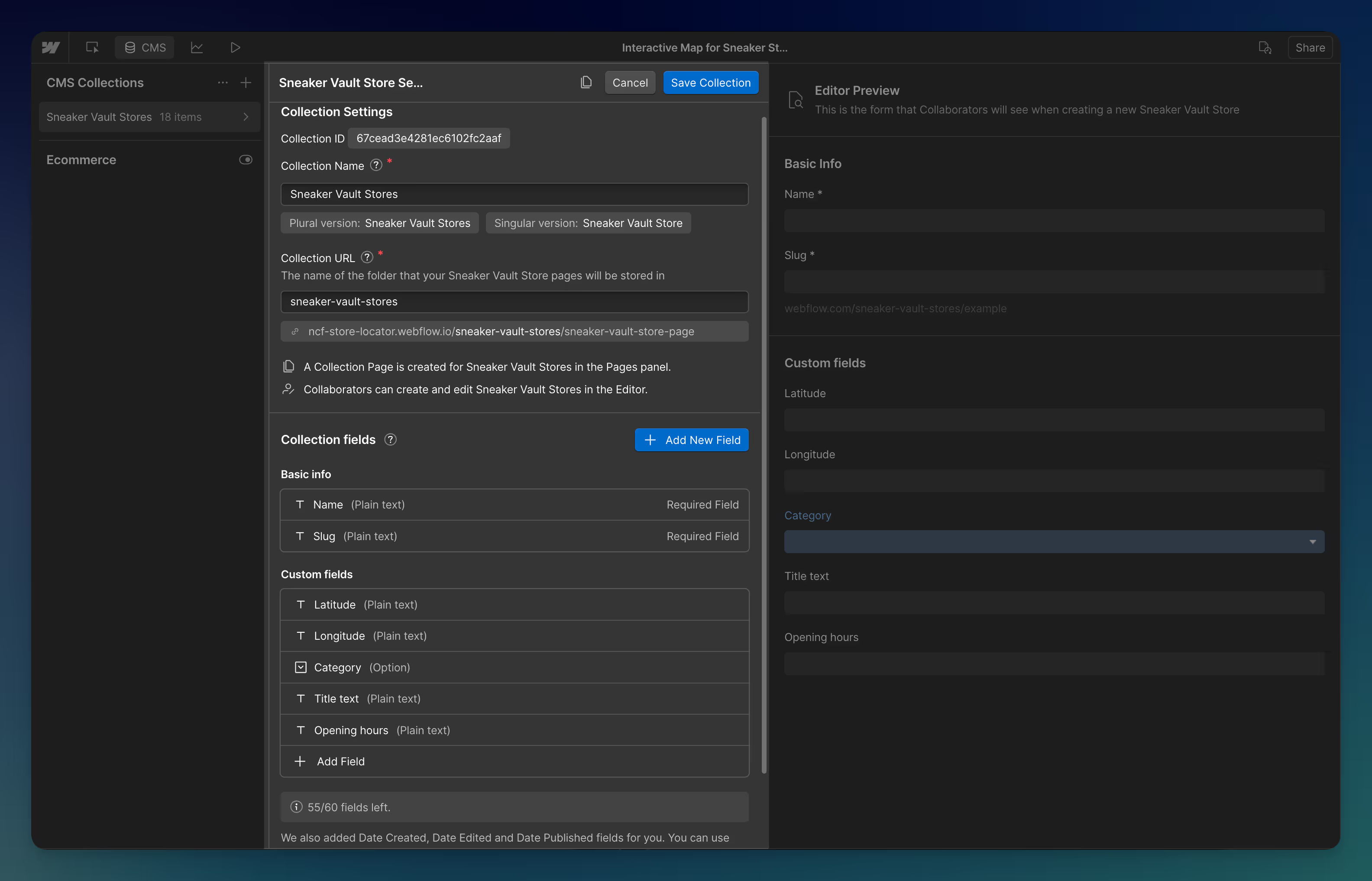
1. Set up your Store Locator CMS Collection List
- Add text fields for latitude and longitude so the map can display correct coordinates
- Include opening hours for each store
- Add a preview image for your store
- Include contact details such as phone number
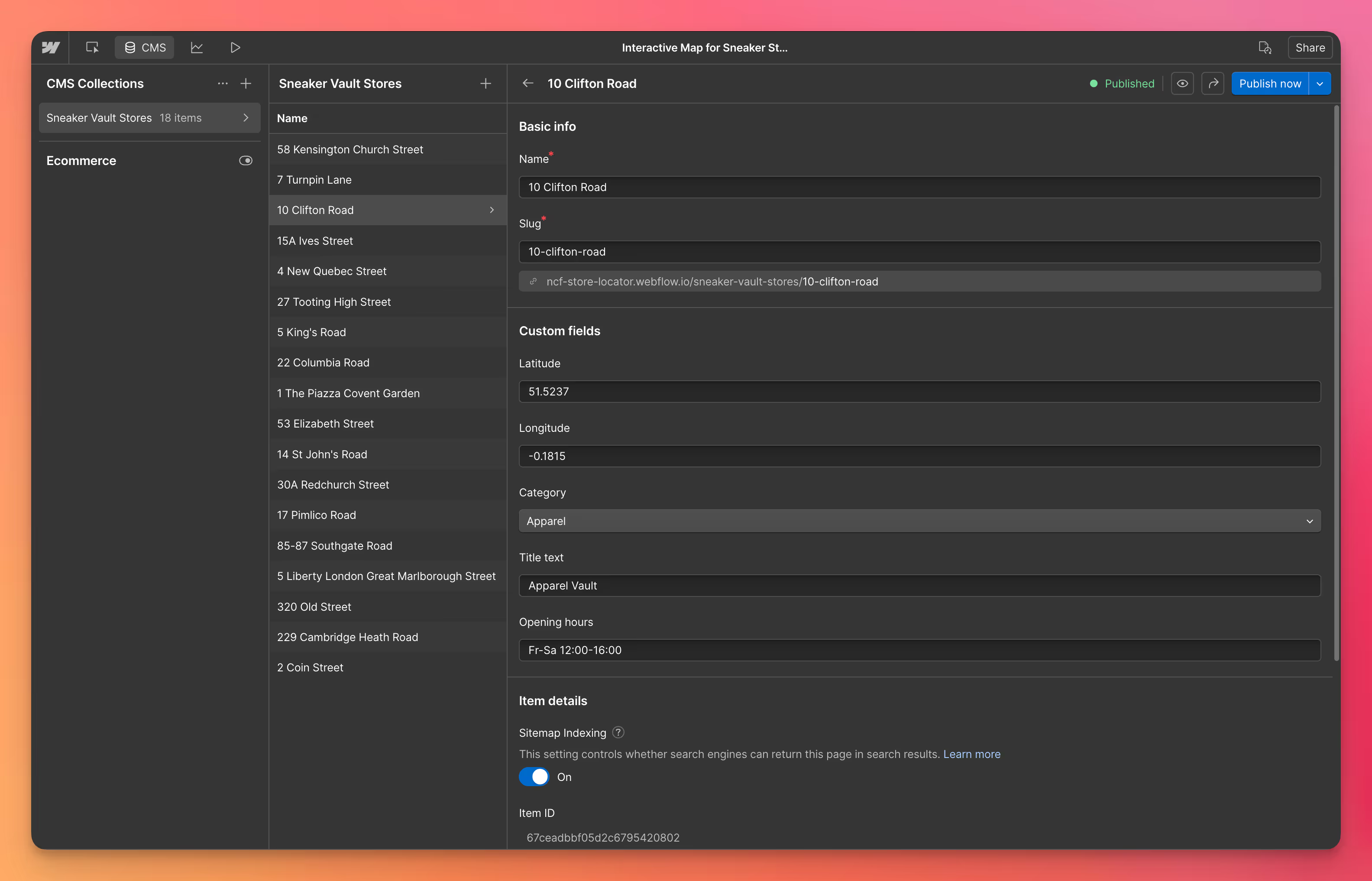
2. Insert Your Stores into the CMS
Create and publish your store items in the CMS to make sure they’re ready for use in the map.
3. Install the Dynamic Map App from Webflow’s App Marketplace
Browse Webflow’s Marketplace or open the App Panel directly in Webflow’s Designer to install the app.

4. Connect Your Store Locator CMS Items and Create your Map
Select the Collection List that contains your store location data, then press Create Map.
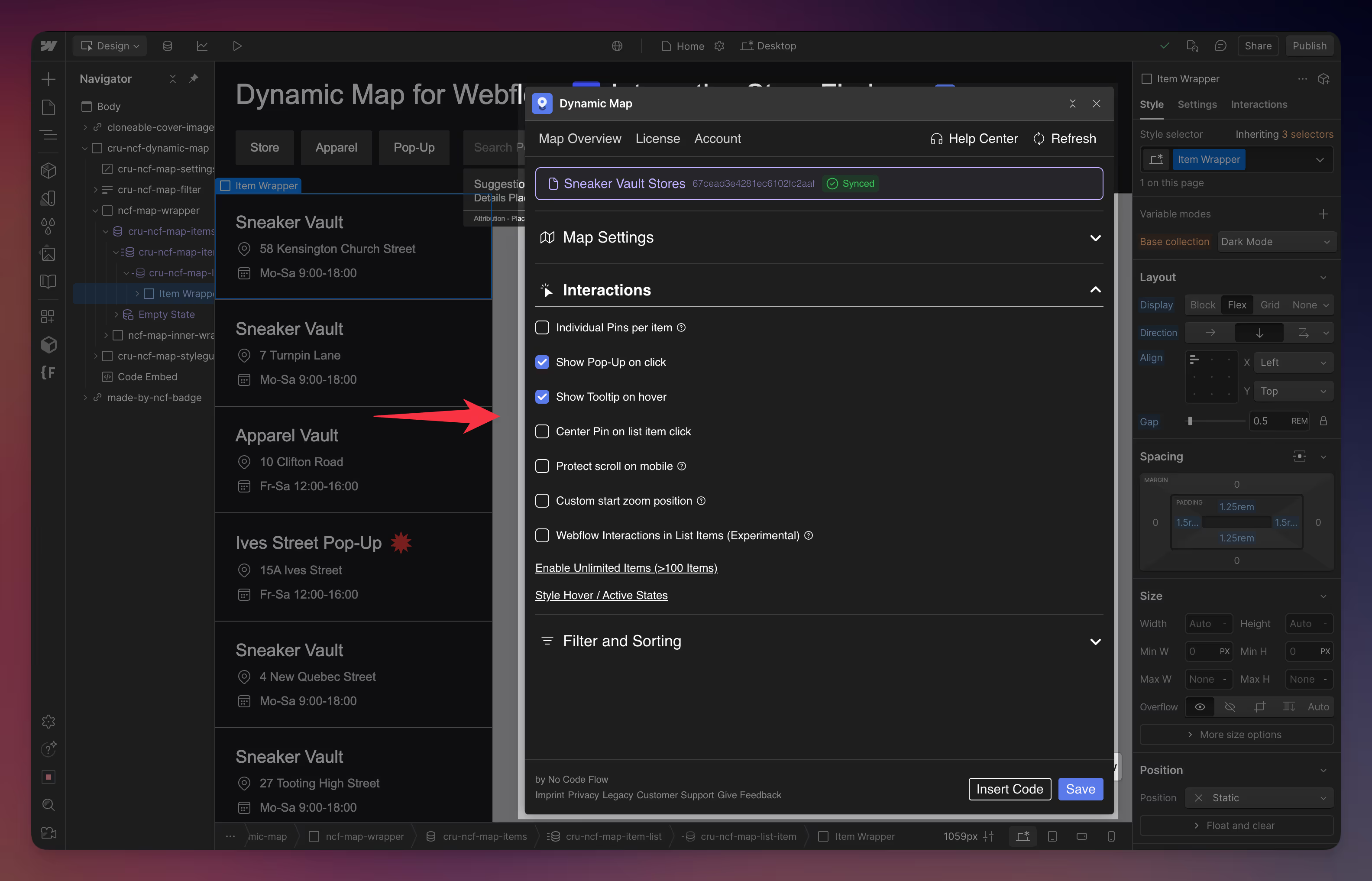
5. Configure Your Store Locator's Map and List Settings using Dynamic Map App
Customize your Store Locator in Webflow with options like custom marker styles, tooltips, media-rich pop-ups, live filters, and address search.
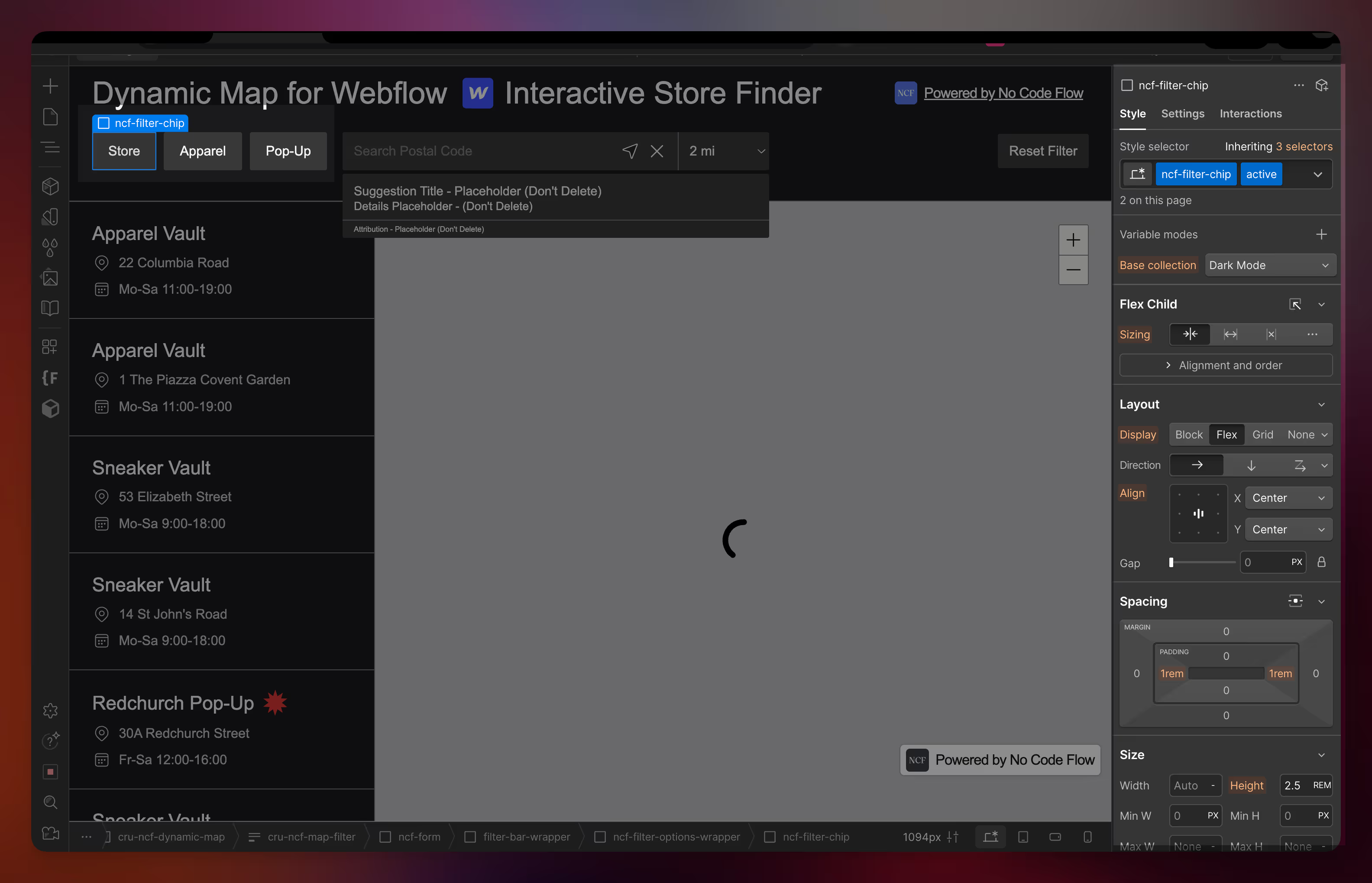
6. Style Your Store Locator in Webflow’s Designer
With Dynamic Map, every map element can be styled directly in Webflow’s Designer, so it fits seamlessly into your site’s design.

Add Mapbox to Webflow using Dynamic Map
Dynamic Map is a Webflow-native app that makes it simple to create fully interactive, CMS-driven maps with custom pins, pop-ups, filters, and more. Instead of being limited by Webflow’s default map element, Dynamic Map gives you a purpose-built solution for advanced maps integrations within Webflow.
Why Dynamic Map for Webflow might be the best solution for your Store Locator
CMS-Ready Integration
- Connect maps directly to Webflow CMS collections
- Display unlimited location pins from your dynamic content
- Automatic updates when CMS items are added or edited
- Keeps everything in real-time sync with your CMS
Custom Design Options
- Match the look and feel of your brand with tailored map styles
- Use your own icons and unique pin graphics
- Add detailed pop-ups with text, images, and links
- Pick from multiple map themes and palettes, supporting both Google Maps and Mapbox
Interactive User Features
- Allow visitors to search and filter locations effortlessly
- Handle unlimited map items without slowing performance
- Set your own zoom levels and map boundaries
- Built for fast, mobile-friendly navigation
Try Dynamic Map’s Store Locator Cloneable
A nationwide retailer showcases its stores on a map, helping customers quickly find the nearest branch, check opening hours, and access contact info for a smooth shopping experience.
Retail Store Locator Cloneable
A nationwide retail brand uses a map to help users find the nearest store, view opening hours, and access contact details for a smooth shopping journey.
Dynamic Map is a Webflow App that lets you build an interactive Store Locator inside Webflow—complete with store markers, pop-ups, filters, and advanced features—all without writing code.
Further Tutorials on creating interactive Maps with Webflow

Common questions on creating a Store Locator using Webflow
How do I build a store locator in Webflow?
Add your store locations as items in a Webflow CMS collection, then install the Dynamic Map App from Webflow's Marketplace. Connect the app to your CMS collection and your stores automatically appear as pins on an interactive map. Add address search and category filters so visitors can find their nearest location. No custom code required.
Can I build a Webflow store locator without coding?
Yes. The Dynamic Map App is a native Webflow App that handles all the map logic without any custom code or JavaScript. You set up the CMS collection, connect it to the app, and style everything in Webflow's Designer. The store locator works with Google Maps, Mapbox, or OpenStreetMap as the map provider.
What data do I need in my Webflow CMS to build a store locator?
At minimum, each store location needs a name field and either an address field or latitude and longitude coordinate fields. For a richer store locator, also add fields for opening hours, phone number, website URL, store category or type for filtering, and a store image.
Can visitors search for their nearest store by location?
Yes. Dynamic Map includes built-in address search with radius filtering. Visitors type a city, postcode, or full address and the store locator highlights the nearest stores within a specified radius. The list and map both update in real time.
How do I add category filters to my Webflow store locator?
Add a category or type field to your Webflow CMS collection. In the Dynamic Map App settings, enable filtering for that field. Visitors can then filter the map pins and store list by category in real time, without any custom code.
Is there a free store locator template for Webflow?
Yes. No Code Flow provides a free cloneable Webflow store locator template built with the Dynamic Map App. Clone it from Webflow's Made-in-Webflow showcase, connect it to your own CMS collection, and your store locator is ready to launch. The template includes a list and map view, category filters, and address search.
How long does it take to build a store locator in Webflow?
Using the Dynamic Map App and the free store locator template, you can have a working store locator live within an hour. Setting up the CMS collection, importing store data, connecting the app, and basic styling typically takes 30 to 60 minutes.